


📦 Products & Items in ORO POS
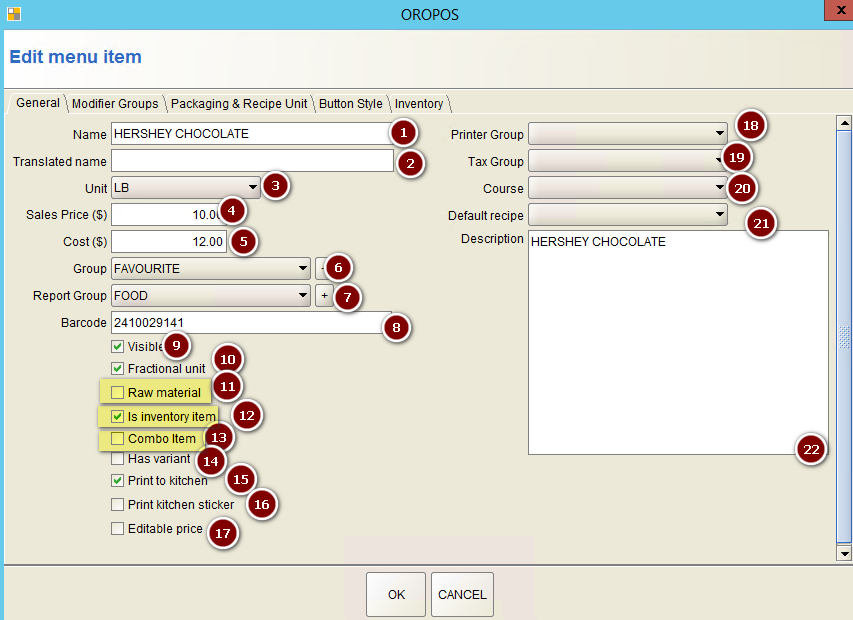
In ORO POS, “Product” and “Item” mean the same thing — anything you sell or stock. But not all items are the same. They’re classified in three different ways depending on how they behave.
You can think of any item in 3 ways:
- 📁 How it’s stored — Misc, Open, or Inventory
- 📊 How it’s accounted — Raw Material, Finished Good, or Both
- 🛍️ Special Retail types — Variants, Combos, Pizza
📁 3 Storage Types (Based on How They’re Stored)
| Type | Where Created | Stock Tracked? |
|---|---|---|
| 🟡 Misc Item | On the fly, while taking an order | ❌ No |
| 🔵 Open Item | Stored in Menu | ❌ No |
| 🟢 Inventory Item | Stored in Menu | ✅ Yes |
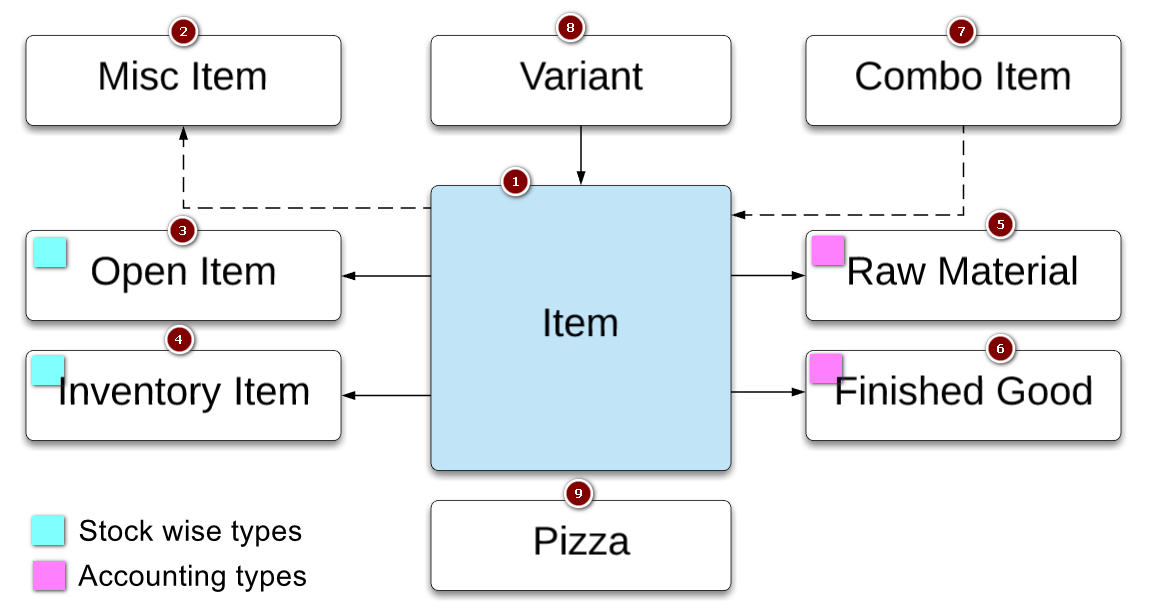
Fig: Product types in ORO POS
1️⃣ Misc Item (Created On-the-Fly)
A one-off item the cashier types in during checkout. It is not saved in your menu.
📌 Real Examples:
- 🎁 Customer wants a custom gift basket — cashier types “Custom Basket – $35”
- 🔧 Charging for a one-time repair fee — “Service Fee – $25”
- 🍕 Special off-menu item a regular customer asks for
- 💵 Adjustment line — “Manual price adjustment”
Use Misc when you need flexibility for items you’ll only sell once or rarely. Don’t use it for menu items.
2️⃣ Open Item (Standard Menu Item)
Regular menu item that’s prepared and sold — but the system doesn’t track stock for it.
📌 Real Examples:
- 🍔 Cheeseburger — assembled from ingredients on demand
- 🍕 Margherita Pizza — made-to-order
- 🌮 Tacos — kitchen prepares as ordered
- ☕ Latte — barista makes it fresh
- 🥗 Caesar Salad — assembled on demand
Most restaurant/food service items are Open Items because the kitchen prepares them when needed — not pulled from stock.
3️⃣ Inventory Item (Stock-Tracked)
An item that maintains its own stock count. The POS reduces stock when you sell it.
📌 Real Examples:
- 🥤 Coke (12 oz can) — purchased in cases, stored, sold one-by-one
- 🍗 Pre-fried Chicken Wings — fried in batches, sold from the warmer
- 🍫 Candy Bars — bought wholesale, displayed at counter
- 🍷 Bottle of Wine — limited stock per label
- 👕 T-shirt (size M) — retail product with quantity on hand
When stock hits zero, you can configure ORO POS to hide the item from the order screen, or show a “Sold Out” message.
📊 Accounting Types (How They’re Counted)
Beyond storage type, items are also classified by their role in your accounting:
| Accounting Type | Description | Example |
|---|---|---|
| 🌾 Raw Material | Ingredient used to make finished food. Not sold directly. | Flour, ground beef, lettuce, cheese slice |
| 🍔 Finished Good | Shown on menu, sold to customers. | Burger, pizza, salad, taco |
| 🔄 Both | Can be sold directly OR used as ingredient. | Bottle of Coke (sold solo + used in combo) |
If you use the Recipe / Bill of Materials feature, raw materials get deducted from inventory automatically when finished goods are sold. Example: Selling 1 burger reduces 1 bun, 1 patty, 1 cheese slice.
🛍️ Retail Special Types
👕 Variants
📌 Real Example: T-Shirt
| Size | Color | Price | Stock |
|---|---|---|---|
| Small | Black | $19.99 | 15 |
| Medium | Black | $19.99 | 22 |
| Large | White | $21.99 | 8 |
| XL | Red | $22.99 | 5 |
One product (“T-Shirt”) with 4 variants — each tracked separately.
🍔 Combo Items
📌 Real Example: “#1 Combo Meal — $9.99”
- 🍔 Cheeseburger
- 🍟 Fries (medium)
- 🥤 Drink (any size)
Sold individually = $4.99 + $3.99 + $2.49 = $11.47. As combo = $9.99 (saves $1.48).
Once an item is marked as a Combo, it cannot be reverted to a regular item. Plan carefully!
🍕 Pizza Items
📌 Real Example: Build Your Own Pizza
- 📏 Size: Small / Medium / Large / XL
- 🍞 Crust: Thin / Hand-tossed / Stuffed
- 🧀 Half 1: Pepperoni + Mushroom
- 🌶️ Half 2: Sausage + Pepper + Olive
Pizza pricing combines the size + crust + sectional toppings — handled automatically by ORO POS.
💵 Editable Price
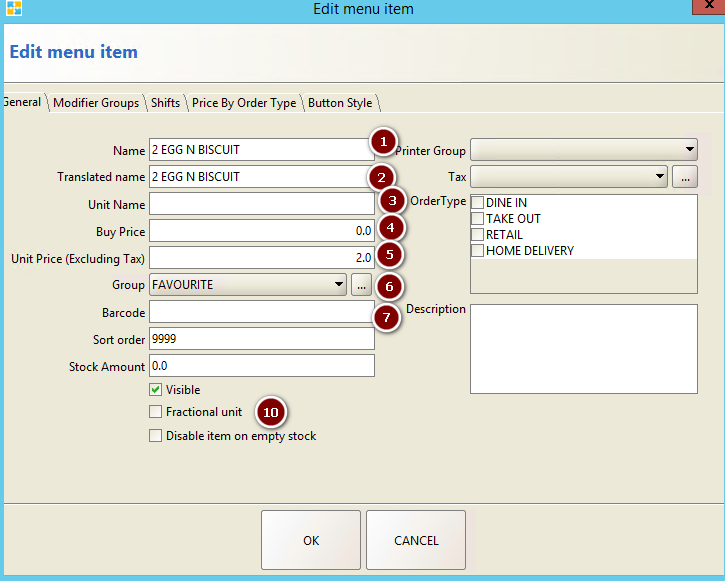
Any item can be marked as “Editable Price” — letting the cashier override the listed price during checkout.
📌 When You’d Use This:
- 🎁 Gift baskets at custom prices
- 🛒 Bulk discount on a special deal
- 🎟️ Event tickets with variable pricing
- 💸 Manager-approved markdowns
Restrict who can edit prices using User Permissions. Don’t give regular cashiers price-edit rights — reserve it for managers/owners.
🆚 Differences in Floreant POS
Floreant POS uses a simpler database schema. Here’s how it differs:
| Feature | ORO POS | Floreant POS |
|---|---|---|
| Raw Materials | ✅ Built into item table | ⚙️ Separate table (only if Inventory plugin installed) |
| Combo Items | ✅ Supported | ❌ Not available |
| Variants | ✅ Size/Color/Flavor handled | ❌ Not handled |
🎯 Quick Decision Helper
| If your item is… | Use this type |
|---|---|
| A one-off charge or custom item | 🟡 Misc Item |
| Cooked/prepared on demand (most food) | 🔵 Open Item |
| Has a stock count (drinks, retail goods) | 🟢 Inventory Item |
| Used as ingredient in recipes | 🌾 Raw Material |
| T-shirts (different sizes/colors) | 👕 Variant |
| Burger + Fries + Drink at one price | 🍔 Combo |
| Build-your-own pizza | 🍕 Pizza Item |
📚 Related Guides
→ Menu Page Designer
→ Recipe / Bill of Materials
→ Combo Items
→ Variants in ORO POS
📞 Need More Help?
Visit our knowledge base at guide.orocube.com or contact support at helpdesk@orocube.net