

⚙️ Cust Plugin: Back-Office Configuration
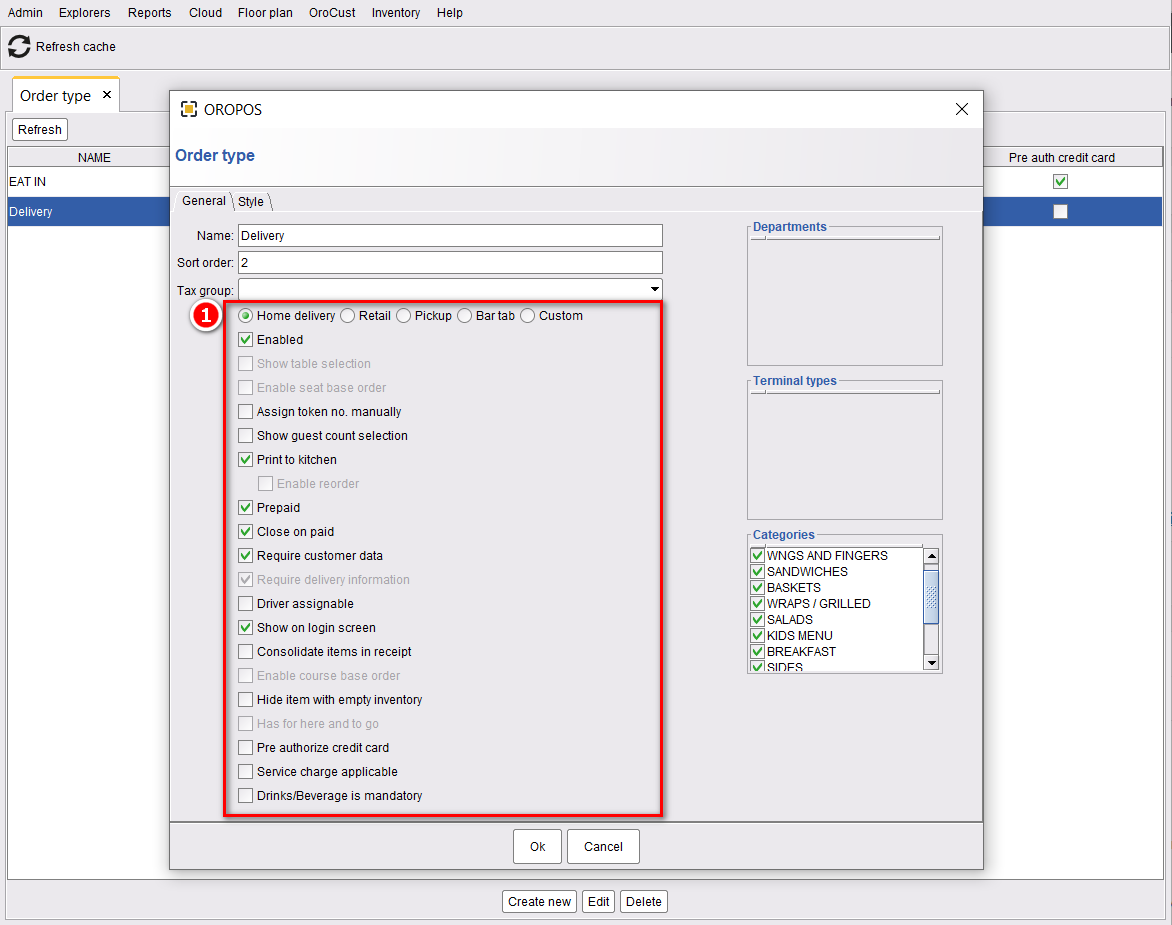
Before taking delivery or pickup orders, you need to configure an Order Type with the right delivery settings. This is a one-time setup.
📍 Path
Back-Office → Admin → Order Type → Edit / New
🔑 Two Critical Settings
| Setting | What It Does | Recommended |
|---|---|---|
| Require Customer Data | Forces saving Name + Phone + Address. Required for the reorder feature. | ✅ ON |
| Require Delivery Information | If OFF, you can take orders with just any phone number (no full registration) | ✅ ON for delivery |
⚠️ If Customer Data is OFF
You can’t use the reorder feature — repeat customers won’t be remembered and they’ll have to give their info every single time.
📋 Recommended Settings for Delivery
| Setting | Value |
|---|---|
| Type | Home delivery |
| Require customer data | ✅ Yes |
| Require delivery information | ✅ Yes |
| Driver assignable | ✅ Yes |
| Print to kitchen | ✅ Yes |
| Service charge enable | ⚙️ Optional (delivery fee) |
📞 Caller ID Hardware Setup (Optional)
💡 Why Use Caller ID?
When phone rings, Cust automatically looks up the caller and pre-fills name, phone, and address. Saves 30+ seconds per call.
| Device | Best For |
|---|---|
| WhozzCalling Ethernet (recommended) | Multi-line, auto-detected, best performance |
| ARTECH AD101 | Low-cost, single-line stores |
ARTECH AD101 Quick Setup
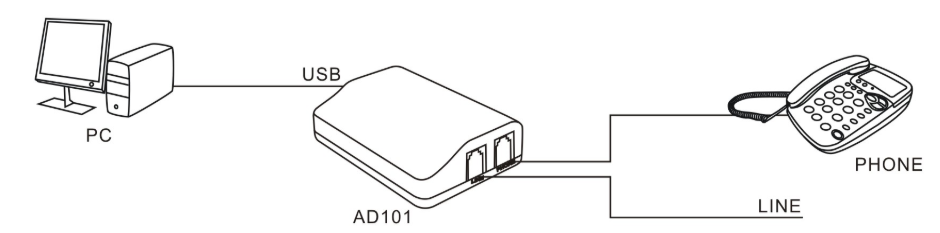
- Connect PC + phone line to AD101’s respective ports
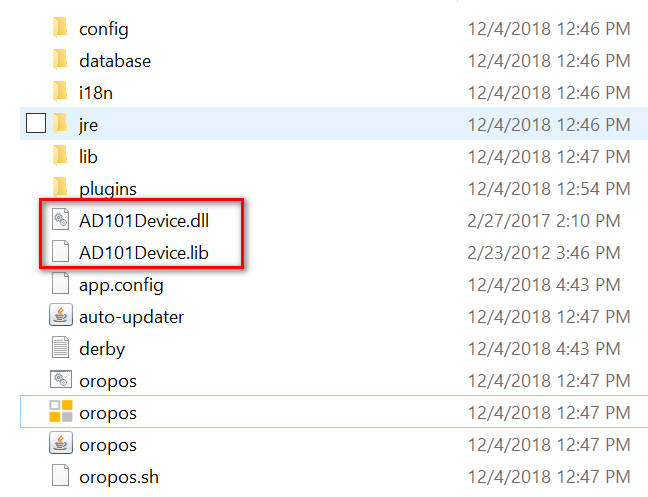
- Download driver files → place in ORO POS root folder
- Back-Office → enable Caller ID device in Cust plugin
📚 Next Step
| Next: Delivery Dispatch View → |
📞 Need More Help?
Visit guide.orocube.com or contact helpdesk@orocube.net