

🍕 Adding Pizza in ORO POS
Pizzas are uniquely complex menu items — different sizes, crusts, toppings, half-and-half splits, and prices that vary by size. ORO POS handles all of this with the Pizza & Sub module. This guide walks through the full setup.
One pizza item (“Pepperoni”) can be sold as Small / Medium / Large / XL — each with its own price. Customer can pick crust type. Customer can add/remove toppings. Even split a pizza in halves with different toppings.
🤔 Why Pizza Setup is Special
| Pizza Quirk | Why It Needs Special Handling |
|---|---|
| 📏 Multiple sizes | Same pizza, 4 sizes, 4 different prices |
| 🍞 Multiple crusts | Thin, hand-tossed, deep-dish, gluten-free — each may add cost |
| 🧀 Toppings vary by size | Pepperoni costs $1 on Small, $2.50 on XL |
| ↔️ Half-and-half pizzas | “Half pepperoni, half veggie” — sectional pricing |
| 2️⃣ Double / Triple toppings | “Extra cheese” = pay more; multiplier rules handle it |
🔍 Anatomy of a Pizza Order
🍕 A complete pizza order has 4 parts:
|
📏
SIZE
Small / Medium
Large / XL |
🍞
CRUST
Thin / Hand-Tossed
Deep Dish / Stuffed |
🧀
TOPPINGS
Pepperoni, Mushroom
Olive, Onion, etc. |
2️⃣
MULTIPLIER
Single / Double
Half-and-Half |
🛠️ 6-Step Setup Overview
| Step | What You Set Up |
|---|---|
| 1️⃣ Multiplier | Single / Double / Half — and pricing rules |
| 2️⃣ Size | Small, Medium, Large, XL options |
| 3️⃣ Crust | Thin, Hand-tossed, Deep-dish, etc. |
| 4️⃣ Modifier | Individual toppings (Pepperoni, Mushroom, etc.) |
| 5️⃣ Modifier Group | Group toppings together (Veggies, Meats, Cheeses) |
| 6️⃣ Item | The pizza menu item itself |
1️⃣ Multiplier
A Multiplier defines how a topping is applied — full pizza, half-and-half, double portion, etc.
📌 Common Multipliers
| Multiplier | Price Effect |
|---|---|
| 1× (Single, full pizza) | 100% of topping price |
| ½ (Half pizza) | 50% of topping price |
| 2× (Double portion) | 200% of topping price |
Multipliers and their price rules are explained in Modifier Price Rules.
2️⃣ Size
Path: Back-Office → Explorers → Pizza & Sub → Size → Create New
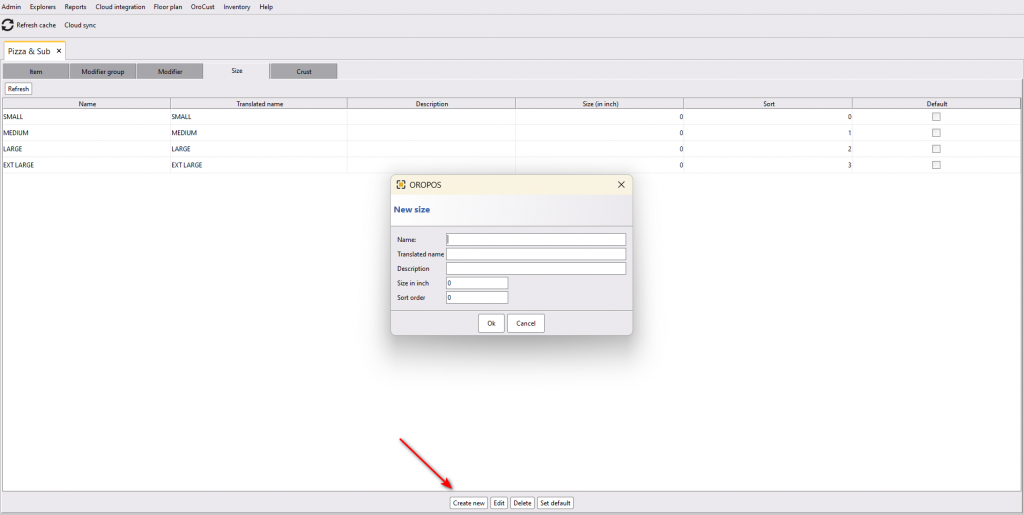
🍕 Visual: Common Pizza Sizes
|
Small
10″
$12 |
Medium
12″
$16 |
Large
14″
$20 |
XL
16″
$24 |
3️⃣ Crust
Path: Back Office → Menus & Others → Pizza & Sub → Crust → Create New
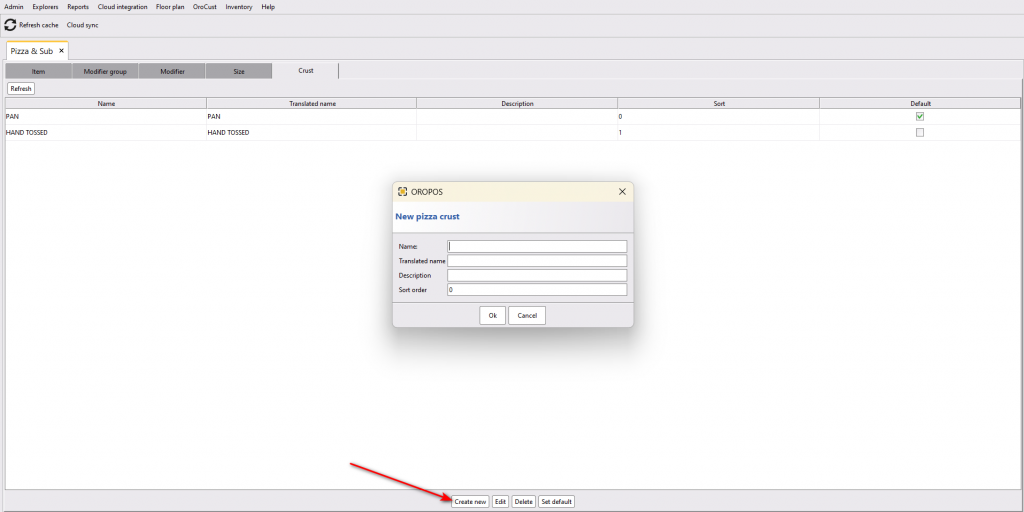
🍞 Common Crust Types
| Crust Type | Description | Typical Up-charge |
|---|---|---|
| 📏 Thin Crust | NY-style, crispy | $0 (default) |
| 🍞 Hand-Tossed | Classic, medium thickness | $0 |
| 🥧 Deep Dish | Chicago-style, thick | +$2 |
| 🧀 Stuffed Crust | Cheese-filled edge | +$3 |
| 🌾 Gluten-Free | For dietary needs | +$3 |
| 🍟 Cauliflower | Low-carb option | +$3 |
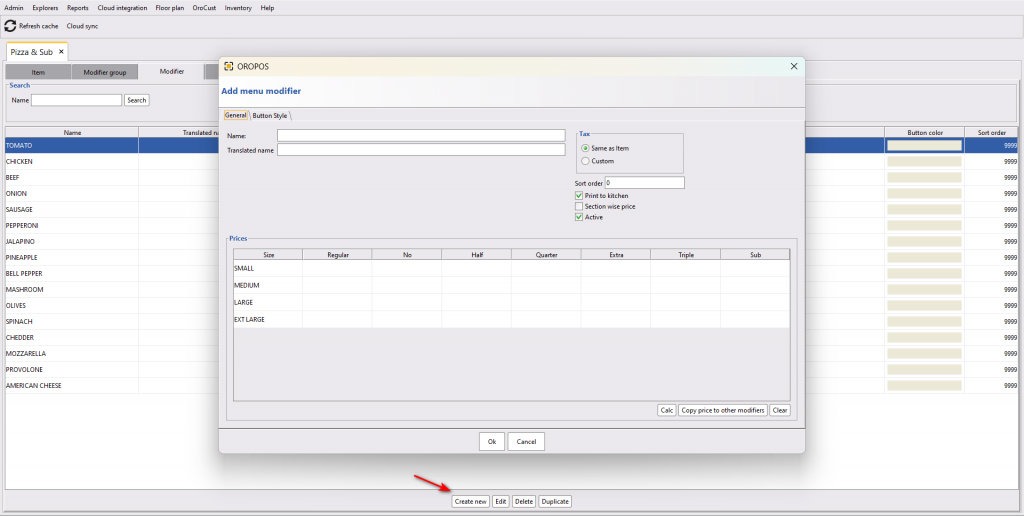
4️⃣ Modifier (Toppings)
Each topping can have different prices for different pizza sizes. ORO POS calculates this automatically using multiplier rules. You can override manually if needed.
📌 Example: Pepperoni Topping Pricing
| Pizza Size | Pepperoni Cost |
|---|---|
| Small | $1.00 |
| Medium | $1.50 |
| Large | $2.00 |
| XL | $2.50 |
5️⃣ Modifier Group (Bundle Toppings)
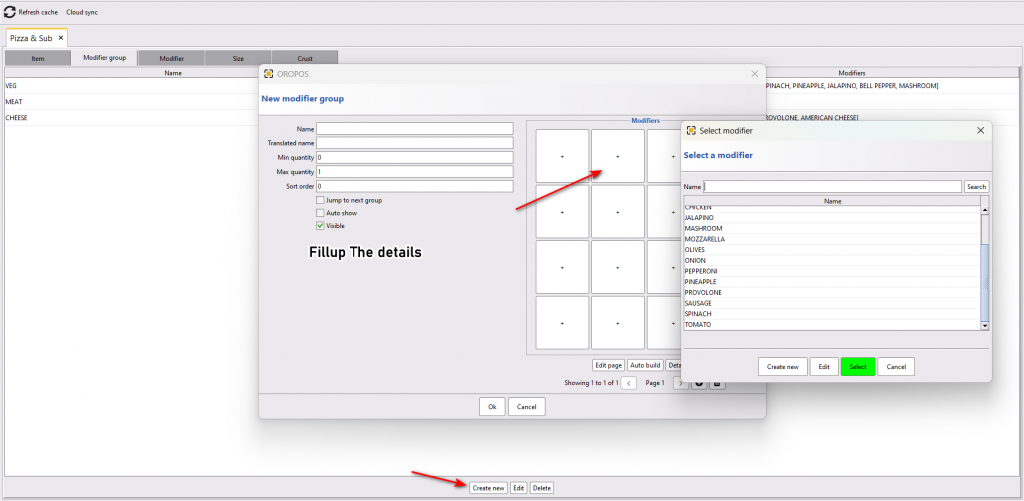
Modifiers must live inside a Modifier Group. The same modifier can appear in multiple groups.
Path: Back-Office → Explorers → Pizza & Sub → Modifier Group → Create New → Add Modifiers
📌 Example: Topping Categories
| Modifier Group | Modifiers Inside |
|---|---|
| 🥩 Meats | Pepperoni, Sausage, Ham, Bacon, Chicken |
| 🥬 Veggies | Mushroom, Onion, Green Pepper, Olive, Tomato |
| 🧀 Cheeses | Mozzarella, Cheddar, Feta, Parmesan, Goat |
| 🌶️ Sauces | Tomato, BBQ, White, Pesto, Buffalo |
6️⃣ Item (The Pizza Itself)
Path: Back-Office → Explorers → Pizza & Sub → Item → Create New
Step 6a: General Info
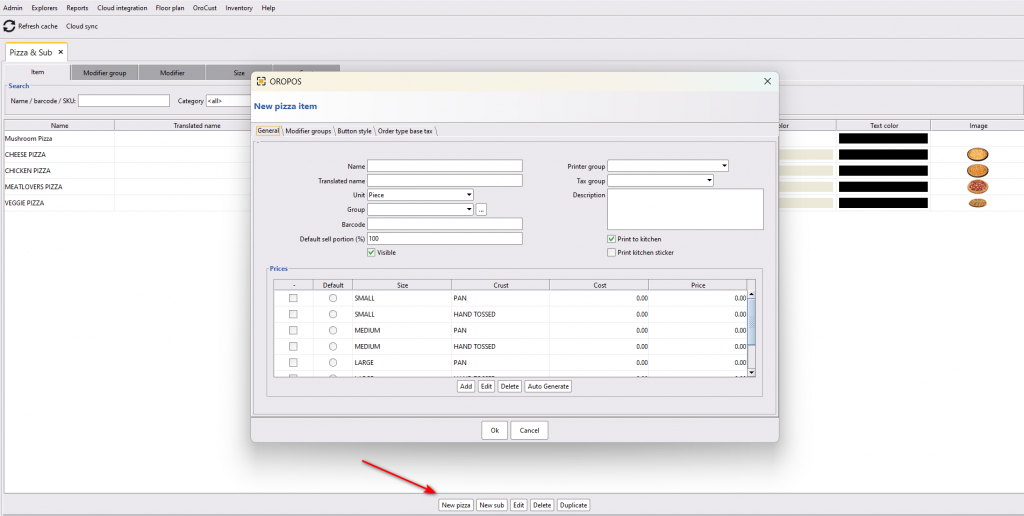
| Field | What to Enter |
|---|---|
| Name | e.g., “Pepperoni Pizza” |
| Visible | ✅ Make sure to enable |
| Prices by size + crust | Set base prices for each combo |
Step 6b: Attach Modifier Groups
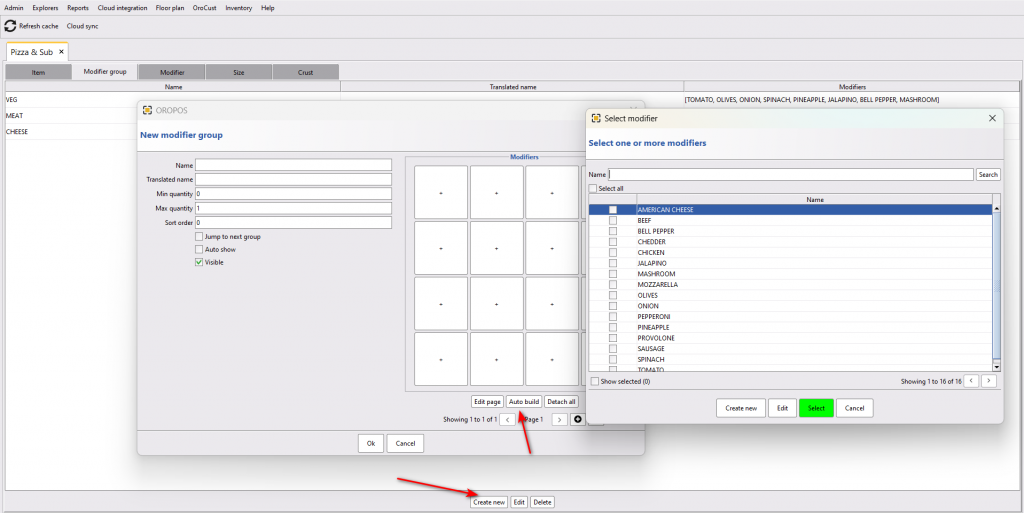
- Go to Modifiers Group tab on the same item
- Click Create New to attach modifier groups
- Click Auto Build Page for instant page generation
- Press OK to save
🎬 Full Example: Pepperoni Pizza Setup
Goal: Set up a Pepperoni Pizza available in 4 sizes, 4 crusts, with optional toppings.
| Step | What to Configure | Example Values |
|---|---|---|
| 1️⃣ Multiplier | Define 1×, ½, 2× | Single, Half, Double |
| 2️⃣ Sizes | 4 sizes | Small (10″), Medium (12″), Large (14″), XL (16″) |
| 3️⃣ Crusts | 4 crusts | Thin, Hand-Tossed, Deep Dish (+$2), Stuffed (+$3) |
| 4️⃣ Modifiers | Toppings with size pricing | Pepperoni: $1/$1.50/$2/$2.50 |
| 5️⃣ Modifier Groups | Group toppings | “Meats”, “Veggies”, “Cheeses”, “Sauces” |
| 6️⃣ Item | Create the pizza | “Pepperoni Pizza” with all groups attached |
📋 Sample Customer Order
Customer says:
“I’d like a Large Stuffed-Crust Pepperoni Pizza, half with extra mushroom, half with double cheese.”
| Component | Selection | Price |
|---|---|---|
| Base Pizza | Large Pepperoni | $20.00 |
| Crust | Stuffed | +$3.00 |
| Half Mushroom (½ × $1.50) | Half pizza | +$0.75 |
| Half Double Cheese (½ × 2 × $2) | Half pizza | +$2.00 |
| TOTAL | $25.75 |
All this math happens automatically when properly configured.
⭐ Best Practices
| Tip | Why |
|---|---|
| Set up multipliers first | Foundation for all pricing math |
| Group toppings by category | Customers find them faster |
| Use Auto Build Page first time | Saves 90% of setup time |
| Test half-and-half pricing before launch | Common spot for misconfiguration |
| Keep size names consistent across pizzas | “Sm/Md/Lg” everywhere — not “Small” then “Sm” |
| Charge more for premium toppings | Goat cheese costs more than mushroom — price it that way |
📚 Related Guides
| → Modifier Price Rules | → Apply Modifier Groups |
| → Menu Page Designer | → Combo Items |
📞 Need More Help?
Visit guide.orocube.com or contact helpdesk@orocube.net