

📞 Cust Plugin: Delivery Dispatch View
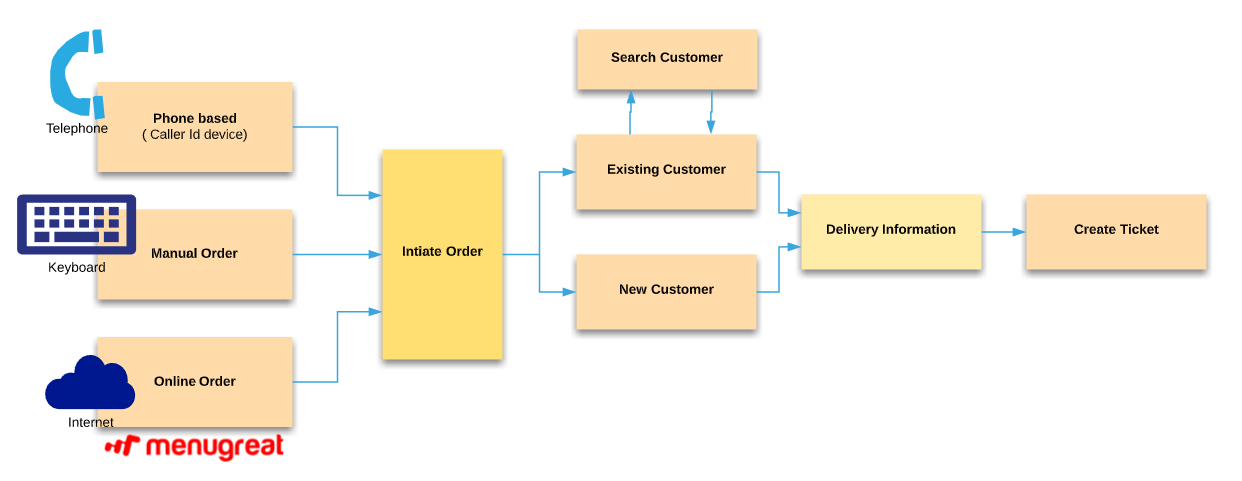
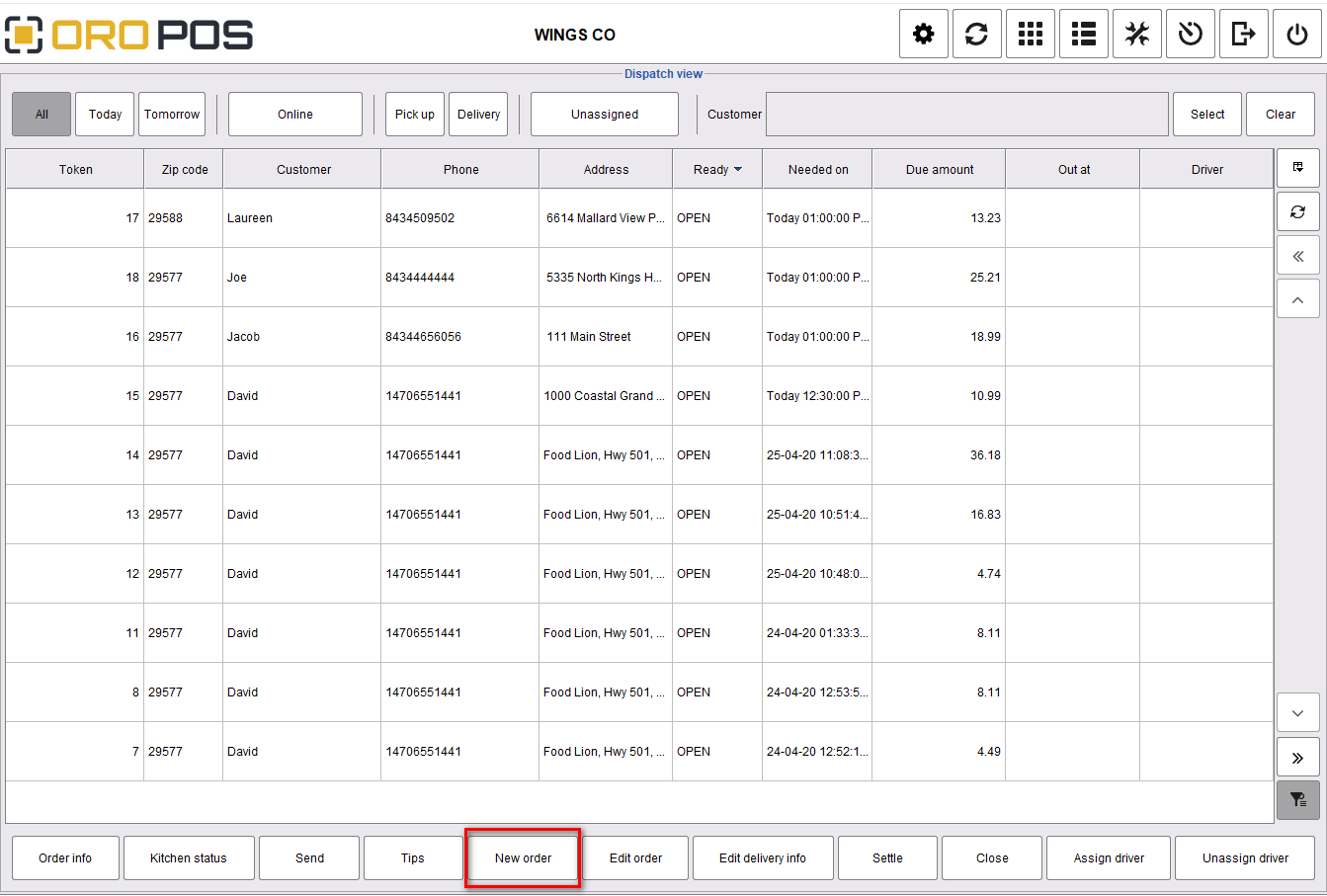
The Delivery Dispatch View is where orders come in. Cashiers can take orders from 3 different sources: phone (caller ID), manual entry, or online (Menugreat).
📍 How to Open
From the home screen, click the Delivery order type button.
🎯 3 Ways Orders Can Come In
| Channel | How It Works |
|---|---|
| 📞 Phone (Caller ID) | Phone rings → Cust auto-detects number → suggests existing customer |
| ✋ Manual Entry | Cashier types phone, searches database, creates new if not found |
| 🌐 Online (Menugreat) | Auto-pushes orders from menugreat.com via connector plugin |
📞 Phone Order Flow (Caller ID)
When the phone rings with caller ID enabled, a new button appears with caller info pre-populated:

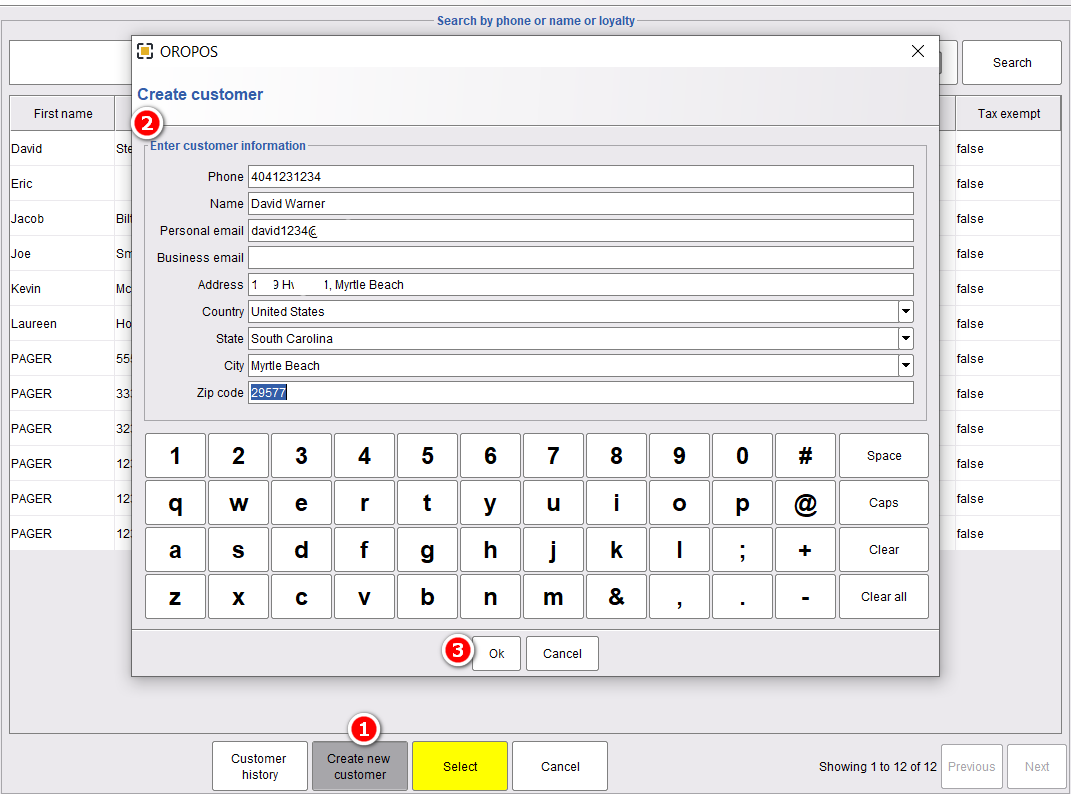
✋ Manual Order — Create New Customer
| Step | Action |
|---|---|
| 1 | Click Create New Customer |
| 2 | Enter Name, Phone, Address |
| 3 | Click OK to save and continue |
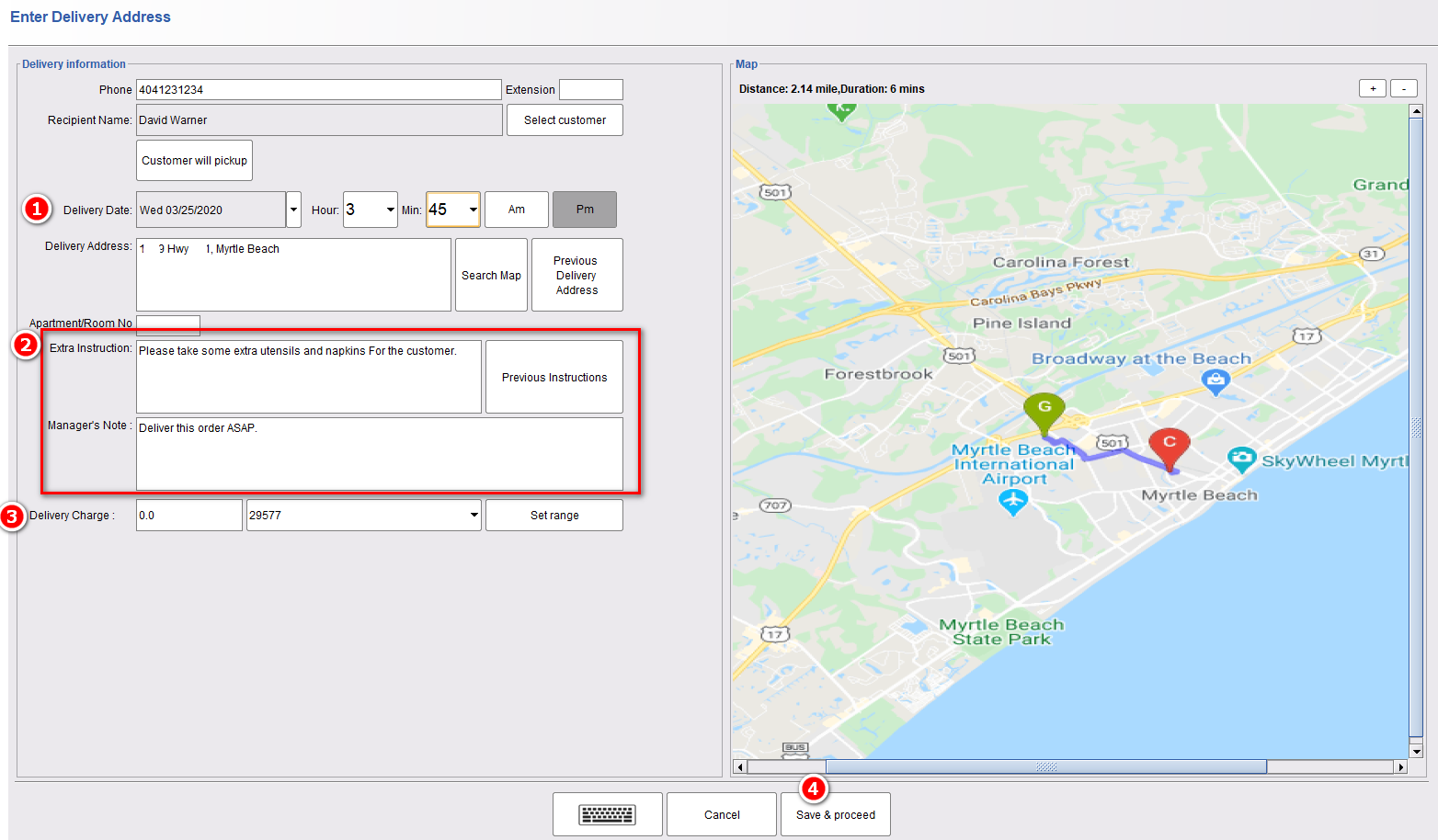
📍 Enter Delivery Information
| Field | What to Enter |
|---|---|
| 📅 Delivery Date & Time | When customer wants the food (ASAP or scheduled) |
| 📝 Extra Instructions | “Leave at door”, “Ring twice”, allergies |
| 💵 Delivery Charge | Auto-calculated by Google Maps distance |
🌐 Internet Required for Distance
Cust uses Google Maps API to calculate delivery distance. Won’t work offline.
🍔 Add Items to the Ticket
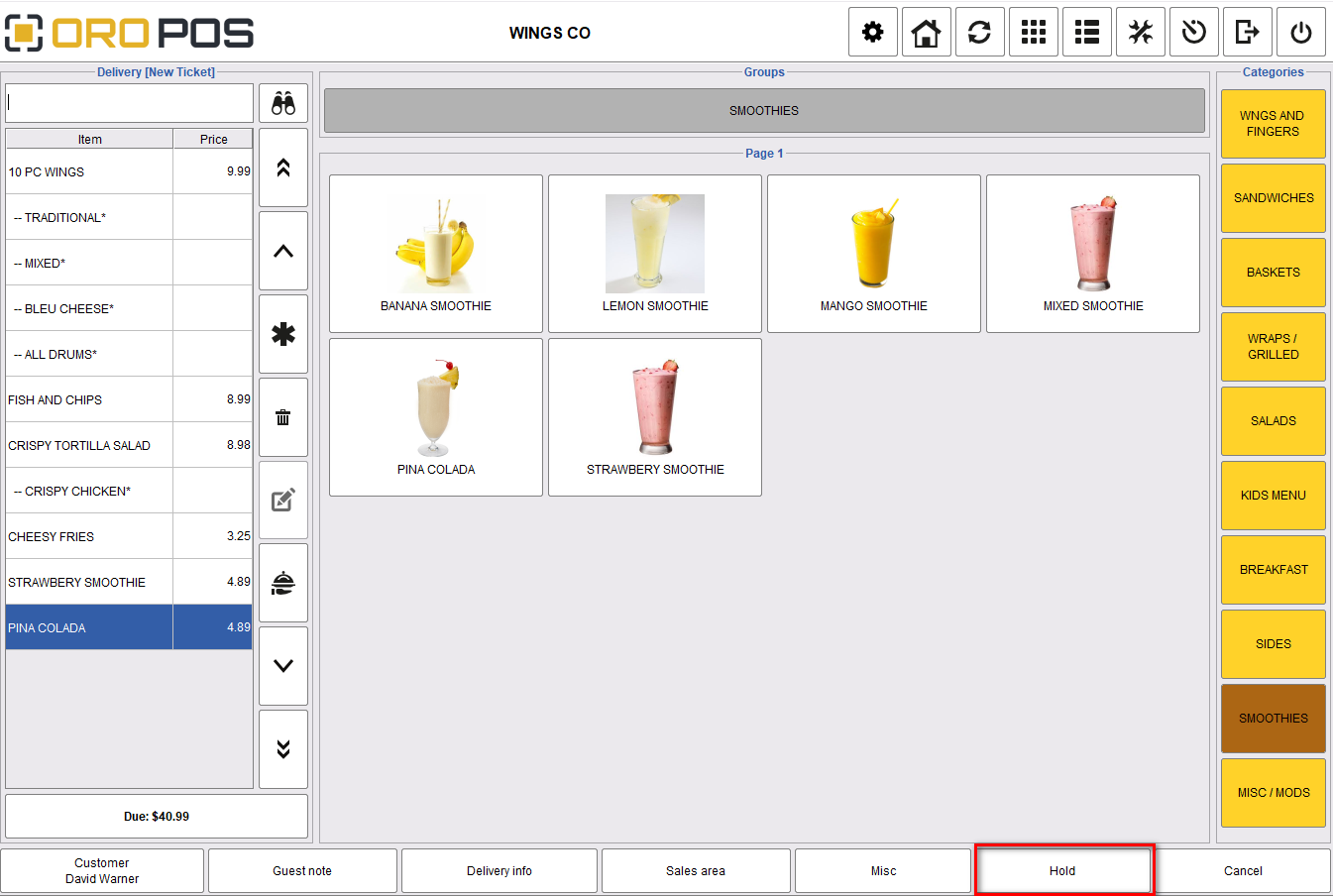
Select menu items as usual, then click Hold to send the order to the dispatch queue (kitchen-ready).
💼 Real Example
Phone rings at 6:30 PM. Caller ID shows “Mary Johnson, 555-0142, 123 Maple St.”
- Cashier confirms customer info → Mary’s address auto-populates
- Mary asks for “Large pepperoni + 2L Coke”
- Distance auto-calculates: 1.8 mi → $3 delivery fee
- Cashier adds items, holds → moves to kitchen queue
📚 Navigation
| ← Back: Back-Office Configuration | Next: Sending Order to Kitchen → |