

🍳 Cust Plugin: Sending Order to Kitchen
After an order is created and held, the manager sends it to the kitchen for preparation. The Kitchen Display System (KDS) shows the order, and the kitchen can bump it when ready.
📌 Where to Find Held Orders
Open the Delivery order type — held orders appear in the queue.
📤 Step 1: Send to Kitchen
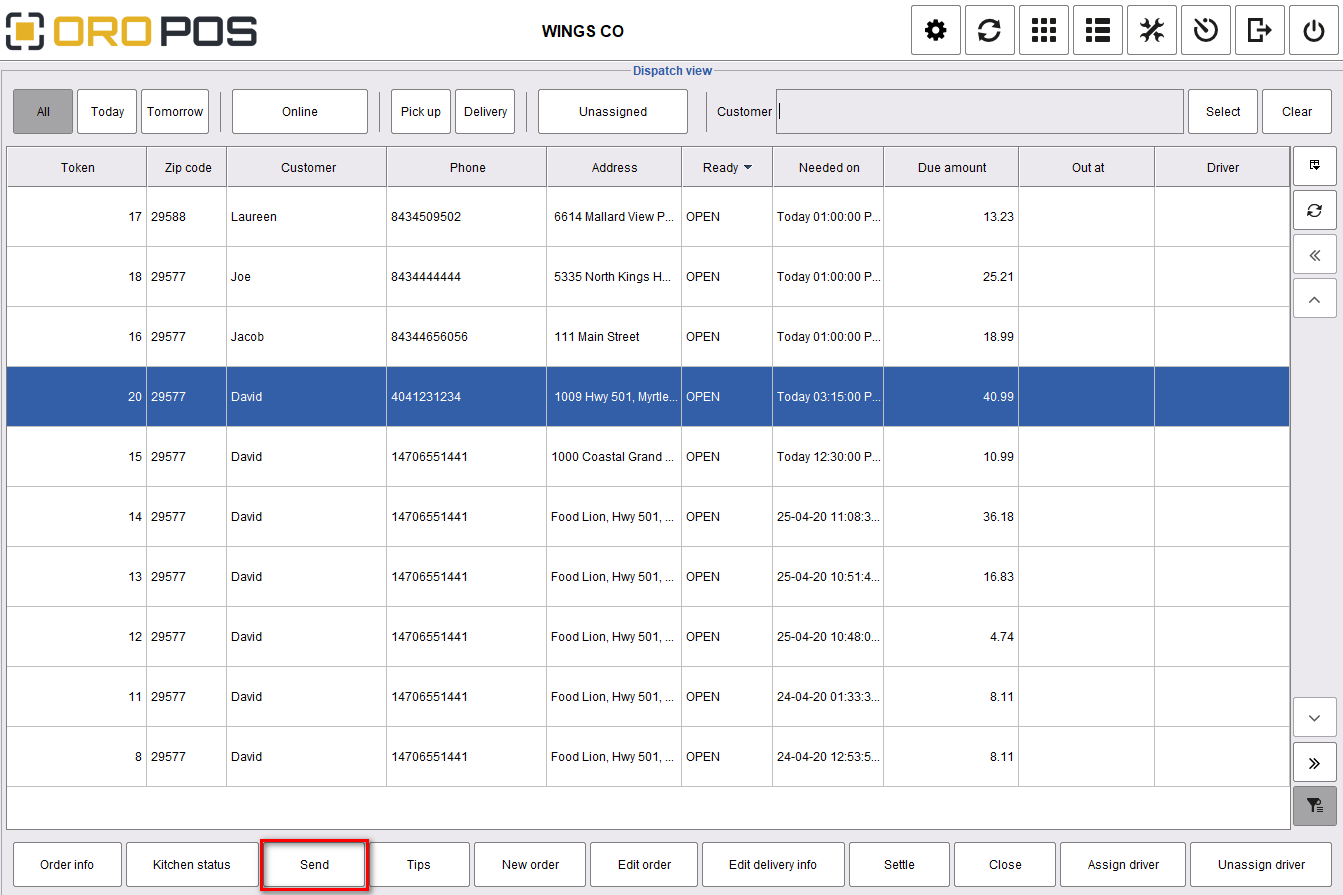
| Step | Action |
|---|---|
| 1 | Open Delivery order type |
| 2 | Find the held order in the queue |
| 3 | Click Send to Kitchen |
| 4 | Kitchen receives ticket → status changes |
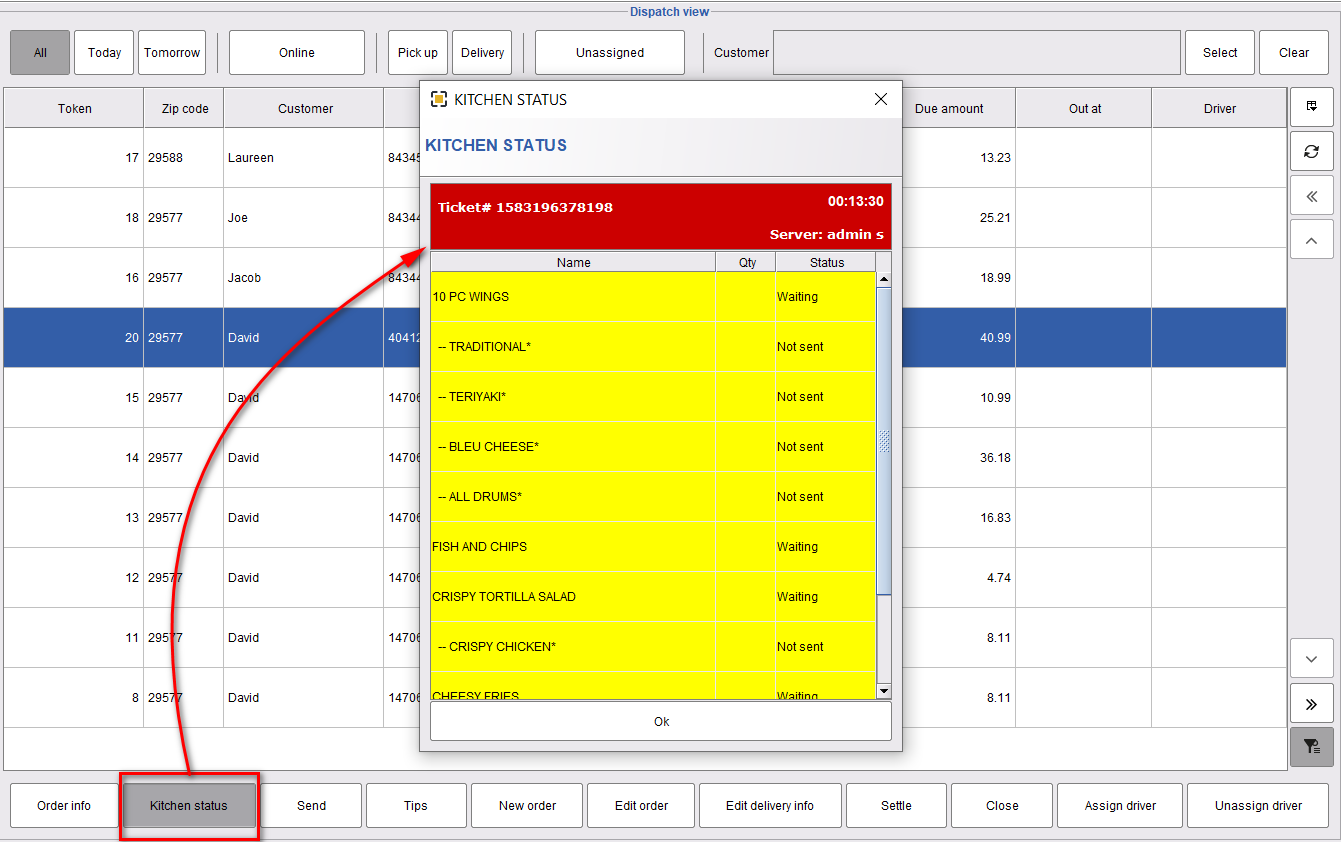
📊 Order Status After Sending
Once sent, the order shows the kitchen status indicator:
🍳 Step 2: Bump Order from KDS
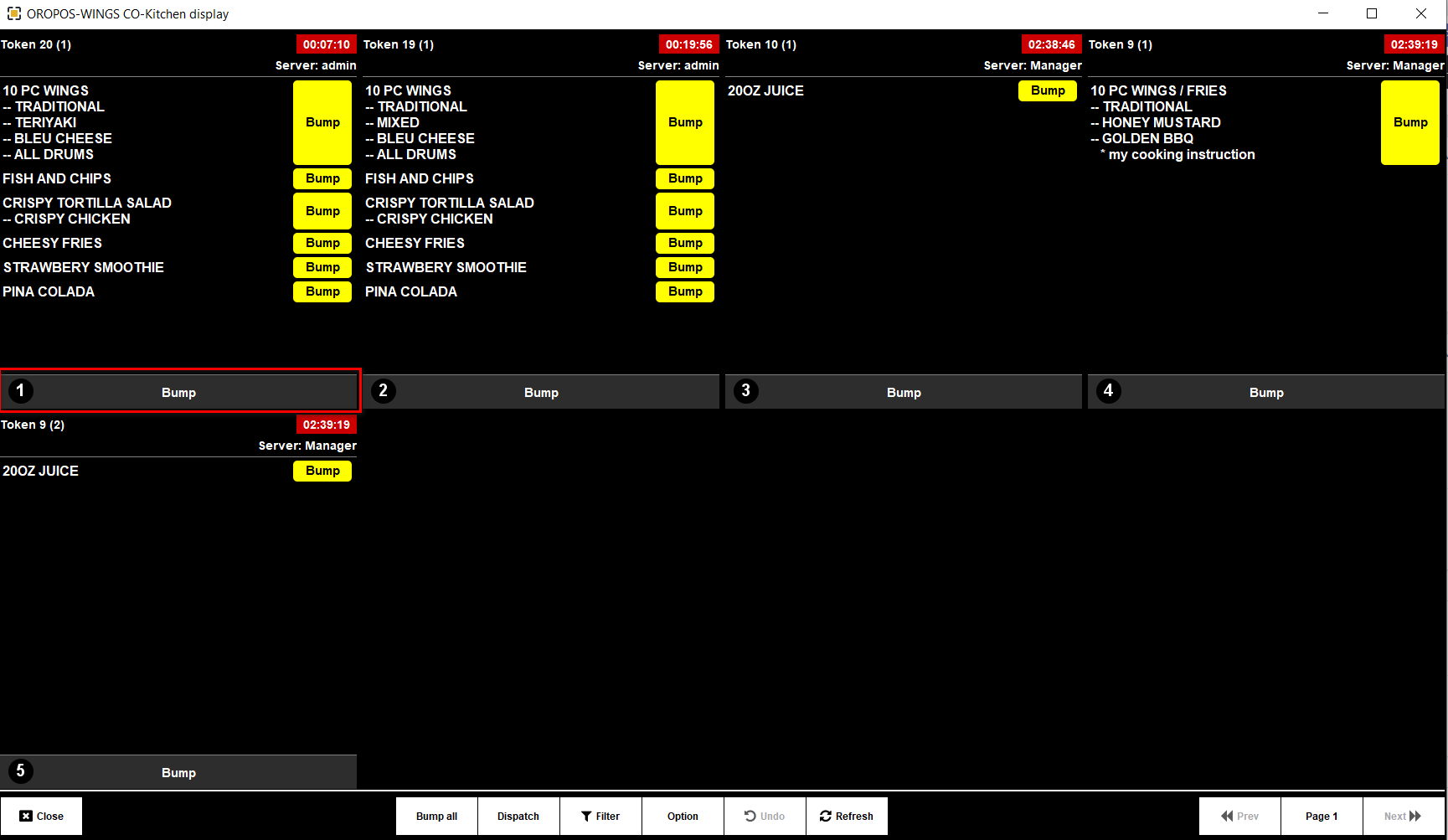
💡 What is “Bump”?
“Bump” means the kitchen marks the order as ready. Once bumped, the manager can assign a driver to deliver it.
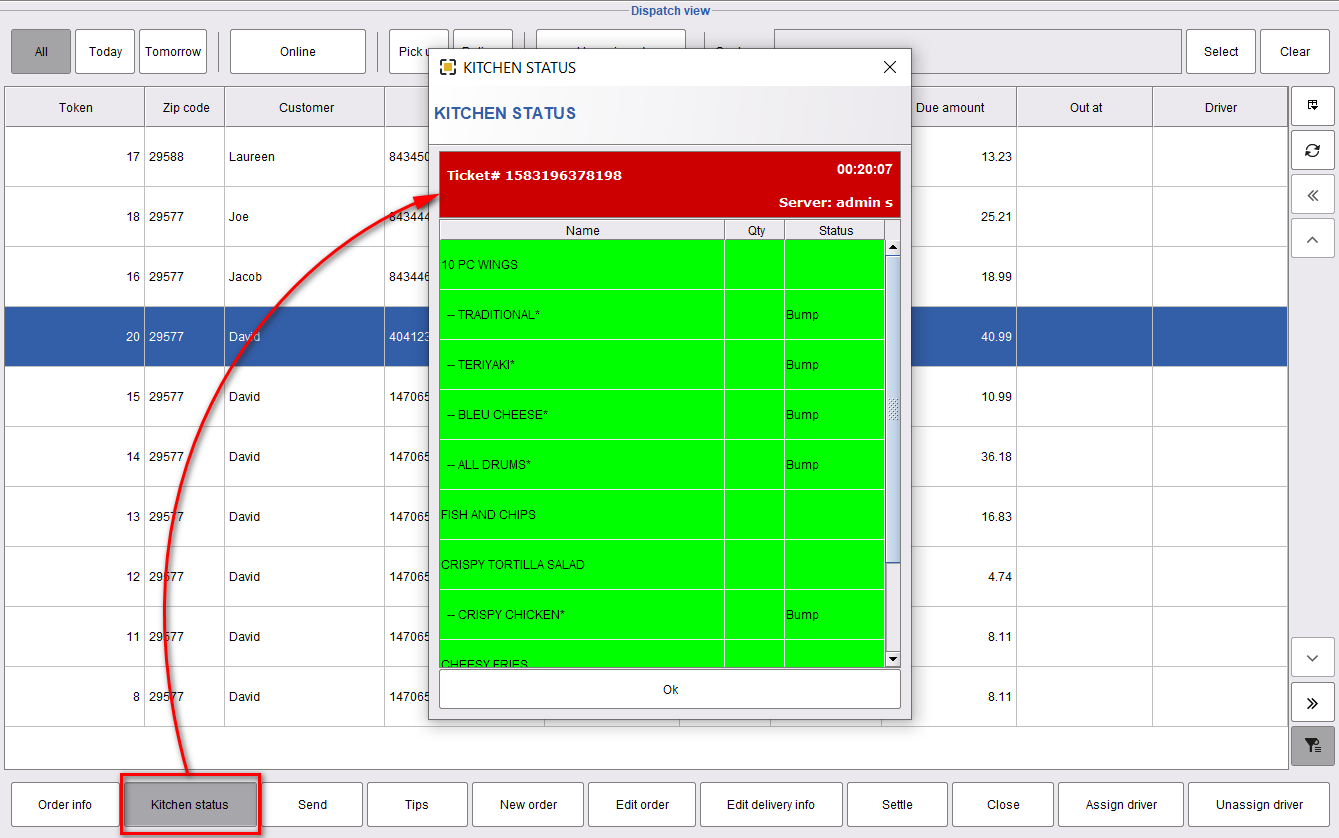
After bump, the order’s kitchen status updates to “Ready”:
🚦 Order Status Flow
| Stage | Status | Who’s Working |
|---|---|---|
| 1️⃣ Order created | 📝 Held (in dispatch queue) | Cashier |
| 2️⃣ Send to kitchen | 🍳 Cooking | Manager |
| 3️⃣ Kitchen bumps | ✅ Ready | Kitchen staff |
| 4️⃣ Driver picks up | 🚗 Out for delivery | Driver |
💼 Real Example
Mary’s pizza order was just created.
- 6:33 PM — Manager sends order to kitchen → status: 🍳 Cooking
- 6:50 PM — Kitchen finishes pizza, bumps from KDS → status: ✅ Ready
- 6:51 PM — Manager moves to assign driver (next step)
📺 No KDS? No Problem
If you don’t have a Kitchen Display System, the kitchen prints a paper ticket and the manager updates the status manually.
📚 Navigation
| ← Back: Delivery Dispatch View | Next: Driver Assignment & Driver View → |