

🍽️ Table Service: A Manager’s Guide
In a full-service restaurant, the FloorPlan is the manager’s command center. From one screen, food servers and managers can see every table, who’s occupying it, who hasn’t paid, and which tables need to flip. This guide shows how to use ORO POS Table Service to maximize seat utilization, reservations, and check management.
FloorPlan = a live picture of your dining room. White table = available, Red table = occupied. Tap a table to see what’s happening. Tap “More” for advanced features like time-tracking and rearranging.
🎯 The 3 Goals of Table Service Management
| Goal | Why It Matters |
|---|---|
| 🪑 Maximize Table Utilization | Every minute a table sits idle = lost revenue. Release tables promptly when guests leave. |
| ⚡ Speed Up Check-Out | Group settle when one party pays. Split check when guests want separate bills. Turn tables faster. |
| 📅 Manage Reservations | Honor bookings. Don’t oversell capacity. Keep customers happy. |
📸 The Main FloorPlan Screen
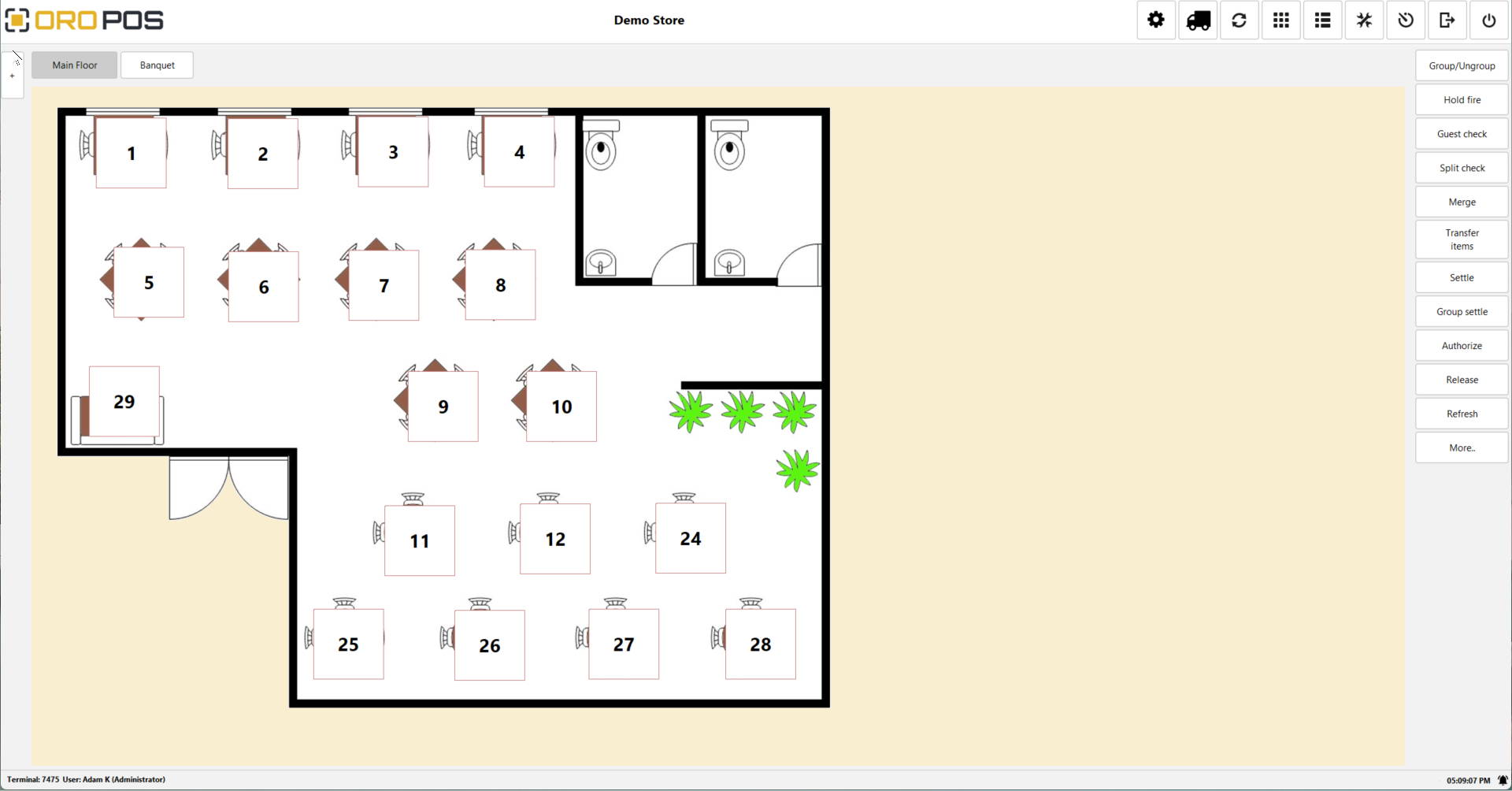
Demo Store FloorPlan — main view with tables, colors, and right-side action buttons
The FloorPlan shows the actual physical layout of your dining room: tables, chairs, walls, restrooms, and decorative elements. The manager creates this layout once during setup; servers and managers use it daily.
🎨 Table Colors Explained
7
⬜ AVAILABLE
10
Token#: 39
Serv: Adam
🟥 OCCUPIED
5
🟧 RESERVED
3
🟫 NEEDS RELEASE
| Color | Meaning | Action |
|---|---|---|
| ⬜ White | Available — no guests, no orders | Seat new guests anytime |
| 🟥 Red | Occupied — guests seated, ticket open. Shows token# and server name | Settle ticket → release table |
| 🟧 Orange/Yellow | Reserved (depending on theme) | Hold for booking — don’t seat walk-ins here |
If guests leave but the system still shows red, the manager must release the table. Otherwise it stays “occupied” in the system and new guests can’t be seated. Common cause of lost revenue.
🏢 Multiple Floors / Areas
A large restaurant can be divided into multiple floors or zones. In the screenshot, you can see tabs at the top: Main Floor and Banquet.
| Use Case | Floor Examples |
|---|---|
| 🏠 Restaurant zones | Main Floor, Patio, Bar, Private Room |
| 🎉 Banquet halls | Hall A, Hall B, VIP Section |
| 🌳 Indoor + Outdoor | Indoor Dining, Patio, Rooftop |
| 🍻 Different services | Dining, Bar, Lounge |
Manager creates floors and arranges tables in FloorPlan Configuration.
🎛️ Right-Side Action Buttons
| Button | What It Does |
|---|---|
| 🔗 Group / Ungroup | Combine multiple tables into one party (e.g., 12-person group needs Tables 5+6) |
| ⏸️ Hold Fire | Pause kitchen prep — useful when guests aren’t ready |
| 📋 Guest Check | Print pre-bill for the table |
| ✂️ Split Check | Divide one ticket into multiple bills (per person, by item, etc.) |
| 🔀 Merge | Combine multiple tickets into one |
| ↔️ Transfer Items | Move items from one ticket to another |
| 💳 Settle | Process payment for one table |
| 💳💳 Group Settle | Settle multiple tables at once when one party pays for all |
| 🔓 Authorize | Pre-auth a credit card (common for bar tabs) |
| 🚪 Release | Mark table as available — essential for table flip |
| 🔄 Refresh | Reload table statuses (in case of network sync) |
| ⚙️ More.. | Advanced features (Time log, Rearrange, etc.) |
Group Settle — saves time when one person pays for the whole table.
Split Check — when guests want separate bills.
Release — frees up tables for new guests.
📸 More.. — Advanced Features
Click “More..” to access advanced manager tools. The screenshot below shows a manager checking “Time since first opened” — see how long each table has been occupied.
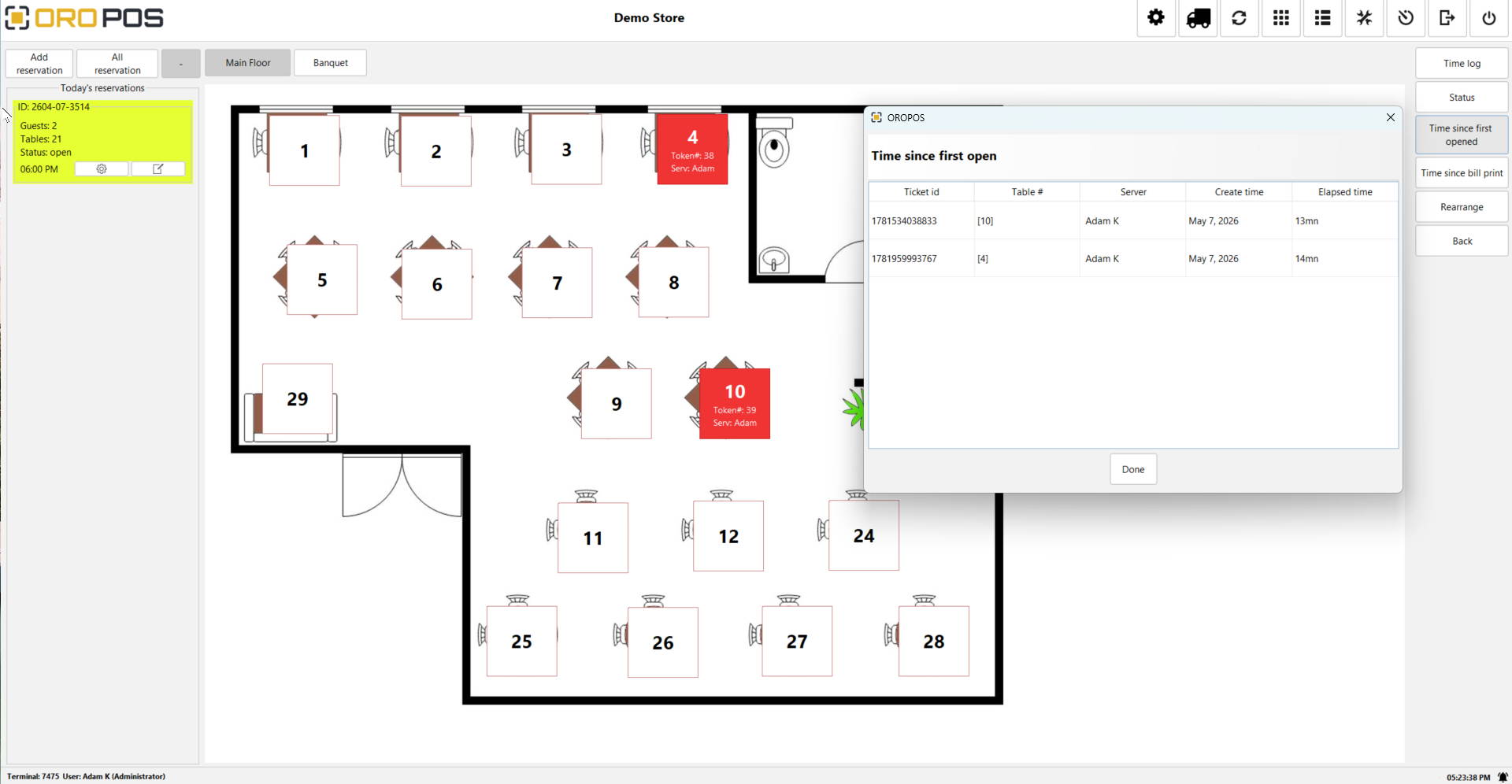
Time-tracking + Reservation panel + Rearrange
| Feature | What It Does |
|---|---|
| ⏱️ Time Log | See timing history for any table |
| 📊 Status | All tables’ current state at a glance |
| 🕐 Time Since First Opened | How long each occupied table has been used (spot slow tables) |
| 💵 Time Since Bill Print | How long since bill was printed (politely speed them up) |
| 🔀 Rearrange | Reposition tables on the floor (e.g., for big party) |
📌 Real Example: Time Tracking Insight
| Ticket ID | Table # | Server | Create Time | Elapsed |
|---|---|---|---|---|
| 1781534038833 | 10 | Adam K | May 7, 2026 | 13min |
| 1781959993767 | 4 | Adam K | May 7, 2026 | 14min |
Manager’s insight: Both tables are within normal lunch turnover times. If they hit 60+ min, manager checks if guests need anything or if check needs to be dropped.
📅 Reservations System
On the left side of the FloorPlan, there’s a + button that opens the Reservation panel. This is where managers and authorized servers manage bookings.
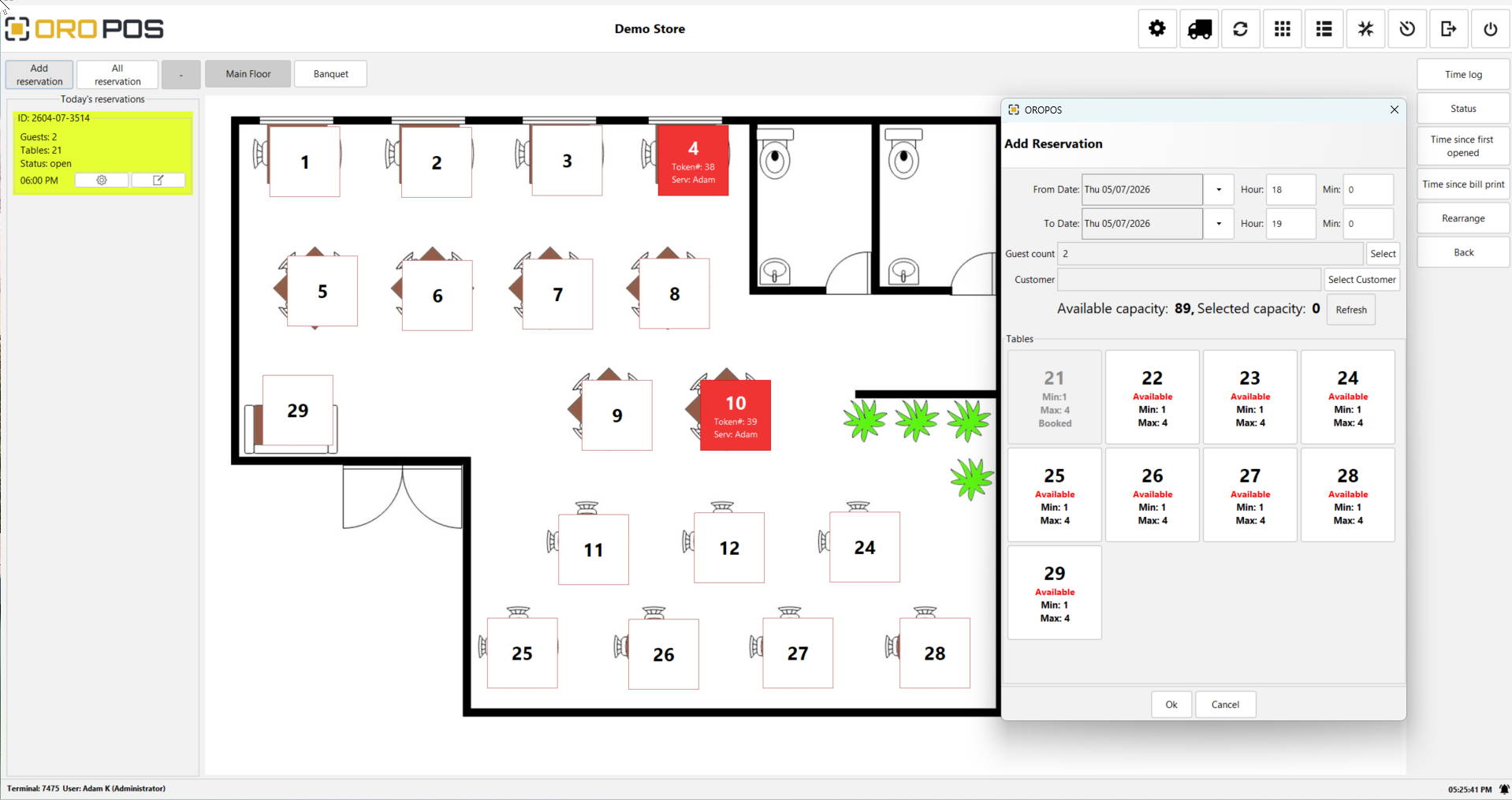
Add Reservation dialog with available capacity per table
📌 Today’s Reservations Panel
The yellow card on the left shows reservations for today:
| Field | Example |
|---|---|
| ID | 2604-07-3514 |
| Guests | 2 |
| Tables | 21 |
| Status | open |
| Time | 06:00 PM |
🎫 Add Reservation Dialog
Click the + to add a new reservation. The dialog shows:
- 📅 From / To Date + Hour + Min — when the reservation is for
- 👥 Guest Count — how many people
- 👤 Customer — link to existing customer or new
- 📊 Available Capacity / Selected Capacity — see if you can fit them
- 🪑 Tables — pick which tables to reserve. Each card shows: Available / Booked, Min capacity, Max capacity
🔄 Reservation Status Management
| Status | Meaning |
|---|---|
| 📅 Open | Booked but guests haven’t arrived |
| ✅ Seated | Guests have arrived and are at the table |
| ❌ No Show | Guests didn’t show up — table can be released |
| 🗑️ Cancelled | Guest called to cancel |
| ✓ Completed | Service finished, ticket settled |
The default tab shows today’s reservations. The next tab shows all reservations for any date — useful for upcoming bookings and reports.
👥 Parties & Tables: Many-to-Many
ORO POS handles complex real-world scenarios that simpler POS systems can’t. One table can have multiple parties, and one party can occupy multiple tables.
📌 Scenario 1: Multiple Parties at One Table
At a coffee shop with shared communal tables, 3 different parties might sit at Table 5:
- 👫 Party 1: Couple (one ticket)
- 👨👩👧 Party 2: Family of 3 (separate ticket)
- 👤 Party 3: Solo work-from-cafe (separate ticket)
Each party has their own ticket, paid separately. Same physical table, 3 separate billings.
📌 Scenario 2: One Party at Multiple Tables (Group/Ungroup)
Birthday party of 14 guests:
- Tables 5 + 6 + 7 grouped together
- One ticket for the entire group
- Group Settle when the host pays for everyone
Use the Group / Ungroup button to combine or split tables.
⚙️ Seat-Based Ordering: Trade-Offs
The manager can turn on Seat-Based Ordering in back-office. Each guest’s items are tagged to their specific seat — making split-bills effortless. But it adds training overhead.
| Pros | Cons |
|---|---|
| ✅ Easy split bills (one click per seat) | ⚠️ Servers must remember to assign each item to a seat |
| ✅ Better service (know who ordered what) | ⚠️ Slower order entry |
| ✅ Allergen / VIP tracking per guest | ⚠️ Training required for new staff |
💡 Server Tablet Tip
To speed up tableside ordering, servers can use ORO POS on a Windows tablet connected to the main POS database. They take orders right at the table — fewer mistakes, faster service.
💼 Real-World Scenarios
🍴 Date Night — Split Check
Couple wants to go Dutch. Server taps Split Check → divides the bill 50/50 → 2 receipts printed → 2 separate payments processed.
🎉 Birthday Group of 14
Host wants to pay for everyone. Server uses Group/Ungroup to combine Tables 5+6+7 → single ticket → host pays once via Group Settle.
📅 Reserved Table for Anniversary
Manager pre-books Table 21 (window table) for 6 PM anniversary couple. Hostess sees it on left panel. Walk-ins get directed to other tables. Couple arrives → status changes to “Seated” → table turns red.
🔥 Slow Table at Lunch Rush
Manager checks “Time Since Bill Print” → finds Table 8 has had bill printed 25 minutes ago. Politely walks over to ask if everything’s okay → guest pays → table releases → seats waiting party.
👨👩👧 Family with Crying Baby Leaves Quickly
Family pays and leaves. Table still red. Manager taps Release → table turns white → next party seated within 2 minutes.
⭐ Best Practices
| Tip | Why |
|---|---|
| Train staff to release tables immediately after guests leave | Avoid lost table-flip opportunities |
| Use Group Settle for parties paying together | Saves time at peak hours |
| Use Split Check liberally — guests appreciate it | Better customer experience = repeat business |
| Check Time Since Bill Print during slow turn-times | Spot tables that need attention |
| Keep multiple floors organized by zone | Servers know their section instantly |
| Honor reservations — don’t over-seat | Customer trust + return visits |
| For seat-based ordering, train servers thoroughly | Power feature only when used correctly |
| Use tablets for tableside ordering | Faster service, fewer errors |
📚 Related Guides
| → FloorPlan Configuration | → Adding Tables | → Seat-Based Order |
| → Table Reservations | → Ticket Splitting | → Cooking Instructions |
📞 Need More Help?
Visit guide.orocube.com or contact helpdesk@orocube.net