


🏪 Store Sessions: A Manager’s Guide to Opening & Closing
Every business day in ORO POS happens inside a Store Session — a defined period from when the store opens to when it closes. The session organizes all sales, drawers, tips, employee shifts, and reports into one neat package.
Think of a store session as a “workday container”. You open it in the morning, all the day’s activity happens inside it, then close it at night. When closed, it generates clean reports for that period and resets everything for the next session.
- → What is a Store Session?
- → Sessions = Shifts or Full Days
- → Visual: Session Lifecycle
- → 📂 Opening the Store
- → Cash Drawers vs Staff Banks
- → During the Session
- → 🌙 Preparing to Close
- → Pre-Auth Tip Adjustments
- → Closing Drawers & Staff Banks
- → Closing the Store
- → Multi-Session Days
- → Real-World Scenarios
🎯 What Exactly is a Store Session?
A store session is a recorded operation period with a defined start and end time. While the session is open:
- 📋 Servers can take orders
- 💰 Cash drawers + staff banks process payments
- 👥 Employees clock in/out
- 🍳 Kitchen receives tickets
When the session closes, ORO POS:
- 🔒 Closes all open cash drawers automatically
- 👋 Clocks out remaining employees
- 📊 Generates reports for the session
- 📁 Locks the period — no more sales can be added
⏰ Sessions Can Be Shifts OR Full Days
A session is not bound to a calendar day. It can represent a single shift, a 24-hour period, or even a multi-day event.
📌 Common Patterns
| Business Type | Session Pattern |
|---|---|
| ☕ Coffee Shop | One session = one full day (6 AM → 9 PM) |
| 🍴 Restaurant with separate Lunch/Dinner | Two sessions: Lunch (11–3) + Dinner (5–11) |
| 🍻 Bar (late-night) | Session crosses midnight (5 PM Mon → 2 AM Tue) |
| 🏪 24/7 Convenience Store | One session per shift (morning / evening / overnight) |
| 🎪 Festival / Event Vendor | One session per event (could be 3 days) |
🔄 Visual: Session Lifecycle
🌅
OPEN STORE
Manager clocks in,
starts session
💰
ASSIGN DRAWERS
Cash drawers +
staff banks open
🛒
SALES
Servers ring orders,
payments process
💵
SETTLE TIPS
Pre-auth + tips,
capture cards
🌙
CLOSE STORE
Close drawers,
clock out, reports
📂 Opening the Store
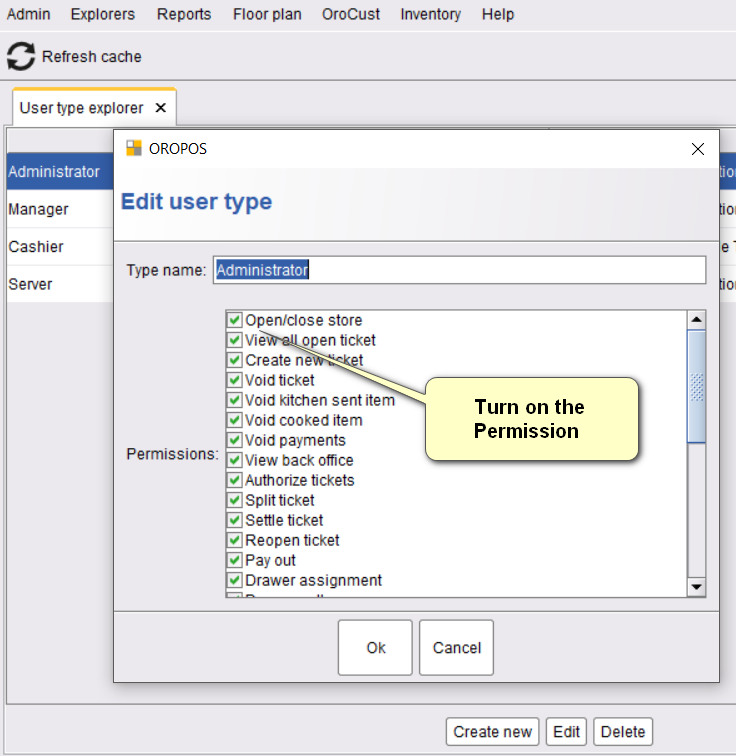
Only an authorized person (manager / admin / owner) can open the store. Set this in the user type’s permissions.
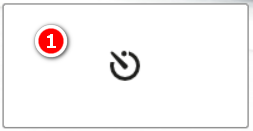
Step 1: Clock In as Manager
The manager taps “Open Store & Clock In” on the login screen.
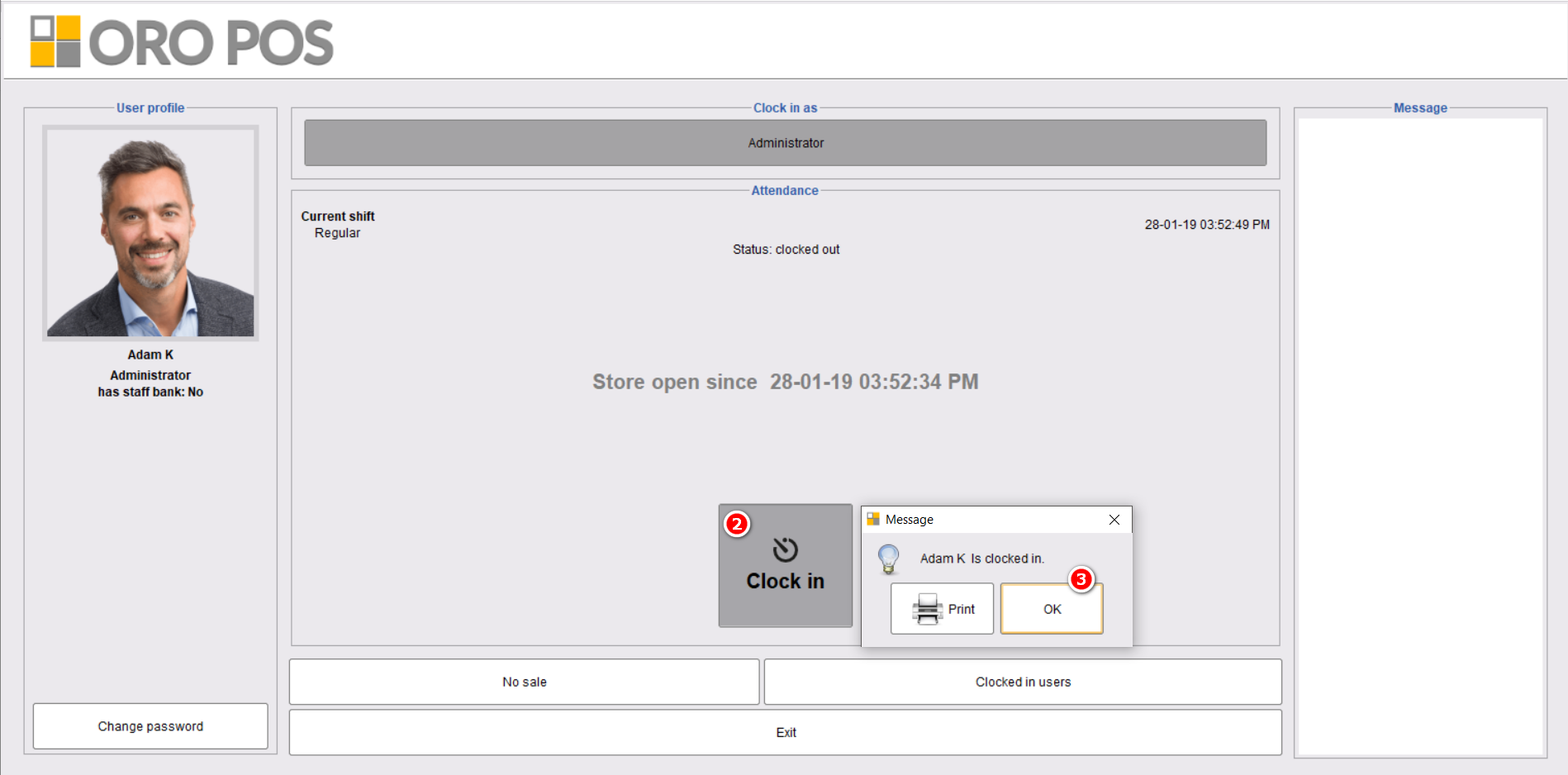
Step 2: User Dashboard Prompts to Open
The user dashboard appears with the prompt to open the store.
Step 3: Permissions (One-Time Setup)
If the manager doesn’t see “Open Store”, check user-type permissions:
You can configure ORO POS to automatically open the store on the first employee clock-in, and close at a fixed time. Removes manual steps.
💰 Cash Drawers vs Staff Banks (Important Concept)
💵
CASH DRAWER
Tied to a Terminal
Shared by all cashiers
e.g., Cash register at counter
Best for: Counter service
💼
STAFF BANK
Tied to one employee
Server carries cash bag
Deposits at end of shift
Best for: Table service
| Aspect | 💵 Cash Drawer | 💼 Staff Bank |
|---|---|---|
| Owner | Terminal / Station | Individual employee |
| Physical form | Cash register at counter | Server’s cash bag/apron |
| Best for | Quick-service, counter sales | Full-service, table service |
| Permission | Anyone with terminal access | Employee needs explicit permission |
| Reports | Per drawer, per session | Per employee, per shift |
| Initial balance | Set when opened (e.g., $200 float) | Often $0 — server collects from sales |
📌 Step: Assign a Cash Drawer
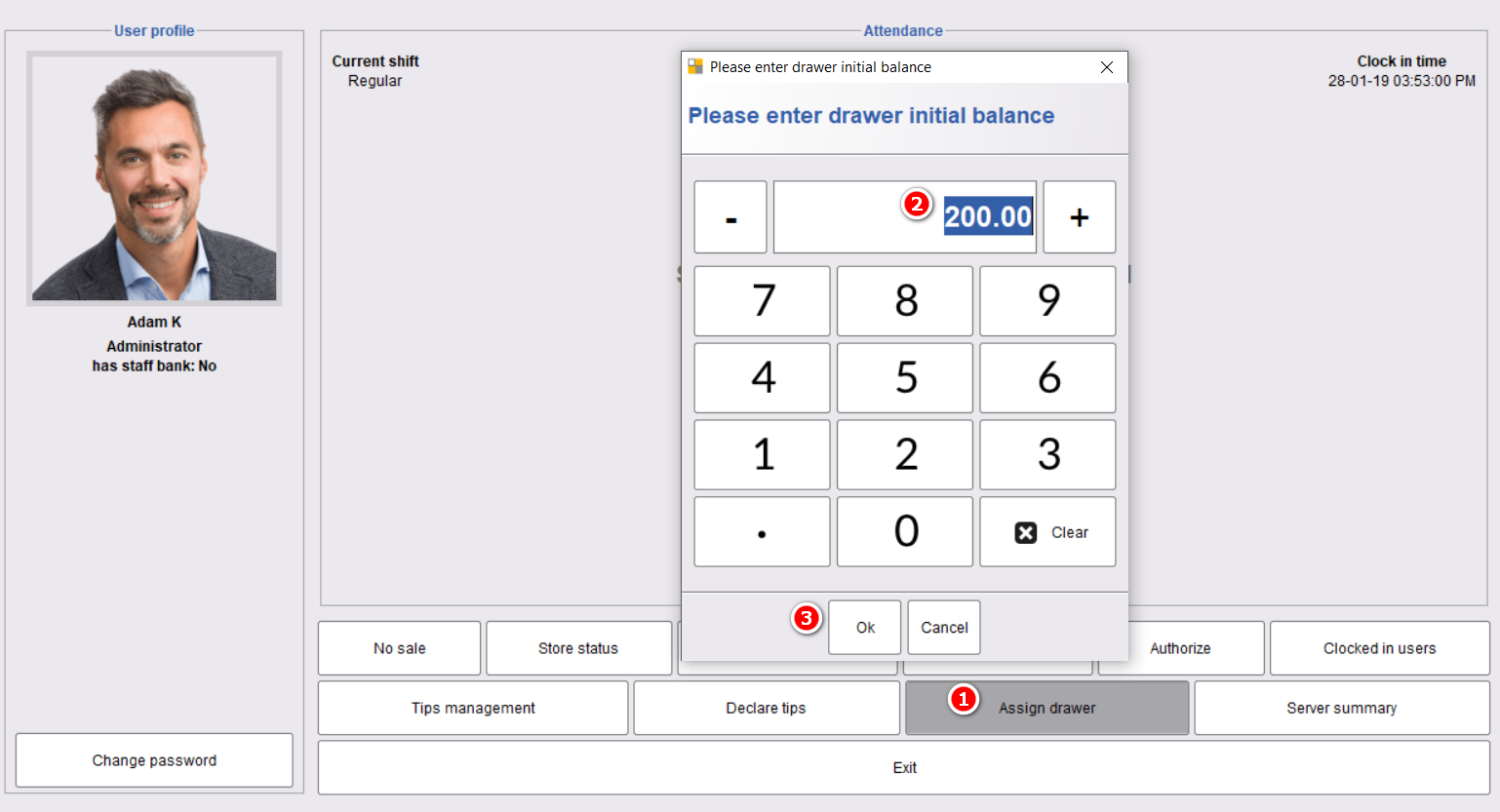
By default, drawer initial balance is $0. Always set the correct opening amount (e.g., $200 in change for the day).
📌 Step: Assign a Staff Bank
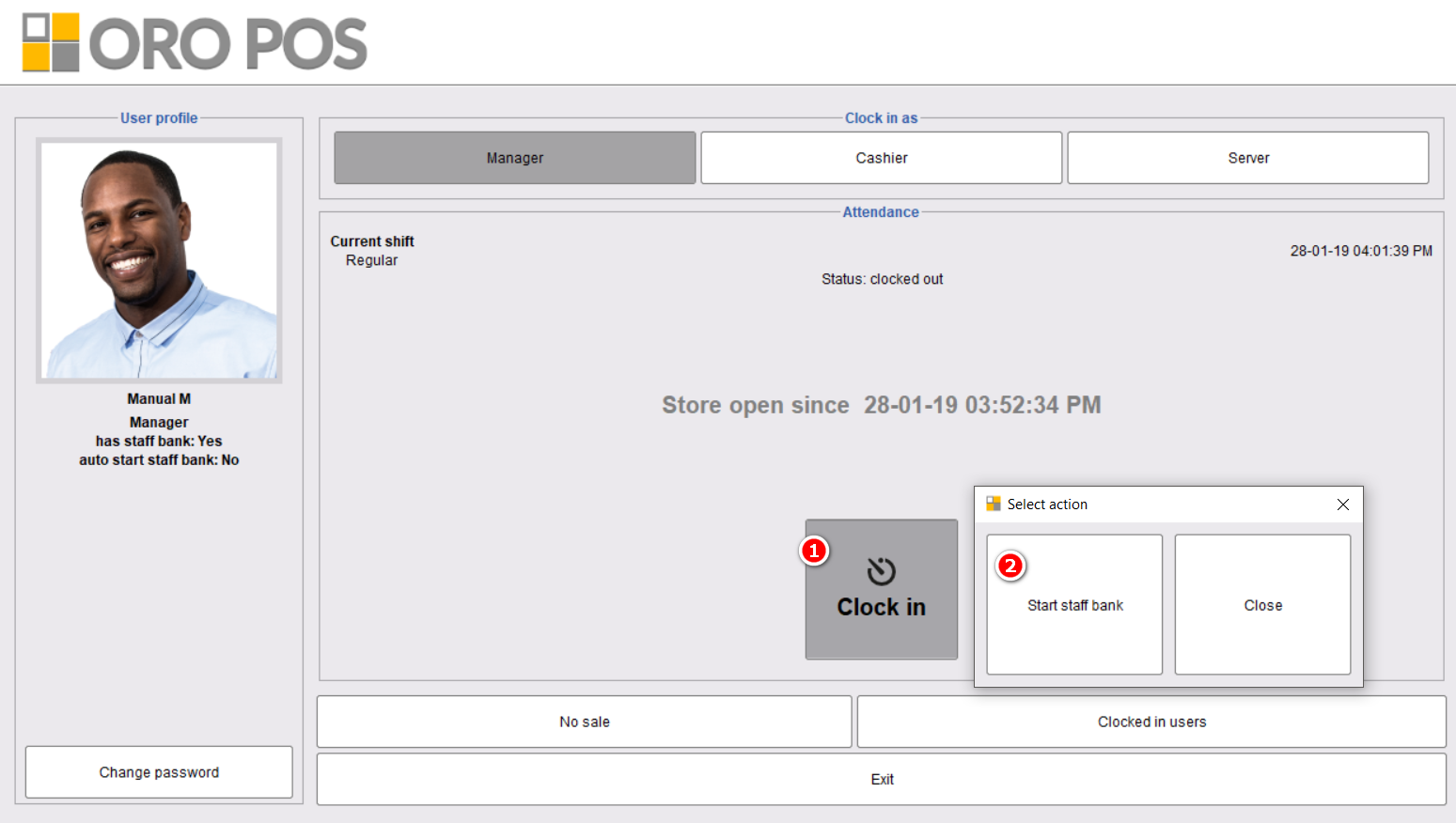
Staff banks can auto-open during clock-in if configured. If a server doesn’t open their bank, payments roll into the main cash drawer.
🛒 During the Session
Once the store is open and drawers/banks are assigned, normal operations begin:
| Activity | What’s Tracked |
|---|---|
| 📋 Servers take orders | Tickets, items, modifiers |
| 💳 Cards processed | Pre-auths held, transactions logged |
| 💰 Cash collected | Goes to drawer or staff bank |
| 👥 Employees clock in/out | Hours worked, payroll data |
| 🍳 Kitchen prep | KDS or printer tickets |
🌙 Preparing to Close
Before pressing the big “Close Store” button, complete 4 things in order:
- 📝 Adjust pre-auth tips and capture credit cards
- 💵 Pay out tips to employees
- 🔒 Close all cash drawers + staff banks
- 👋 Force-clock-out any employees still on the system
💳 Pre-Auth Tip Adjustments & Card Capture
When customers swipe their card before adding a tip, ORO POS does a pre-authorization — holding the bill amount but not capturing it yet. After the customer writes in a tip, the manager finalizes (captures) the total with the tip included.
📌 Real Example: Restaurant Dinner
| Step | Action |
|---|---|
| 7:30 PM | Customer dinner total: $80. Card swiped → pre-auth $80 |
| 7:35 PM | Customer signs receipt with $15 tip → bill = $95 |
| 10:30 PM | Manager closing → enters $15 tip into ORO POS → captures $95 |
| 10:32 PM | Card processor finalizes $95 charge → money settles to bank |
Without this step, the original $80 hold expires and the tip doesn’t get processed.
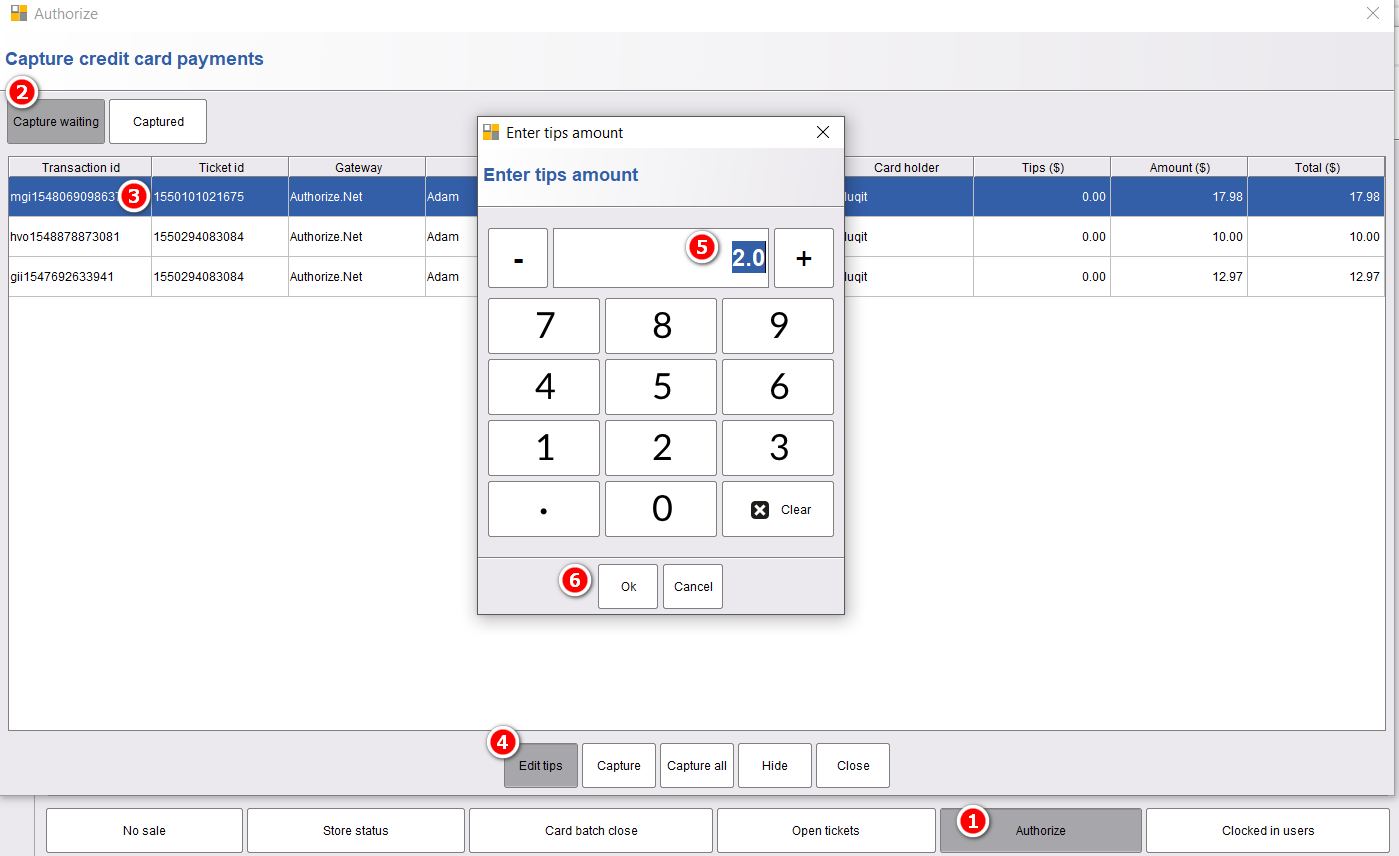
💵 Tip Pay-Out
After capturing pre-auths, pay tips to employees from the clock-in screen:
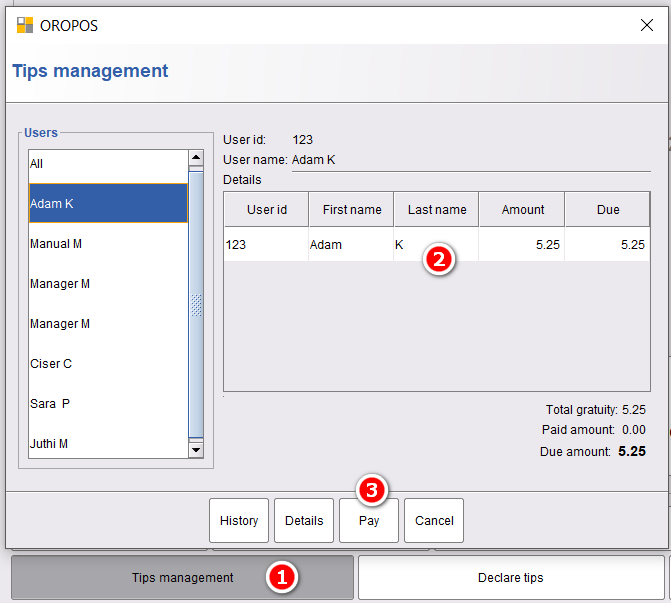
If you skip this step, the Tips Differential in your session report will show unpaid tips. Best practice: pay tips daily so it always shows $0.
🔒 Closing Cash Drawers & Staff Banks
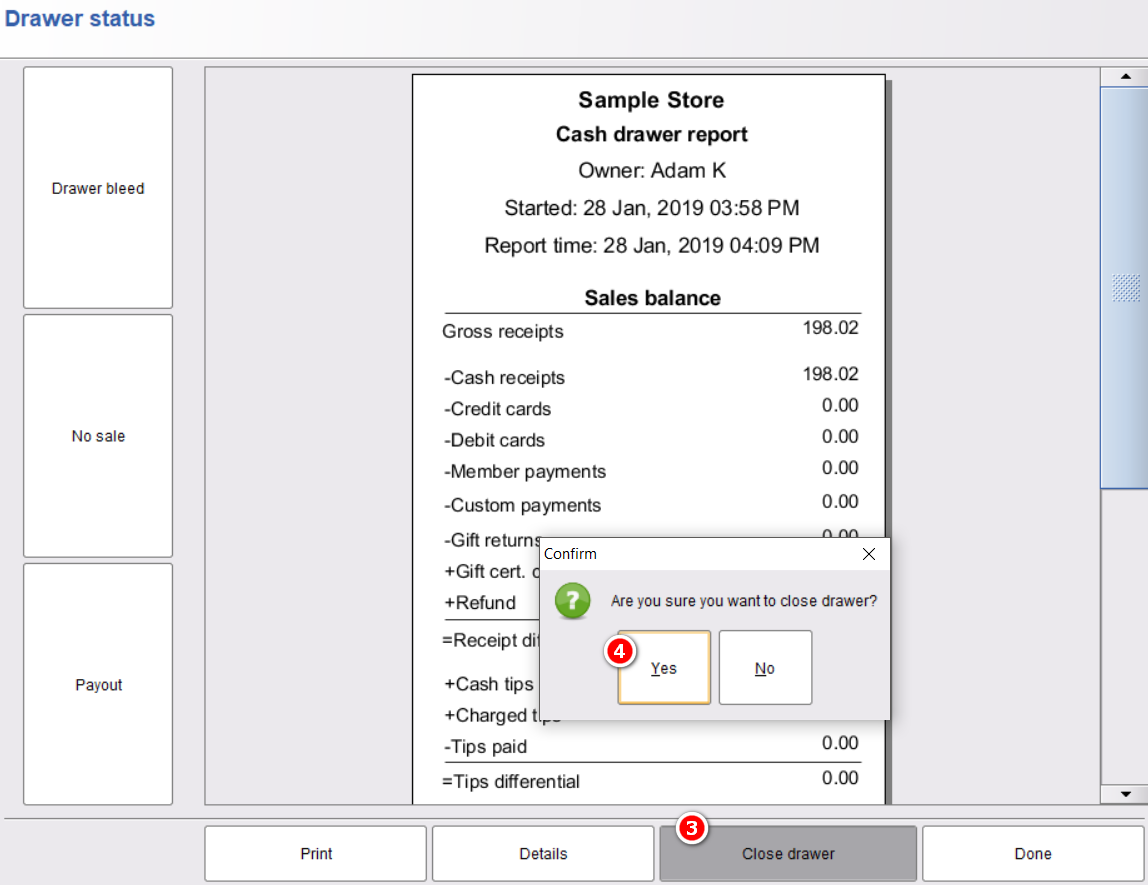
Manager checks the Store Status page to see what’s still open. If any drawer or staff bank is open, close them one by one.
Closing a Cash Drawer
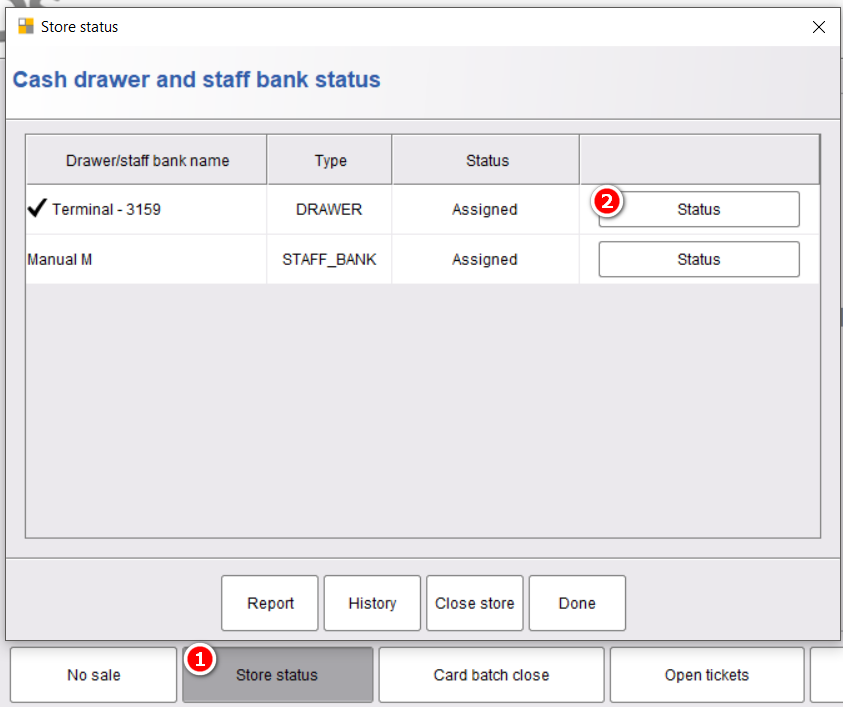
Closing a Staff Bank
Each server declares their tips and deposits cash when closing their bank.
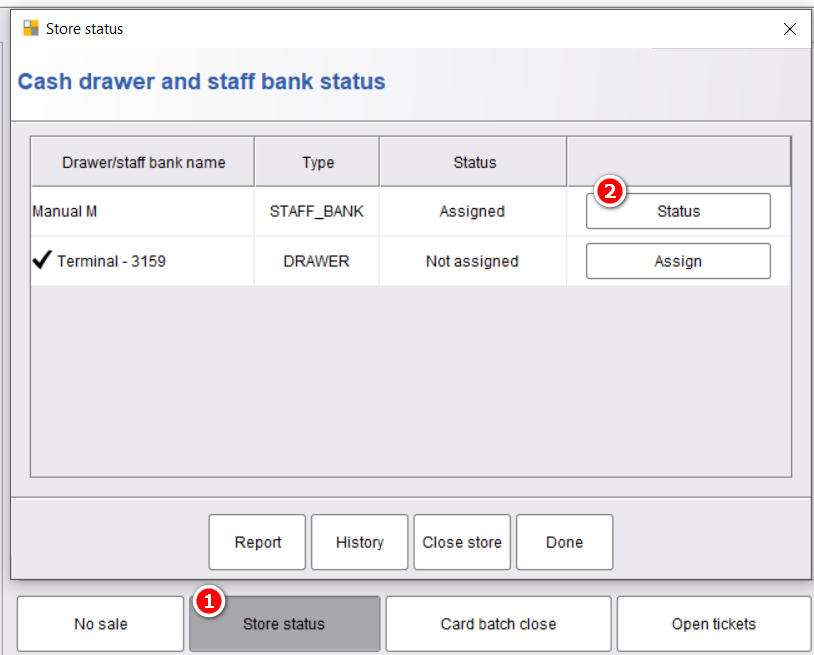
Each drawer / bank produces its own report. This way you can see:
- How much each terminal handled
- Each server’s sales + tips + cash deposited
- Discrepancies between expected vs actual cash
📌 Real Example: Server Cash Deposit
Sarah’s shift summary:
| Item | Amount |
|---|---|
| Total cash sales (8 tables) | $420.00 |
| Cash tips collected | $45.00 |
| Card tips declared | $80.00 |
| Cash to deposit | $420.00 |
| Cash tips to keep | $45.00 |
Sarah hands $420 to the manager → bank closes → manager prints her report.
👋 Clocking Out Employees
Notify all employees to clock out. If anyone forgot, manager can force-clock-out.
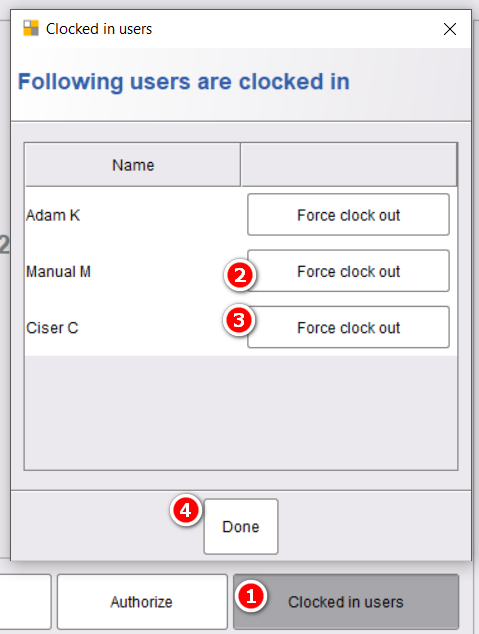
The manager closing the store should NOT clock out yet — they need to be the last one to do so, after the store is closed.
🌙 Closing the Store (The Big Button)
- All tickets closed (no open tabs left)
- All pre-auth credit cards captured
- All drawers + staff banks closed
- All employees clocked out
Once everything’s done, click Close Store from Store Status.
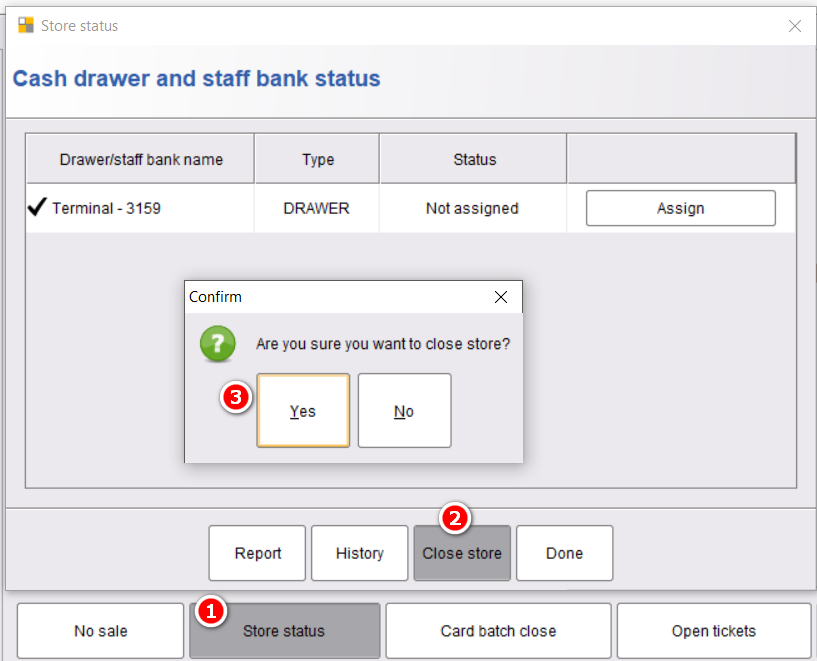
The session closes. ORO POS generates the Session Summary Report.
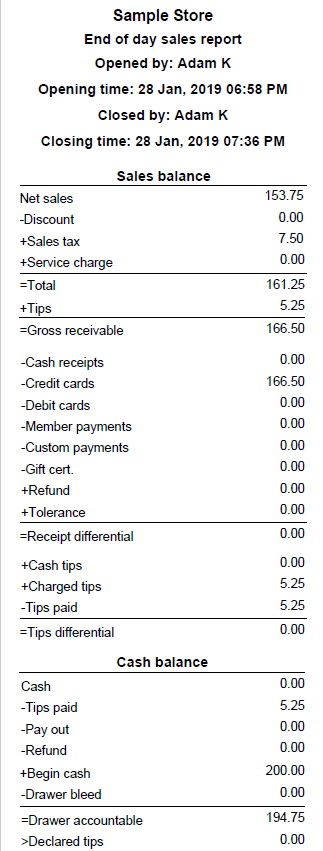
- 🔒 Forces close any drawers still open
- 👋 Clocks out any remaining employees
- 📊 Generates session-wide reports
- 📁 Locks the period — no more sales can be added
- 🔄 Resets for the next session
🔁 Multi-Session Days
Some stores run multiple sessions in a single day (lunch + dinner, or three shift rotations). Each session generates its own reports independently.
📌 Restaurant Example: Lunch + Dinner
| Time | Event |
|---|---|
| 10:30 AM | Open Lunch Session |
| 11 AM – 3 PM | Lunch service |
| 3:30 PM | Close lunch session → Lunch Report generated |
| 5:00 PM | Open Dinner Session (employees re-login) |
| 5 PM – 11 PM | Dinner service |
| 11:30 PM | Close dinner session → Dinner Report generated |
Result: Two separate reports (Lunch / Dinner) for the day. Owner can compare lunch vs dinner performance.
💼 Real-World Scenarios
🌙 Late-Night Bar (Crosses Midnight)
Bar opens at 5 PM Friday, closes at 2 AM Saturday. Session covers the entire shift even though it crosses midnight. One session = one report.
🏪 24/7 Convenience Store
Store never closes. Use shift-based sessions: morning, afternoon, overnight. Each shift = own session = own report. Cash drawer reset between shifts.
🍴 Restaurant with Server Banks
5 servers, each with a personal staff bank. Each server closes their own bank at end of shift, deposits cash + declares tips. Manager closes the store after all banks are reconciled.
☕ Coffee Shop (Single Session)
Opens 6 AM, closes 9 PM. One drawer, no staff banks. Manager opens in morning, closes at night. Simplest pattern.
🎪 Festival Vendor (Multi-Day Event)
3-day food truck festival. Open session Friday 4 PM, close Sunday 10 PM. One big session covers the entire event for unified reporting. Or 3 sessions (one per day) for daily breakdowns.
⭐ Manager’s Best Practices
| Tip | Why |
|---|---|
| Always set correct opening drawer balance | Wrong start = wrong “expected vs actual” report |
| Capture pre-auths before closing | Otherwise tips don’t get charged |
| Pay tips out same day | Keeps Tips Differential = $0 |
| Close ALL open tickets before closing store | Open tickets create Receipt Differential |
| Use staff banks for table service | Per-server accountability |
| Use cash drawer for counter service | Multiple cashiers share the till |
| Manager clocks out last | Need permission to be active until close |
| Verify physical cash matches reports | Identify discrepancies same day |
📚 Related Guides
| → Session Summary Report | → Differentials Explained | → Configure Cash Drawer |
📞 Need More Help?
Visit guide.orocube.com or contact helpdesk@orocube.net