Download and Installation

Oropos

Floor Plan

Cust

πŸš€ ORO POS Installation & Setup Guide

Step 1: Download ORO POS

πŸ“Œ Choose Your Download Source

New User? Go to forms.orocube.com/download for your free trial

Existing Customer? Go to shop.orocube.com to purchase or download

For Offline Terminals (No Internet Connection)

Download the “ORO POS bundled with Java JRE” package. This includes everything neededβ€”no additional software installation required.

Step 2A: Installation (ONLINE Setup)

Follow these steps if your terminal has an internet connection.
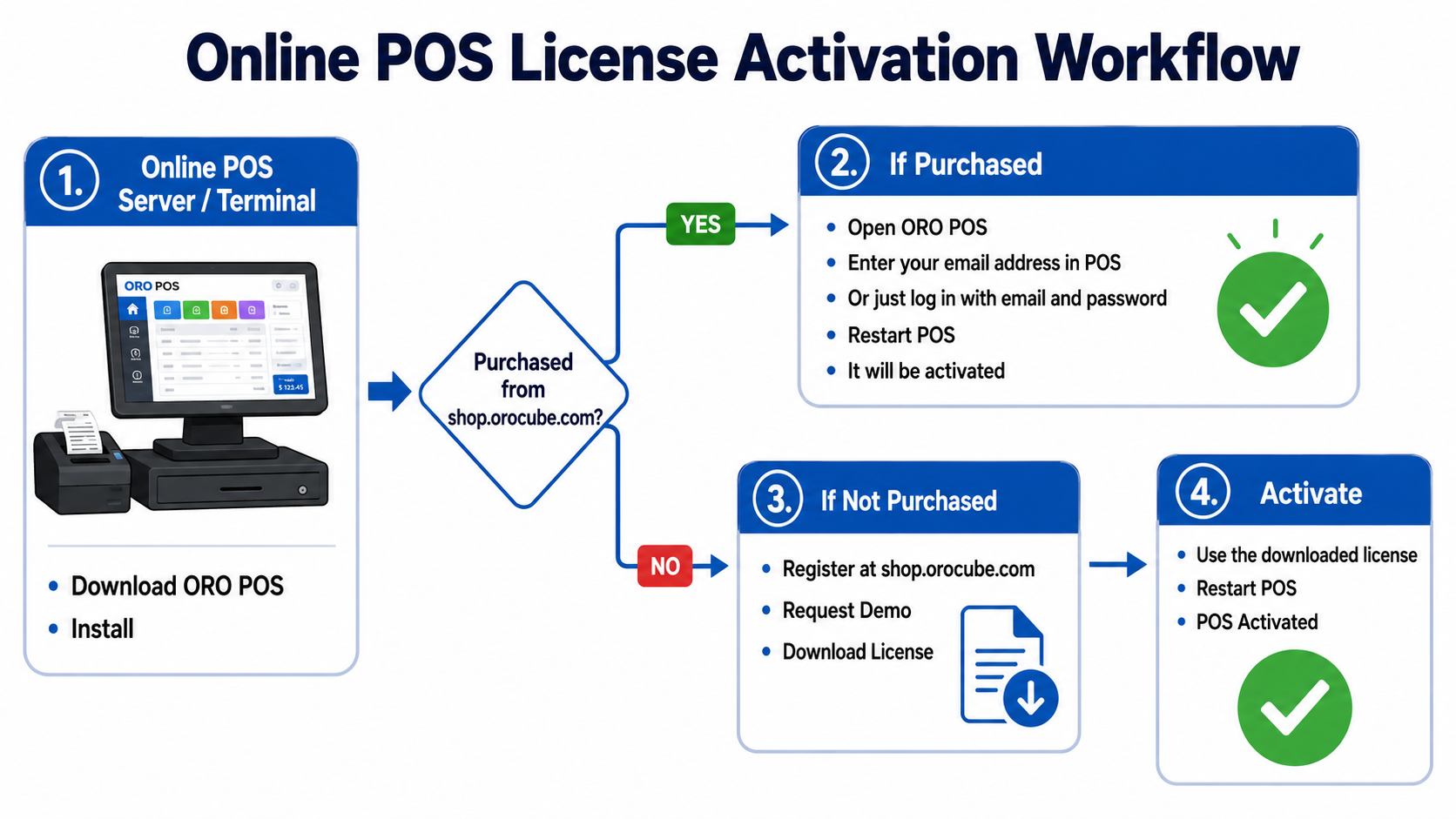
Online POS License Activation Workflow

πŸ“Š Online activation workflow at a glance

Windows (Online)

1
Locate the downloaded file oropos.exe
2
Double-click the file to start installation
3
Wait for the login screen to appear. The system is setting up its database (may take 1-2 minutes)
4
If you see a Windows SmartScreen warning, click “Run anyway” πŸ“Έ View SmartScreen Warning
5
Proceed to Step 3: License Activation (Online)

Mac or Linux (Online)

1
Verify Oracle Java 8 is installed on your system
2
Open Terminal
3
Navigate to your ORO POS folder
4
Type this command and press Enter: java -jar oropos.jar
5
Wait for the login screen to appear
6
Proceed to Step 3: License Activation (Online)
βœ“ Activation Complete

Your system is now licensed and ready. Proceed to Step 4: Initial Setup.

Step 3A: Activate License (ONLINE)

If you have an internet connection, this is the fastest way to activate.

1
Look for the Activate button or option at the login screen
2
Enter your email address
3
Enter your password
4
Click “Activate”
5
Wait for confirmation message
6
Restart the application
βœ“ Activation Complete

Your system is now licensed and ready. Proceed to Step 4: Initial Setup.

Step 2B: Installation (OFFLINE Setup)

Follow these steps if your terminal has NO internet connection.
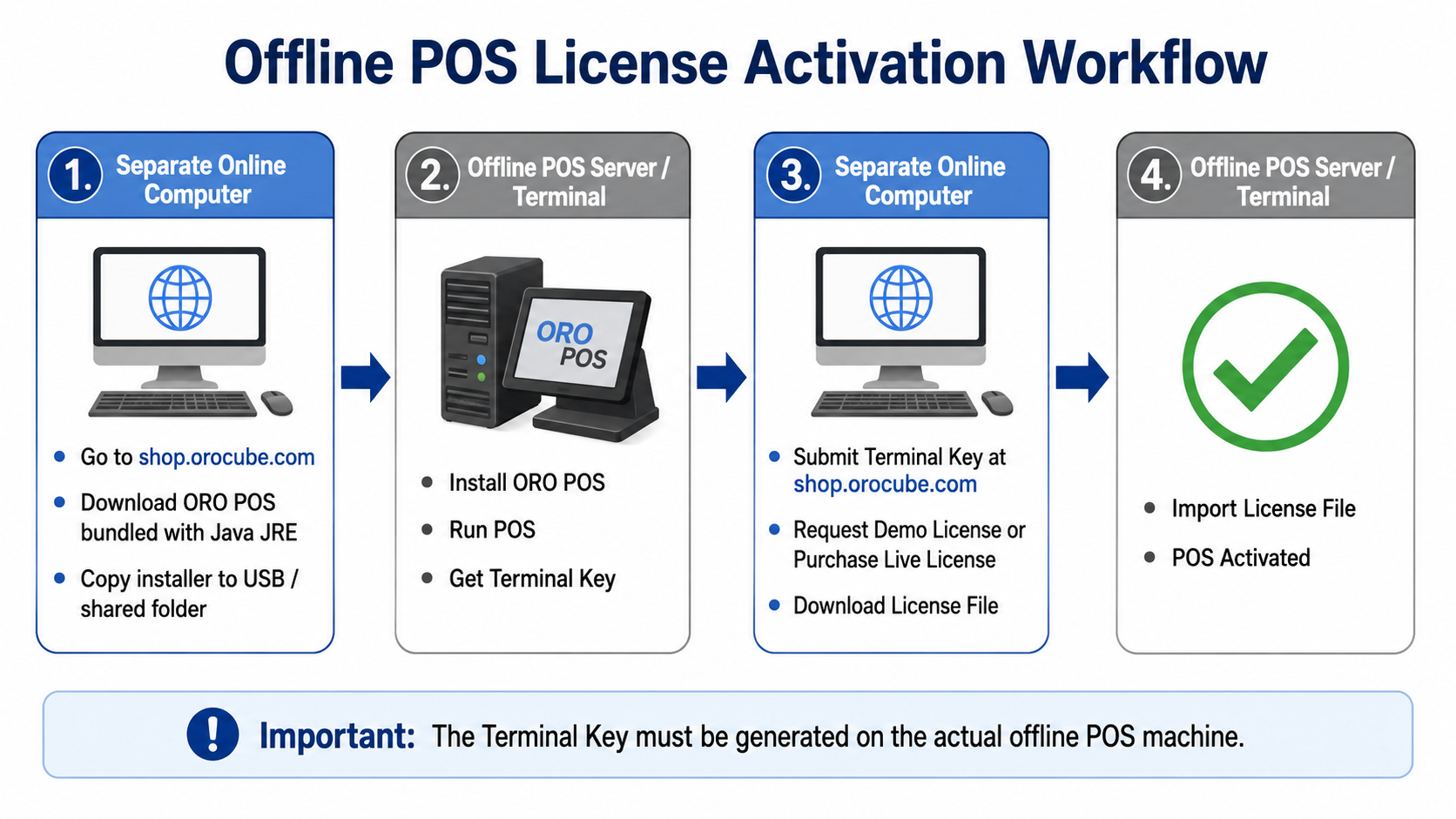
Offline POS License Activation Workflow

πŸ“Š Offline activation workflow at a glance

Windows (Offline)

1
Make sure you downloaded the “ORO POS bundled with Java JRE” package
2
Locate the downloaded file oropos.exe
3
Double-click the file to start installation
4
Wait for the login screen to appear. The system is setting up its database (may take 1-2 minutes)
5
If you see a Windows SmartScreen warning, click “Run anyway” πŸ“Έ View SmartScreen Warning
6
Proceed to Step 3B: License Activation (Offline)

Mac or Linux (Offline)

1
Make sure you downloaded the “ORO POS bundled with Java JRE” package (Java is included)
2
Open Terminal
3
Navigate to your ORO POS folder
4
Type this command and press Enter: java -jar oropos.jar
5
Wait for the login screen to appear
6
Proceed to Step 3B: License Activation (Offline)

Step 3B: Activate License (OFFLINE)

Use this process if your terminal has NO internet connection.

⚠️ You Need Two Devices

This process requires both:
β€’ Your offline terminal (ORO POS)
β€’ A computer with internet access

Stage 1: Get Your Terminal Key

1
On your offline terminal, open ORO POS
2
Look at the login/activation screen
3
Find and copy your Terminal Key
4
Write it down or prepare to transfer it to your online computer

Stage 2: Download License File

2
Enter your Terminal Key (from Stage 1)
3
Download the .lic file (license file)

Stage 3: Import License


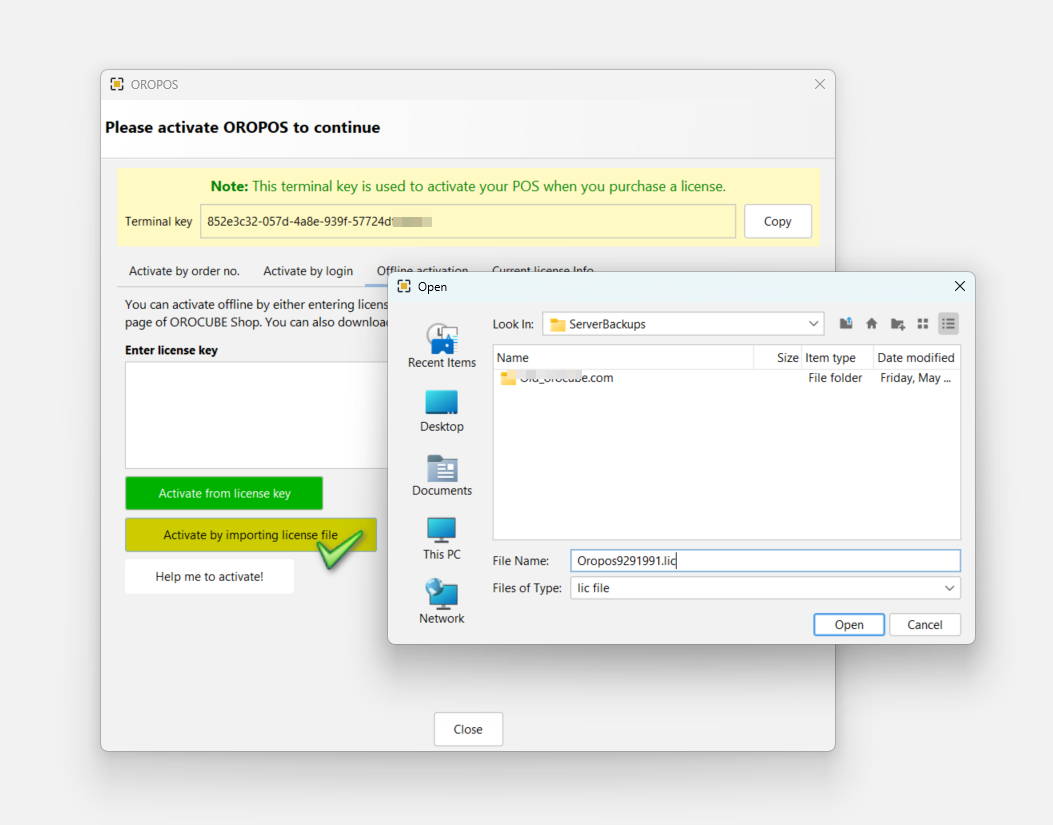
Offline Activation - Import License File

πŸ“Έ Click “Activate by importing license file” and select the downloaded .lic file

1
Transfer the .lic file to your offline terminal using: USB drive, Email, or Network share
2
In ORO POS on your offline terminal, look for “Import License” option
3
Select the .lic file you transferred
4
Wait for confirmation
5
Restart the application
βœ“ Offline Activation Complete

Your system is now licensed and ready. Proceed to Step 4: Initial Setup.

Step 4: Initial Setup

This is the same for both online and offline installations.

1
At the login screen, enter PIN: 1111 (default administrator PIN)
2
Click “Clock In”
3
Select “Start New Store Session”
4
Assign a drawer (select or create your cash drawer)
5
Create a sample order to verify everything is working
βœ“ Setup Complete!

ORO POS is now installed and ready to use.

⚠️ CRITICAL

Never open more than one instance of ORO POS at the same time. Running multiple copies simultaneously can cause data corruption.


πŸ–₯️ Single Terminal vs Multiple Terminals?
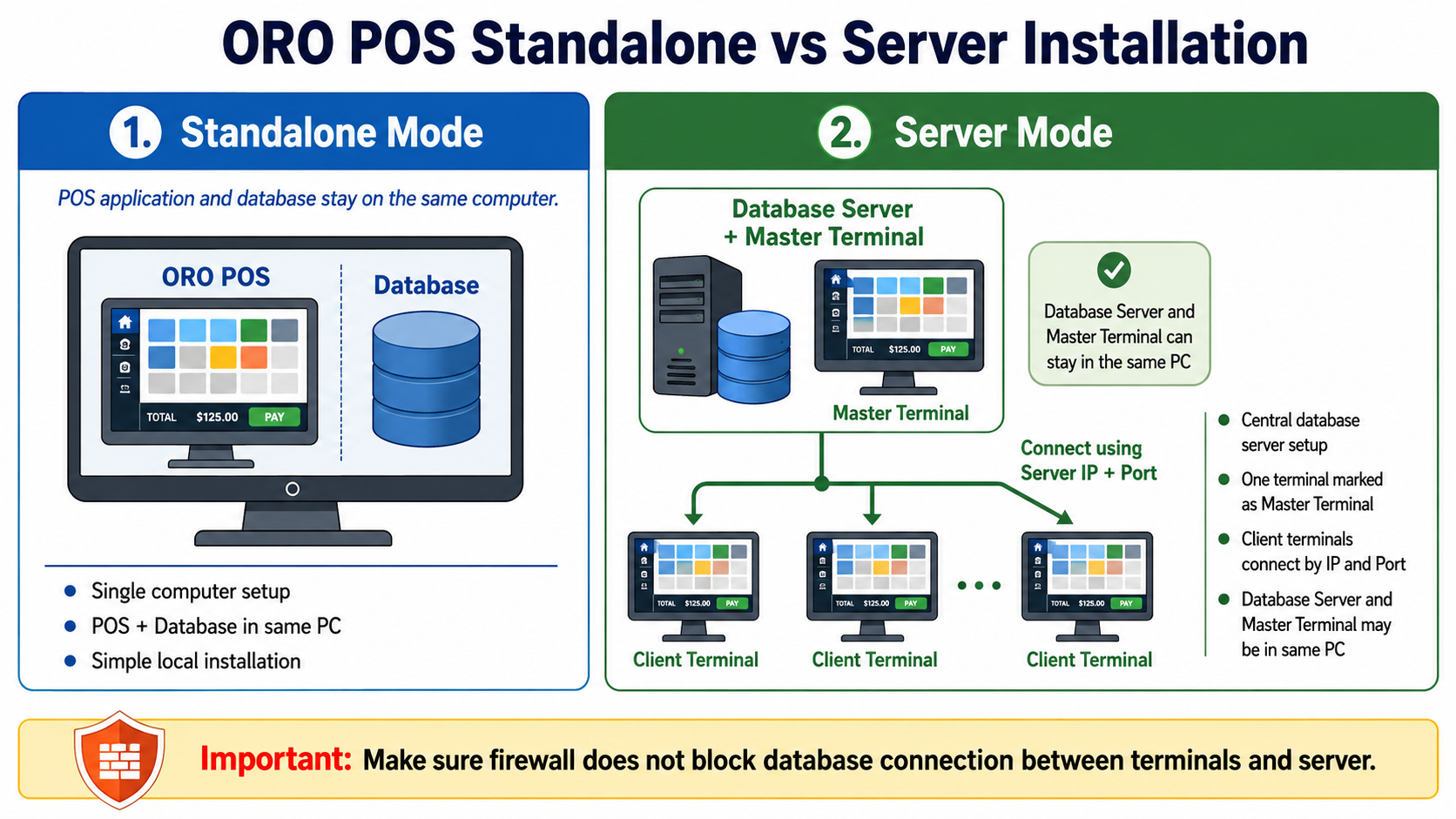
For demos or small stores, Standalone mode (single terminal) is the easiest way to get started. But many real-world stores need multiple terminals running together.

πŸ“Œ ORO POS Supports Both

ORO POS includes a built-in wizard for setting up multiple terminals β€” no advanced IT skills needed.

πŸ”„ Database Engine Update

Before version 1.6.8: Apache Derby was used as the database.

1.6.8 and later: ORO POS now installs PostgreSQL by default β€” much more stable, and can handle a huge number of terminals.

What’s Next?

  • Run the Setup Wizard to configure your store settings
  • Review the Menu Programming Guides to set up your products
  • Configure pricing, discounts, and payment methods
  • Set up user accounts and permissions
πŸ“š Need Help?

Visit our knowledge base at guide.orocube.com or contact support at helpdesk@orocube.net