

📦 Inventory Stock In / Stock Out
Stock In records when inventory arrives (from a purchase, supplier, or new shipment). Stock Out records when inventory leaves (waste, breakage, internal use, etc.). These are the two foundational actions for keeping accurate stock levels.
Go to Back-Office → Inventory → Inventory Items. Use the bottom toolbar buttons:
- 📥 In — record incoming stock
- 📤 Out — record outgoing stock (waste, etc.)
- 🔄 Transfer — move stock between locations
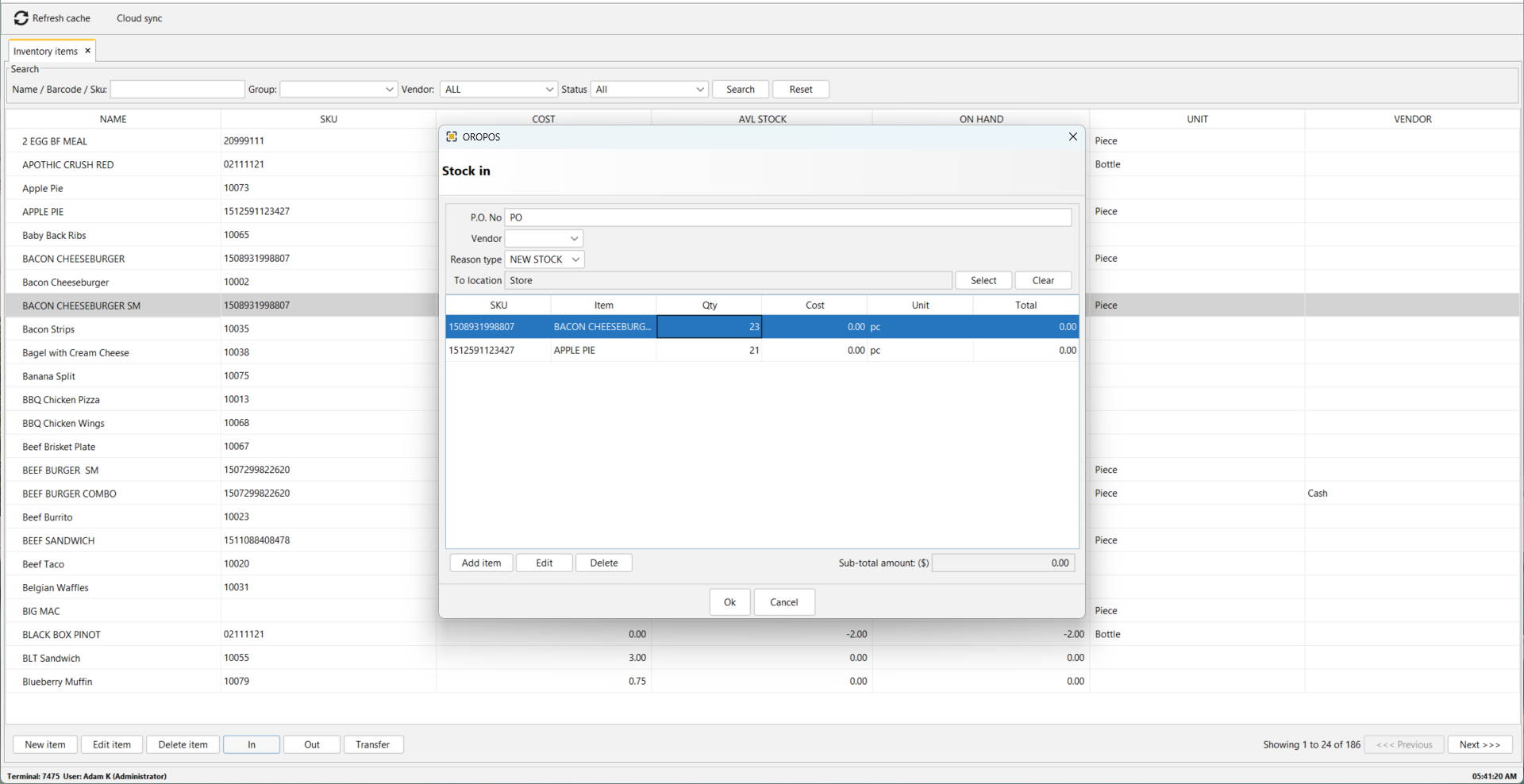
📸 Stock In dialog (click to enlarge)
📥 What is Stock In?
Stock In adds quantity to your inventory. Use it whenever new product enters your store.
📌 Common Reasons:
- 🚚 Supplier delivery (with or without a Purchase Order)
- 💵 Cash purchase from a local store or wholesale market
- 🎁 Free samples or gifts from vendors
- ↩️ Customer returns going back to stock
- 📊 Initial stock setup (when starting fresh)
📝 Stock In Fields Explained
| Field | Purpose | Required? |
|---|---|---|
| P.O. No | Purchase Order reference number for tracking | Optional |
| Vendor | Who you bought it from | ✅ Required |
| Reason Type | Why stock is coming in (NEW STOCK, return, adjustment, etc.) | ✅ Required |
| To Location | Where the stock will be added (Store, Warehouse, Main Kitchen, etc.) | ✅ Required |
| Items Table | SKU, item name, quantity, cost, unit, total | ✅ Required |
| Sub-total | Auto-calculated total cost of all items | Auto |
💡 Vendor Tip: Use “Cash” When No Vendor Record
Sometimes you buy from local stores, wholesale markets, or one-off suppliers and don’t want to create a record for each.
✅ The Solution: Create a “Cash” Vendor
Create a single generic vendor named “Cash” (or “Local Purchase”, “Walk-In Vendor”, etc.) and use it for all unrecorded purchases.
| Vendor Name | Use When |
|---|---|
| Sysco | Regular weekly delivery from Sysco |
| US Foods | Regular delivery from US Foods |
| Cash ← generic | Manager bought eggs from Walmart, paid cash |
📑 Reason Types Explained
| Reason Type | When to Use |
|---|---|
| 🆕 NEW STOCK | Default for incoming purchases |
| ↩️ RETURN | Customer returned an item, going back to stock |
| ⚖️ ADJUSTMENT | Manual correction (found extra during stock count) |
| 🎁 GIFT / SAMPLE | Free product from vendor, no cost |
📤 What is Stock Out?
Stock Out removes quantity from your inventory without a sale. Use this for waste, internal use, or shrinkage.
📌 Common Stock Out Reasons:
| Reason | Example |
|---|---|
| 🗑️ Waste / Spoilage | Expired milk, moldy bread |
| 💔 Breakage | Bottle dropped, glass broken |
| 🍴 Internal Use | Staff meal, owner’s family eats from stock |
| 🎉 Promo / Free | Free samples given to customers |
| 📉 Shrinkage / Theft | Stock missing, can’t account for |
Selling an item to a customer reduces stock automatically via the order, not via Stock Out. Stock Out is for non-sale reductions.
🎬 Step-by-Step: Stock In Walkthrough
| Step | Action |
|---|---|
| 1 | Open Back-Office → Inventory → Inventory Items |
| 2 | Click the “In” button at the bottom of the screen |
| 3 | Enter P.O. No (optional — for traceability) |
| 4 | Select Vendor from dropdown (use “Cash” if no record) |
| 5 | Choose Reason Type (default: NEW STOCK) |
| 6 | Pick To Location (where stock arrives) |
| 7 | Click Add Item, search by SKU/name, enter Qty and Cost |
| 8 | Repeat for all items received |
| 9 | Verify Sub-total amount matches your invoice |
| 10 | Click Ok to commit — stock is now updated! ✅ |
💼 Real-World Examples
📌 Example 1: Regular Vendor Delivery
Sysco delivers your weekly food order. Invoice #INV-4456.
| Field | Value |
|---|---|
| P.O. No | INV-4456 |
| Vendor | Sysco |
| Reason Type | NEW STOCK |
| To Location | Main Kitchen |
| Items | 50 lb beef ($5.50/lb), 100 buns ($0.30/each) |
📌 Example 2: Manager’s Cash Purchase
Owner ran out of eggs, drove to Costco, paid cash for 5 trays.
| Field | Value |
|---|---|
| P.O. No | (blank) |
| Vendor | Cash ← (no Costco record needed) |
| Reason Type | NEW STOCK |
| To Location | Main Kitchen |
| Items | 5 trays of eggs ($8.99/tray) |
📌 Example 3: Stock Out — Spoiled Milk
Found 3 cartons of milk past expiration. Need to remove from stock.
| Field | Value |
|---|---|
| Action | Click “Out” button |
| Reason Type | WASTE / SPOILAGE |
| From Location | Main Kitchen |
| Items | 3 × Milk Carton (cost auto-pulled from inventory) |
⭐ Best Practices
| Tip | Why |
|---|---|
| Always enter the actual cost | Affects costing rule (avg/last) and profit reports |
| Match Sub-total to invoice | Catches data entry errors before saving |
| Use “Cash” vendor for one-off purchases | Avoids cluttering vendor list |
| Record Stock Out same day as waste | Reports stay accurate |
| Use distinct Reason Types | Easier to track waste % vs theft vs internal use |
📚 Related Guides
| → Adding a New Vendor | → Purchase Orders | → Inventory Transfer |
📞 Need More Help?
Visit our knowledge base at guide.orocube.com or contact support at helpdesk@orocube.net