

🛒 Configure Order Type / Business Type
ORO POS Order Type configuration is very important because a store can be configured as either a Retail or Restaurant type of business. Order types control how tickets behave: dine-in, takeout, retail, bar tab, delivery, food truck, and more.
We will walk through creating an order type called “FOOD TRUCK” as a real-world example. The same steps apply to any order type you want to create.
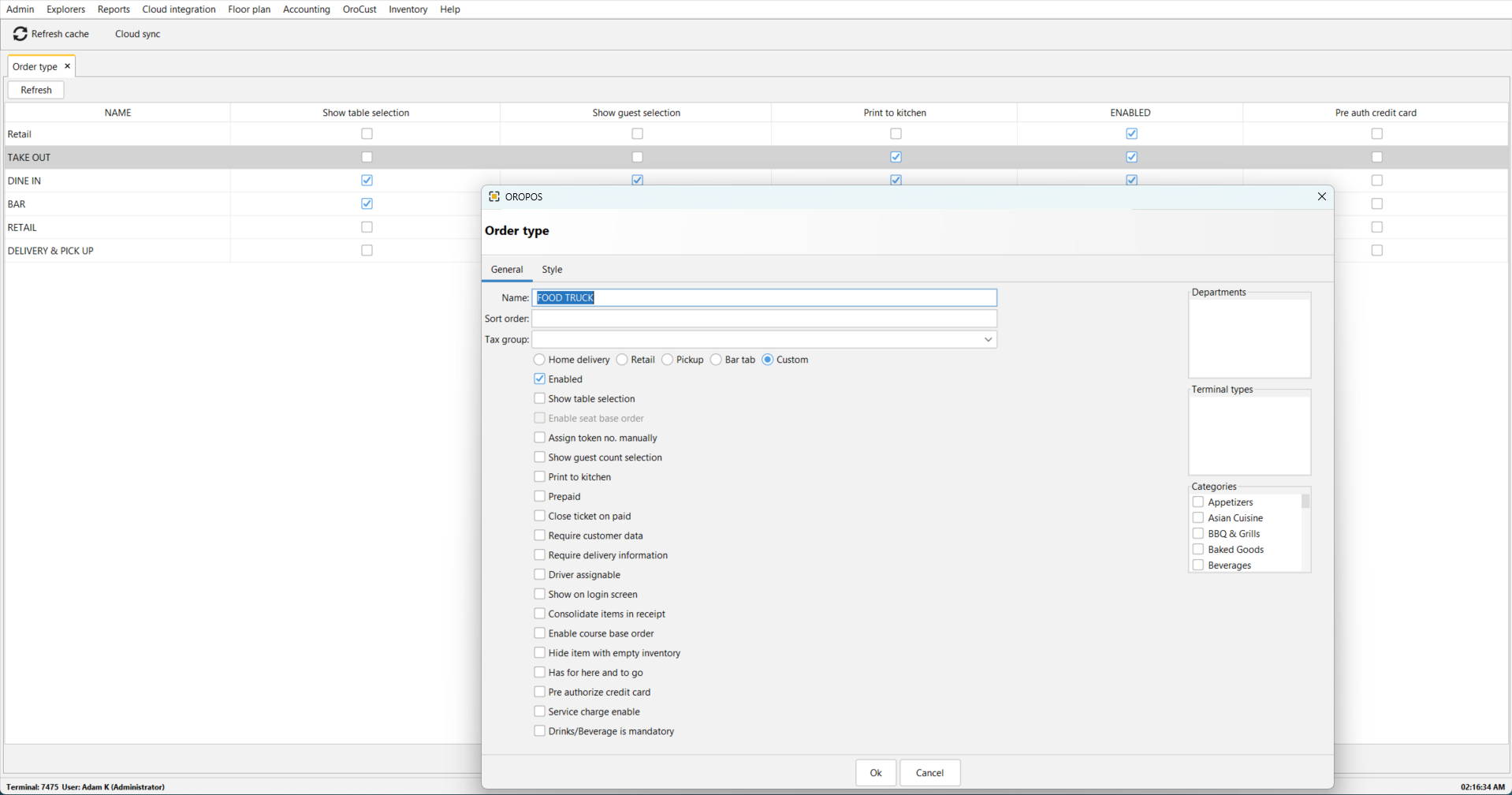
📸 Order Type configuration screen with FOOD TRUCK example (click to enlarge)
1️⃣ Main Order Type List
The table behind the popup shows all configured order types in your system.
| Column | Meaning |
|---|---|
| NAME | Name of the order type shown in POS — e.g., Retail, Take Out, Dine In, Bar, Delivery & Pick Up. |
| Show table selection | If checked, the cashier must select a table before starting the order. Mostly used for dine-in restaurants. |
| Show guest selection | Allows entering/selecting number of guests. Useful for dine-in service and reporting average ticket per guest. |
| Print to kitchen | Sends order items to kitchen printer/KDS when the ticket is saved/submitted. Useful for food orders. |
| ENABLED | Makes this order type active and usable. If unchecked, it stays configured but hidden/disabled. |
| Pre auth credit card | Allows credit card pre-authorization before final payment. Common for bar tabs, clubs, hotel/room tabs. |
2️⃣ Order Type Popup: General Tab
Basic Fields
| Field | Explanation |
|---|---|
| Name | The order type name. Here it is FOOD TRUCK. This name appears in POS order selection. |
| Sort order | Controls display order. Lower number appears first. Example: 1 = first, 2 = second. |
| Tax group | Assigns a tax rule/group for this order type. Useful when dine-in, takeout, delivery, or retail have different tax behavior. |
Order Behavior Type (Radio Buttons)
These radio buttons define the main behavior category of the order type.
| Option | Meaning |
|---|---|
| Home delivery | For delivery orders. Works with customer address, delivery info, and driver assignment. |
| Retail | For retail-style checkout. Usually no table, no guest count, may not need kitchen printing. |
| Pickup | Customer orders and picks up later. Good for takeout or call-in pickup. |
| Bar tab | Keeps a ticket open for drinks/food, often with credit card pre-authorization. |
| Custom | Flexible custom workflow. Good for special cases like Food Truck, drive-thru, catering, event counter, etc. |
Choose Custom — a food truck is not exactly dine-in, retail, or delivery, so Custom gives the most flexibility.
3️⃣ Checkboxes in General Tab
| Parameter | Meaning |
|---|---|
| Enabled | Activates this order type. Without this, FOOD TRUCK won’t appear in POS. |
| Show table selection | Shows table/floor selection. Usually not needed for food truck unless you use numbered outdoor tables. |
| Enable seat base order | Enables seat-level ordering (Seat 1, Seat 2, Seat 3). Mostly for dine-in restaurants. |
| Assign token no. manually | Allows cashier to manually enter a token/order number. Useful for food trucks using pager numbers, pickup numbers, or paper tokens. |
| Show guest count selection | Asks for guest count. Useful for dine-in reporting, not usually needed for food truck. |
| Print to kitchen | Sends items to kitchen printer. Important for food trucks with a cook/prep station. |
| Pre paid | Customer pays before order is completed. Recommended for food trucks. |
| Close ticket on paid | Automatically closes the ticket after payment. Good for fast counter service and food trucks. |
| Require customer data | Forces customer information before completing order. Useful for delivery, catering, loyalty. Not always needed for walk-up food truck sales. |
| Require delivery information | Requires delivery address/details. Usually not needed for food truck unless you also accept delivery orders. |
| Driver assignable | Allows assigning a delivery driver. Mostly for delivery workflow. |
| Show on login screen | Shows this order type immediately after login. Useful if FOOD TRUCK is your main operating mode. |
| Consolidate items in receipt | Combines same items on receipt. Example: instead of Burger three times, shows Burger × 3. Cleaner receipts. |
| Enable course base order | Allows course-based ordering (Appetizer, Main Course, Dessert). Mostly for dine-in/full-service restaurants. |
| Hide item with empty inventory | If an item’s stock is zero, hide it from sale. Very useful for food trucks with limited inventory. |
| Has for here and to go | Allows cashier to mark order as “for here” or “to go”. Useful for food trucks if some customers eat nearby. |
| Pre authorize credit card | Holds/authorizes a card before final charge. Usually not needed for quick food truck sales. More useful for bar tabs. |
| Service charge enable | Adds/enables service charge for this order type. Could be used for events, catering, or automatic fees. |
| Drinks/Beverage is mandatory | Forces beverage selection or requires a drink/beverage item. Useful for combos but not common unless every order requires a drink. |
4️⃣ Right-Side Selection Panels
📦 Departments
Restricts which departments are available for this order type.
| Department | Use |
|---|---|
| Food | Show food items |
| Drinks | Show drinks |
| Retail | Show retail products |
| Catering | Show catering items |
If nothing is selected, the system may allow all departments depending on configuration.
🖥️ Terminal Types
Restricts this order type to certain POS terminal types.
| Terminal Type | Use |
|---|---|
| Counter terminal | Main cashier |
| Bar terminal | Bar station |
| Food truck terminal | Mobile/outdoor terminal |
| Kitchen terminal | Kitchen use only |
Create a terminal type called “Food Truck Terminal” and assign this order type only to that terminal.
🍽️ Categories
Controls which menu categories appear for this order type.
Visible categories in the example:
| Category | Meaning |
|---|---|
| Appetizers | Starter items |
| Asian Cuisine | Food category |
| BBQ & Grills | Food category |
| Baked Goods | Bakery items |
| Beverages | Drinks |
You may want to show only the small food truck menu, not your entire restaurant menu. Use Categories to limit what’s available.
5️⃣ Recommended FOOD TRUCK Settings
For a typical food truck, here is the recommended configuration:
| Setting | Recommended Value |
|---|---|
| Type | Custom or Pickup |
| Enabled | ✓ Yes |
| Show table selection | ✗ No |
| Show guest selection | ✗ No |
| Print to kitchen | ✓ Yes |
| Pre paid | ✓ Yes |
| Close ticket on paid | ✓ Yes |
| Assign token no. manually | ⚙️ Optional (useful with order/pager numbers) |
| Require customer data | ✗ No (unless loyalty/customer tracking is needed) |
| Require delivery information | ✗ No |
| Driver assignable | ✗ No |
| Show on login screen | ✓ Yes |
| Consolidate items in receipt | ✓ Yes |
| Hide item with empty inventory | ✓ Yes |
| Pre authorize credit card | ✗ No |
| Service charge enable | ⚙️ Optional |
| Beverage mandatory | ⚙️ Only if every order requires a drink/combo |
After configuring all settings, click “Ok” at the bottom to save your new order type. Click “Cancel” if you want to discard changes.
📚 Need More Help?
Visit our knowledge base at guide.orocube.com or contact support at helpdesk@orocube.net