

🍔 Receive Online Orders in ORO POS
Once an order is confirmed, it appears instantly in your ORO POS terminal. Here’s how to handle it from the moment it arrives until it goes out the door.
Step 1: New Order Notification
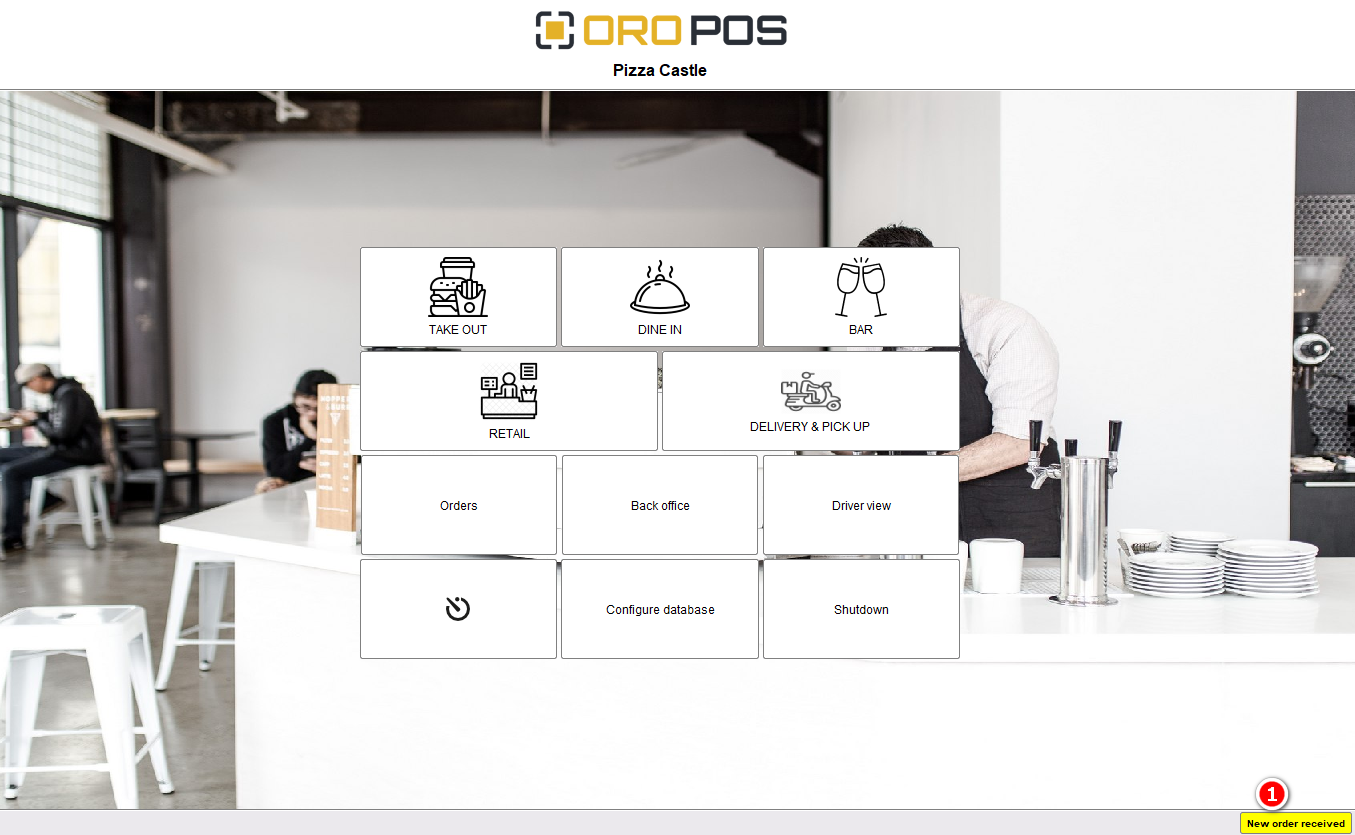
When a confirmed online order arrives, ORO POS shows a yellow button on the status bar.
Step 2: Open the Delivery Order Type
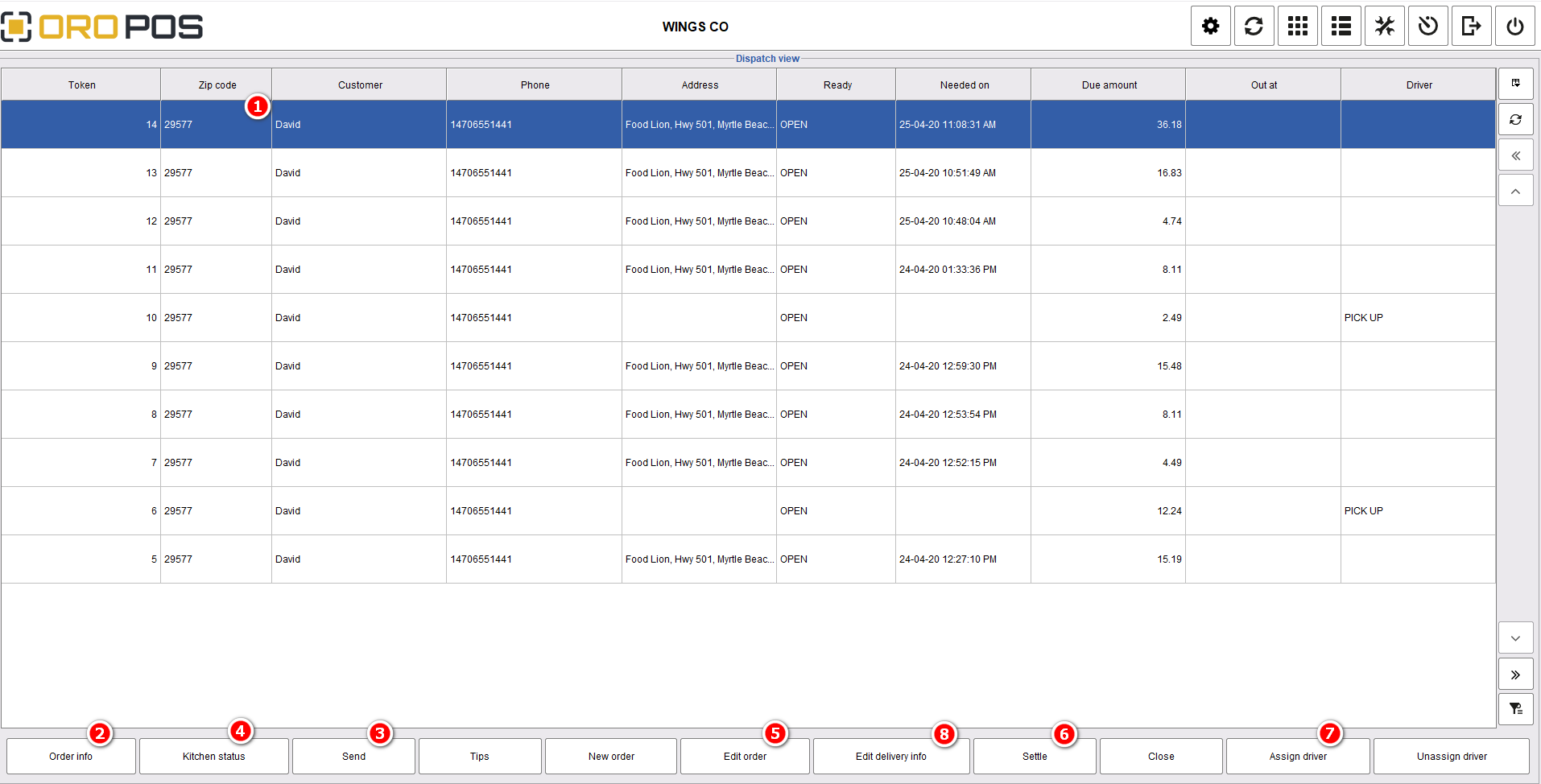
The store manager should go to the “Delivery” order type to see details of the online order.
Step 3: Process the Order
From the delivery screen, you can:
- 👁️ See the new order
- 📋 Check order info (items, customer, address, special instructions)
- 🍳 Send to kitchen
- 📊 Check kitchen status
- ✏️ Edit order (if needed)
- 💳 Settle the ticket (process payment)
- 🚗 Assign to a driver (for delivery)
💡 Real-Time Sync
Online orders use IoT push notifications — they appear in your POS within seconds of the customer submitting them. No manual refresh needed.
⚠️ Stay Logged In
Make sure your POS terminal stays logged in during operating hours so you don’t miss orders. Consider keeping a dedicated terminal for online orders during busy times.
📞 Need Help?
Contact support at helpdesk@orocube.net