

🖥️ Set Up Your Master Terminal
If you have multiple terminals, only one should sync data to the cloud. This is called the Master Terminal.
⚠️ Why This Matters
All database synchronization with Menugreat must be performed by the master terminal. Setting this up correctly avoids data conflicts.
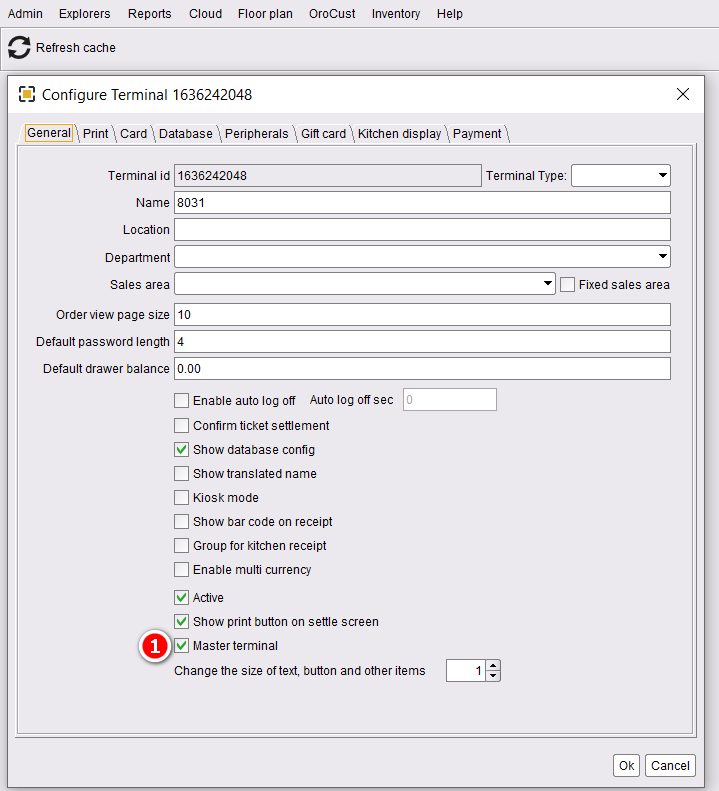
Step 1: Designate the Master Terminal
Go to Back Office → Admin → Terminal Configuration → Master Terminal → Restart
Step 2: Sync Changes to Cloud
Whenever you make changes to your menu, prices, or settings, you must sync to the cloud. Otherwise customers won’t see the updates.
Go to Back-Office → Cloud → Sync

- Click “Cloud” to initiate the process
- Click “Sync” to upload your changes
🔄 Cloud vs Local Settings
If your cloud settings differ from local, you’ll be prompted to choose:
- Cloud → overwrites local with cloud version
- Local → pushes your terminal settings to the cloud
💡 Tip
Always remember to cloud sync after any change, otherwise the online customer page will show outdated information.