

🗺️ Set Up Delivery Zones
Delivery zones tell Menugreat where you deliver and how much you charge. Customers outside your zones can only do pickup.
Add a Delivery Zone
From the Menugreat console: Settings → Online Ordering → Delivery Zones
Click “Add Zone” — Menugreat will show your store on Google Maps so you can draw your zone visually.
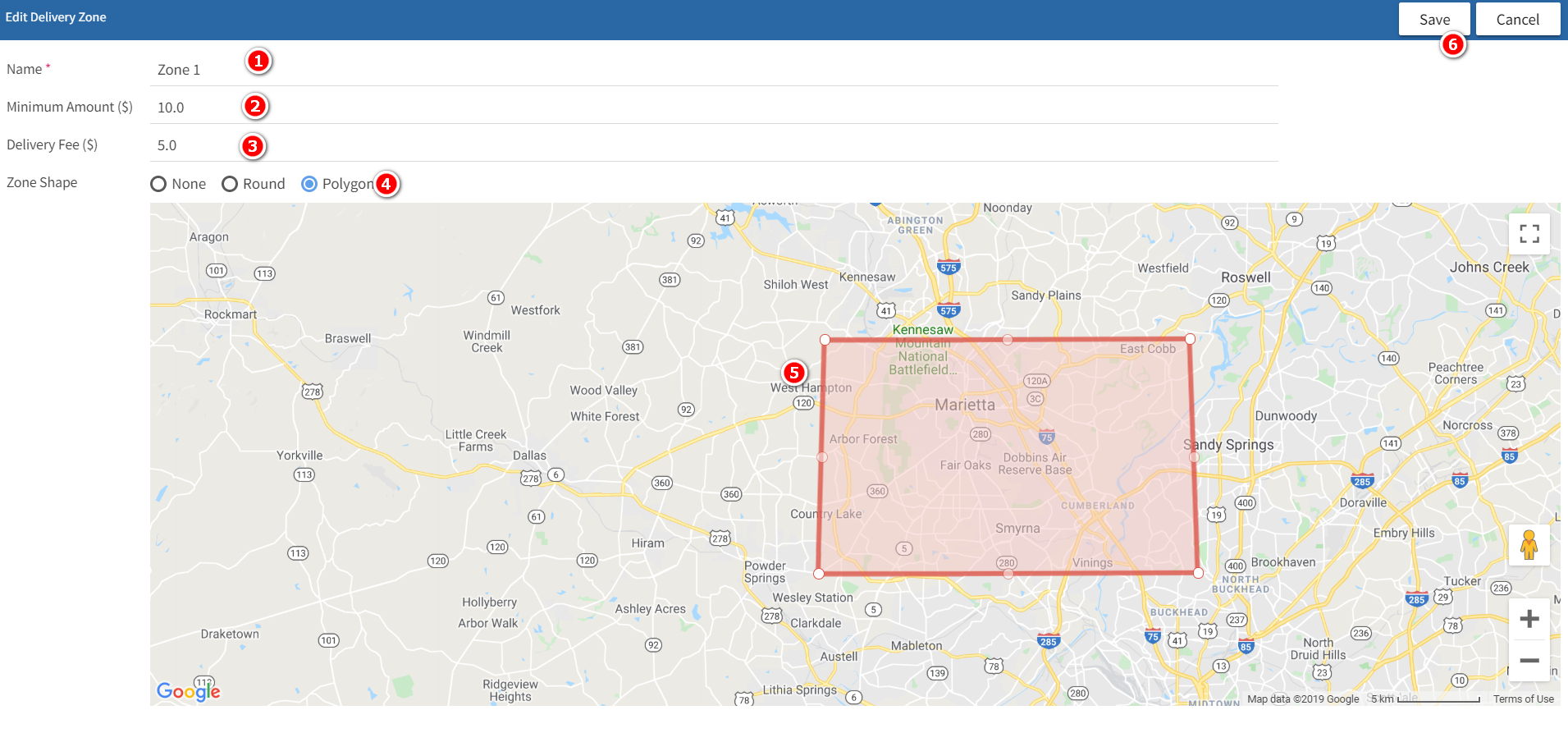
Fill in the Zone Details
- 📝 Enter a name for your delivery zone (e.g., “Downtown”, “5-mile radius”)
- 💰 Minimum order amount (optional) — e.g., $20 minimum for delivery
- 🚗 Delivery fee (optional) — flat fee for this zone
- 🗺️ Use the Polygon method to mark your zone on the map
- 👆 Drag and drop the polygon corners to draw your boundary
- 💾 Save the zone (top right corner)
💡 Multiple Zones
You can create multiple zones with different fees. For example:
- Zone 1 (Close): $0–2 mile radius — $3 fee
- Zone 2 (Mid): 2–5 mile radius — $5 fee
- Zone 3 (Far): 5–10 mile radius — $8 fee
📍 Map Tip
Menugreat automatically locates your restaurant address on Google Maps. Click around the map to add corners and shape your delivery area.
📞 Need Help?
Contact support at helpdesk@orocube.net