

🖥️ Kiosk Configuration: Connect to ORO POS
An ORO Kiosk is a self-ordering touchscreen terminal that connects directly to your ORO POS system. Once configured, the Kiosk acts as a full ORO POS terminal.
Kiosks connect to ORO POS over your network. Each Kiosk acts as an additional ORO POS terminal — orders placed on the Kiosk go directly into your POS system, kitchen printers, and reports just like a regular cashier-rung order.
🔌 How Kiosks Connect to ORO POS
The Kiosk software is essentially an ORO POS terminal in self-service mode. It connects to the same database as your other terminals.
Connection Requirements
- 📡 Network connection to your ORO POS database (same Wi-Fi or LAN)
- 🔑 Database credentials from your master terminal
- 🖼️ Touchscreen device (Windows tablet, all-in-one, or kiosk hardware)
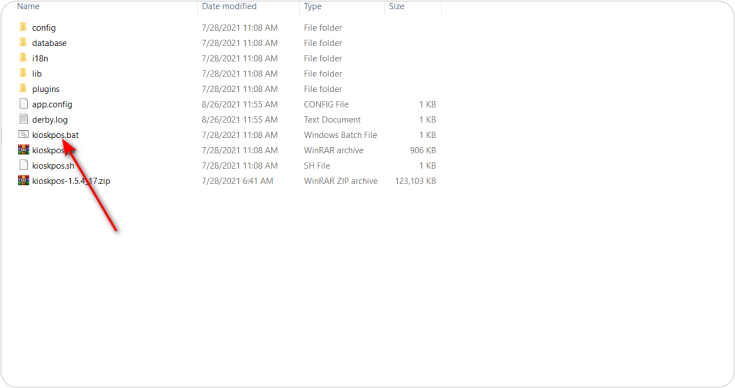
- 🔧 Kiosk software installed (kioskpos.bat)
What Happens Once Connected
| Action on Kiosk | Effect in ORO POS |
|---|---|
| Customer places order | Order appears in POS instantly |
| Customer pays at kiosk | Payment recorded in POS reports |
| Customer chooses “Pay at Counter” | Open ticket created — cashier settles later |
| Order submitted | Items print to kitchen automatically |
After setup, see how customers place orders: Kiosk Order Taking Process →
⚙️ Installation Process
Setting up the Kiosk on a Windows touchscreen terminal:
Step 1: Run the Installer
Extract the zip file and execute kioskpos.bat.
Step 2: Application Launcher
The application launcher displays — wait for it to load.
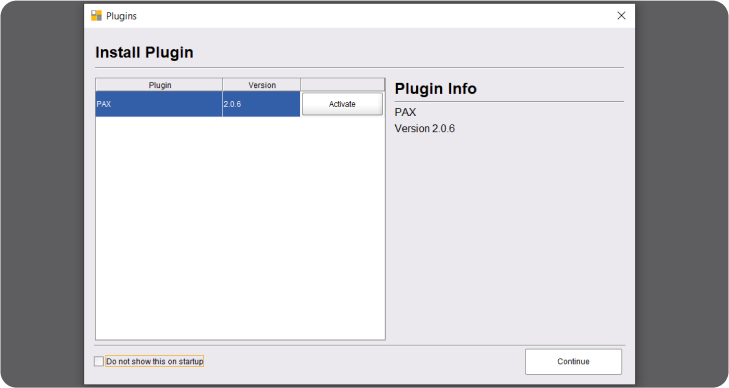
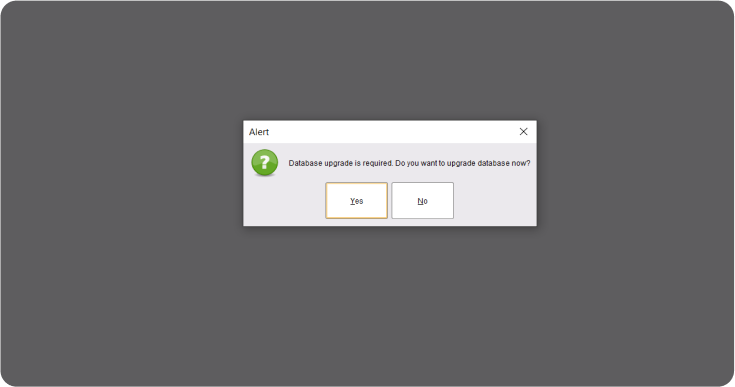
Step 3: Database Upgrade
Press Continue. Select Yes to upgrade the database, or No to skip if your database is already up to date.
Step 4: Log In with Default PIN
Enter the default administrator PIN: 1111
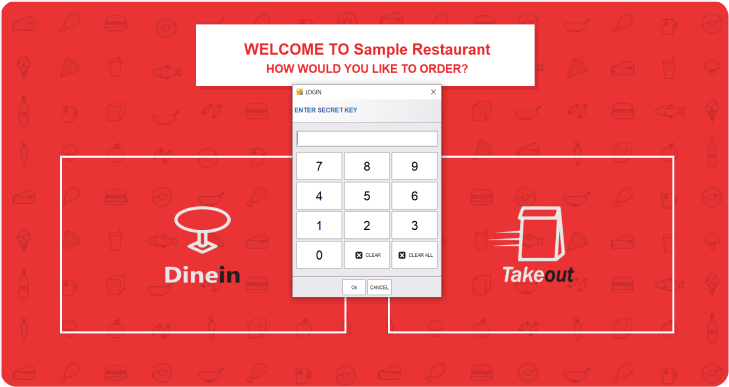
For security, change the default PIN 1111 after setup.
To connect this Kiosk to an existing ORO POS database (rather than running standalone), configure the database connection in the Kiosk settings to point to your master terminal‘s database server.
Now that your Kiosk is configured, learn how customers will place orders:
📞 Need More Help?
Visit our knowledge base at guide.orocube.com or contact support at helpdesk@orocube.net