

⚙️ FloorPlan: General Configuration Settings
The General Configuration tab in FloorPlan settings controls how table information is displayed on each table button — what staff see at a glance during service.
Go to Floor plan → FloorPlan Configuration → General tab.
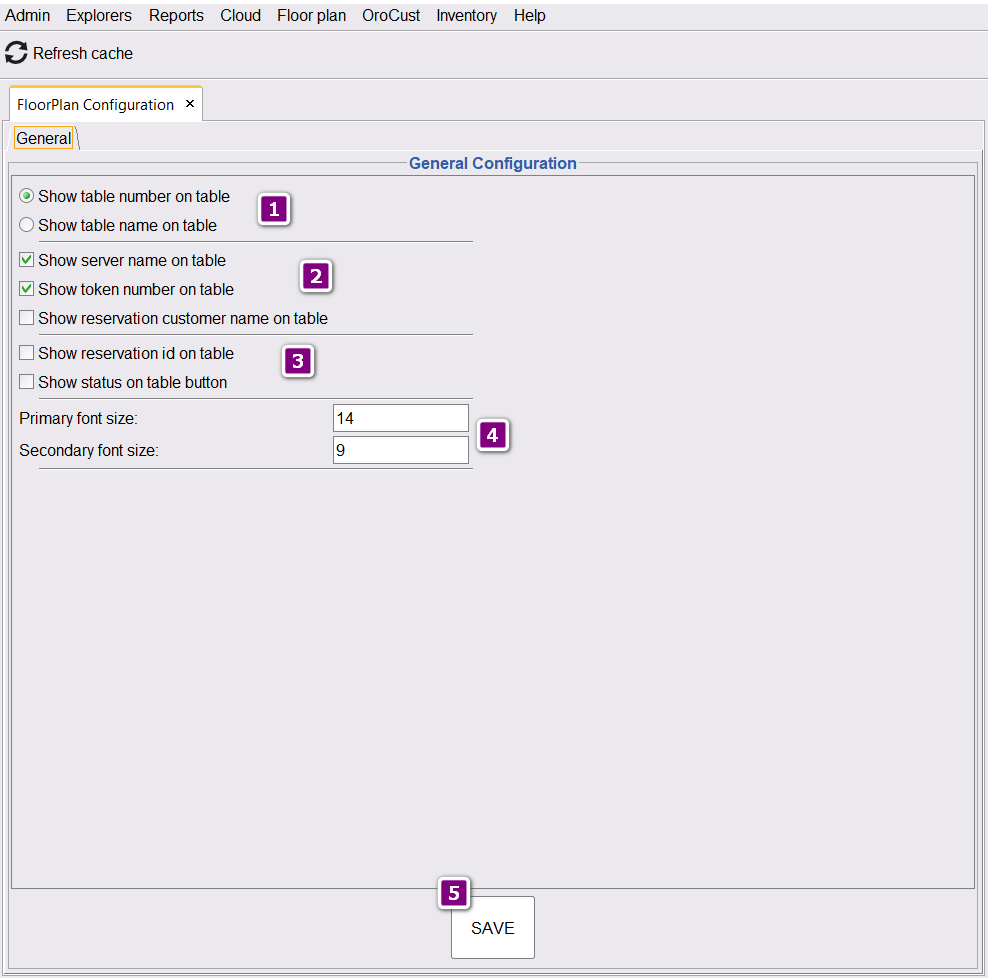
📸 FloorPlan General Configuration screen (click to enlarge)
1️⃣ Display Mode: Number vs Name
Choose what appears as the main label on each table button.
| Option | When to Use |
|---|---|
| 🔢 Show table number on table | Best for casual dining, quick service, or when tables are numbered like 1, 2, 3… |
| 🏷️ Show table name on table | Best for fine dining, banquet halls, or when tables have descriptive names like “Window A” or “VIP Booth” |
This is a radio button — only one can be active at a time. Most quick-service restaurants use Table Number; full-service restaurants often use Table Name.
2️⃣ Service Information Display
These checkboxes control what operational details appear on the table button.
| Setting | Purpose |
|---|---|
| 👨🍳 Show server name on table | Displays which server is assigned to the table. Helps managers identify who is serving each guest. |
| 🎫 Show token number on table | Shows the order token/ticket number. Useful for quickly locating an active order. |
| 👤 Show reservation customer name on table | Displays customer name for reserved tables. Helps host greet guests by name. |
Server name and token number are most useful for full-service restaurants with table service. Reservation customer name is great for upscale or reservation-driven venues.
3️⃣ Reservation & Status Information
| Setting | Purpose |
|---|---|
| 🆔 Show reservation id on table | Displays unique reservation ID. Useful for cross-referencing with reservation system. |
| 🔵 Show status on table button | Displays table status (Available, Occupied, Reserved, Dirty, etc.) directly on the button. Highly recommended for fast operations. |
Be careful enabling too many display options at once — table buttons can become cluttered. Start with the essentials and add more as needed.
4️⃣ Font Size Settings
Controls how text appears on table buttons.
| Setting | Default | Use For |
|---|---|---|
| Primary font size | 14 | Main label (table number or name) |
| Secondary font size | 9 | Additional info (server name, token, status) |
- Large monitors (24″+): Default 14/9 works well
- Small terminals (15″): Try 12/8
- Touchscreen tablets: Increase to 16/10 for better readability
- Many tables (50+) on screen: Reduce to 12/8 to fit more
5️⃣ Save Changes
After making your changes, click the SAVE button at the bottom of the screen.
Changes are not applied automatically. You must click SAVE for the new settings to take effect across all terminals.
✅ Recommended Settings by Business Type
🍴 Full-Service Restaurant
| Setting | Recommended |
|---|---|
| Display Mode | Show table number |
| Show server name | ✓ Yes |
| Show token number | ✓ Yes |
| Show status on table | ✓ Yes |
| Primary / Secondary font | 14 / 9 |
🍷 Fine Dining / Reservation-Driven
| Setting | Recommended |
|---|---|
| Display Mode | Show table name |
| Show server name | ✓ Yes |
| Show reservation customer name | ✓ Yes |
| Show status on table | ✓ Yes |
| Primary / Secondary font | 14 / 10 |
🍺 Casual / Bar / Quick Service
| Setting | Recommended |
|---|---|
| Display Mode | Show table number |
| Show server name | ⚙️ Optional |
| Show token number | ✓ Yes |
| Show status on table | ✓ Yes |
| Primary / Secondary font | 14 / 9 |