Siiopa is our fully cloud-based android POS system. This is available in google play store. You can install it in any tablet/mobile using android 6.0 or higher.
- Registration in the Cloud
- Menu Programming
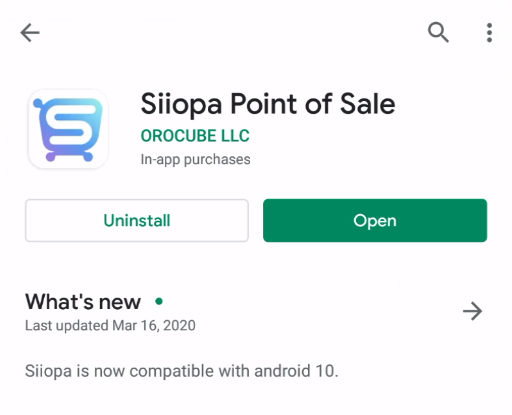
After downloading Siiopa from app store follow the steps below to configure your store.
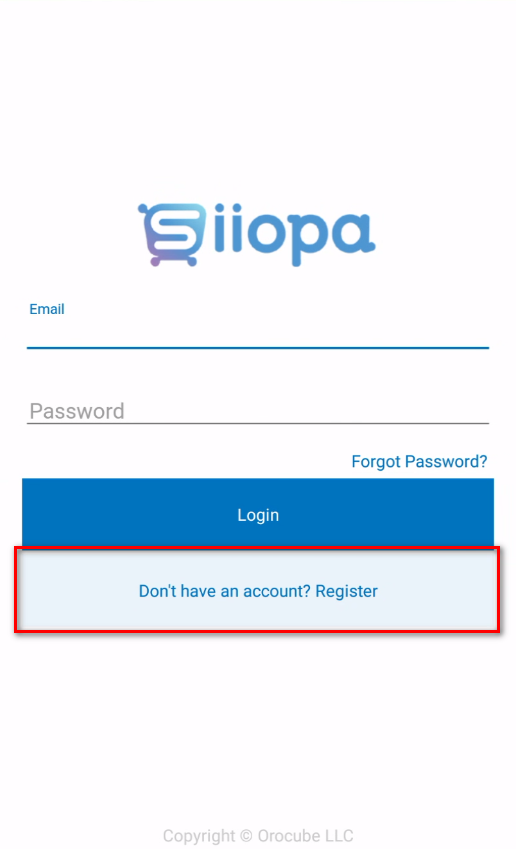
If you have an existing Siiopa account just log in to your account or register your store if you are a 1st time user.
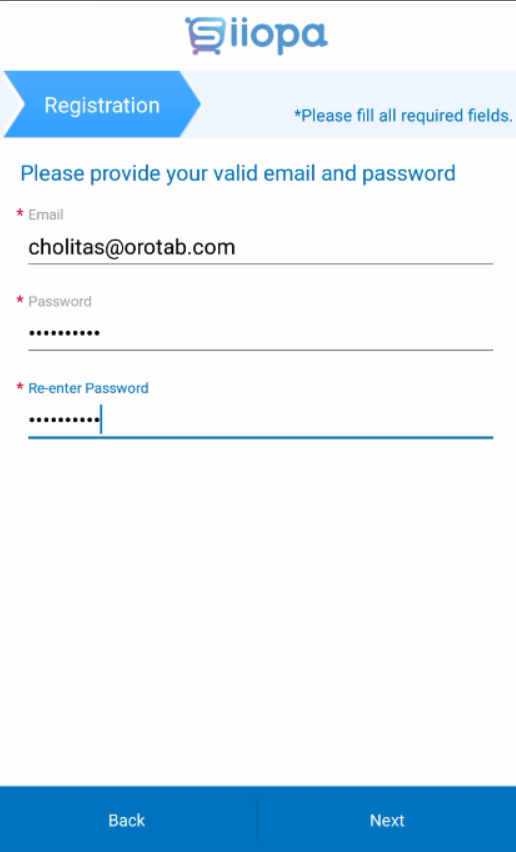
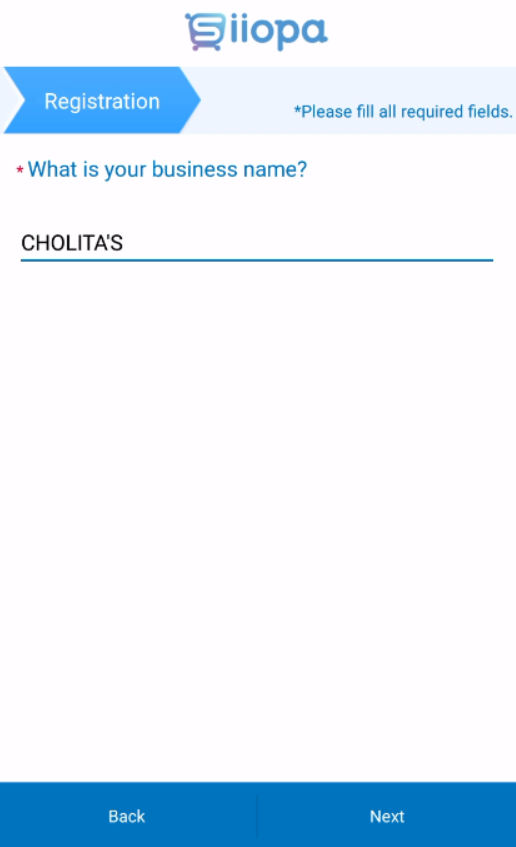
Enter your business name,
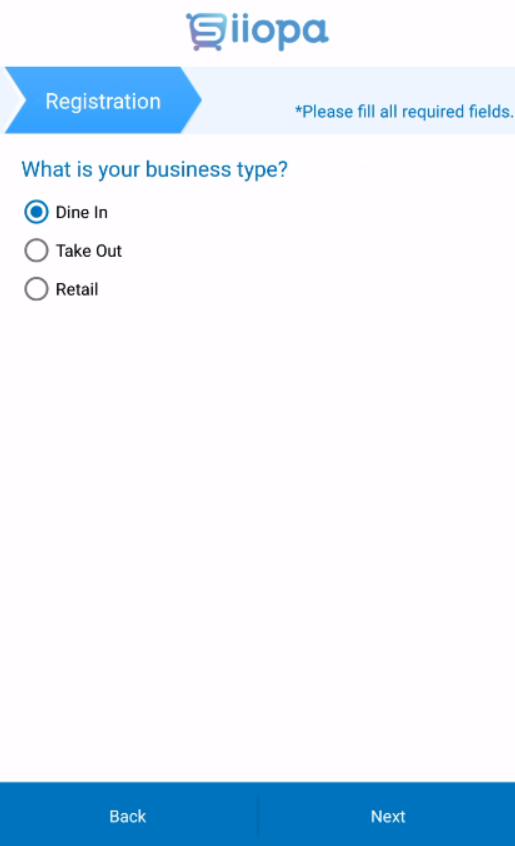
Enter your business type,
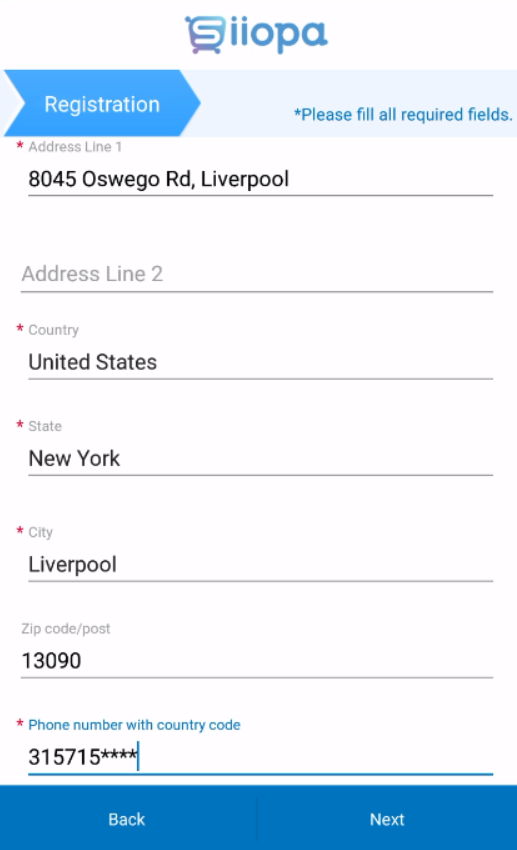
Enter your business location,
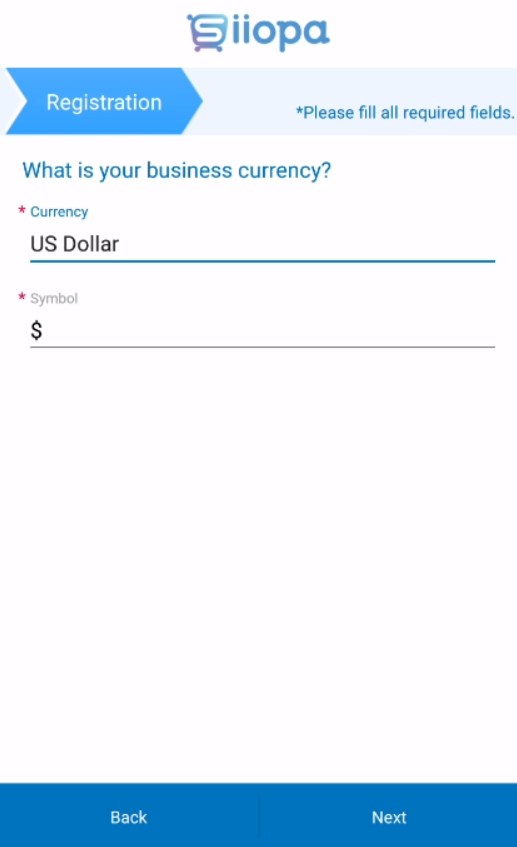
Enter your currency,
Tax rate,
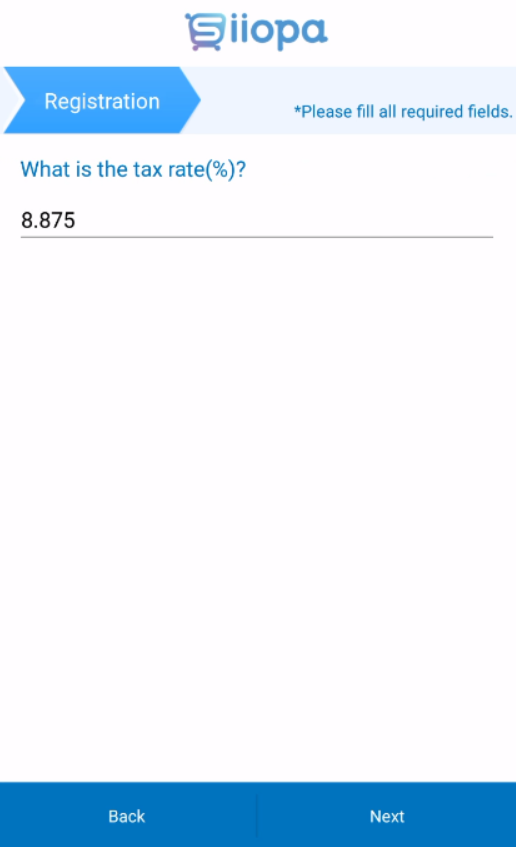
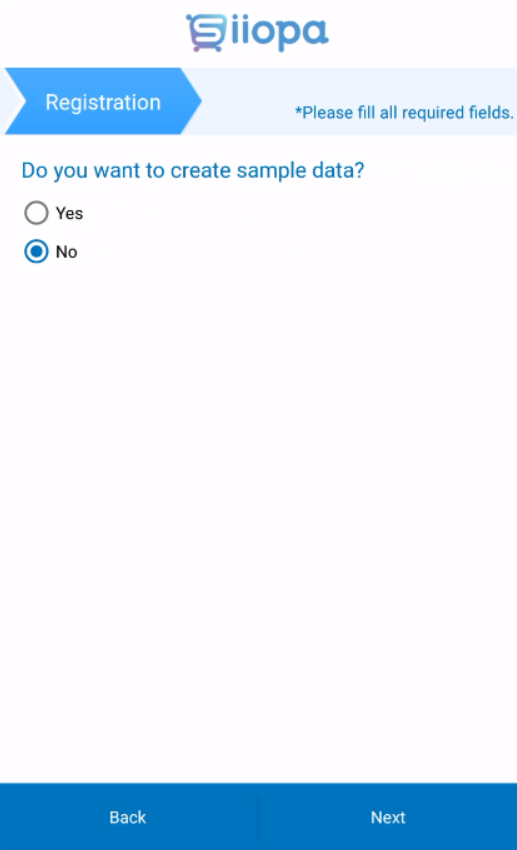
If you want to test the system with some sample menu items then check Yes. Live store users configuring their store should use NO here,
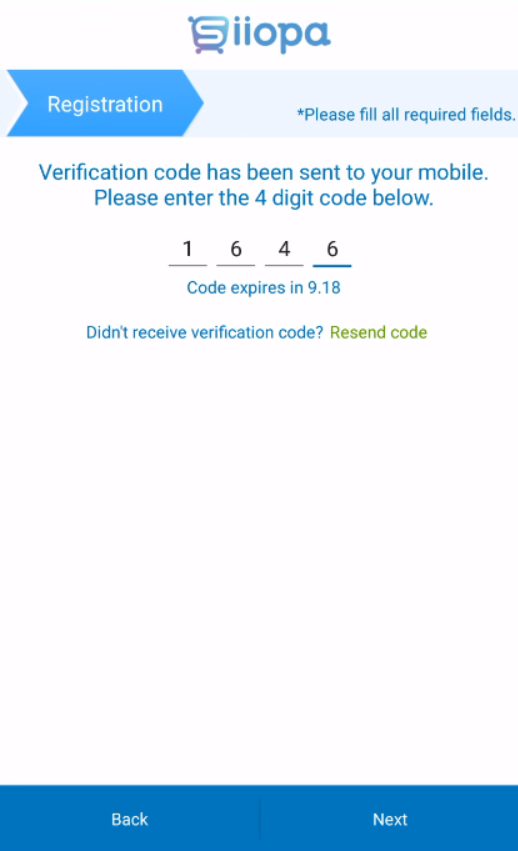
Now you will receive a mobile notification with a pin code to register your store in Siiopa,
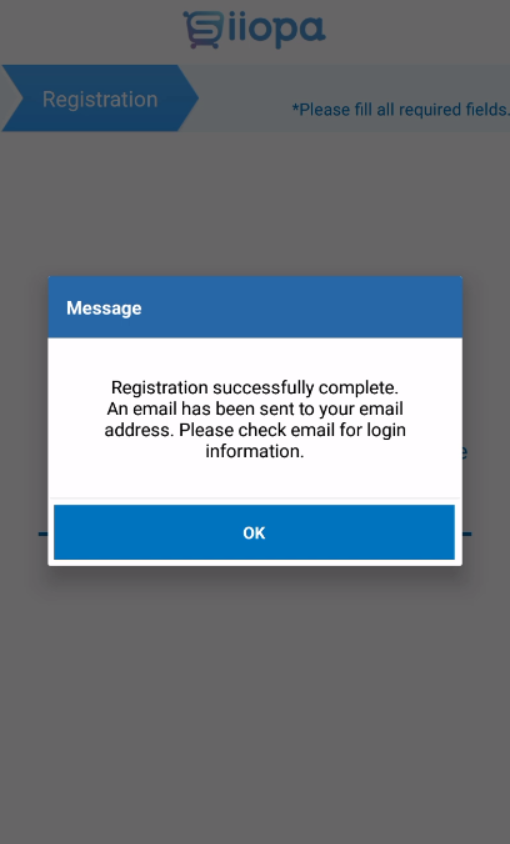
You will receive a registration successful message in this stage,
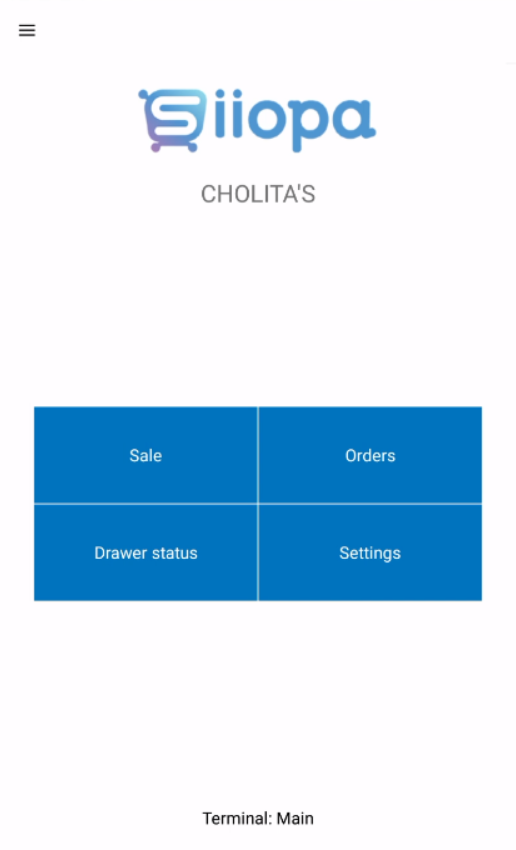
Menu Programming
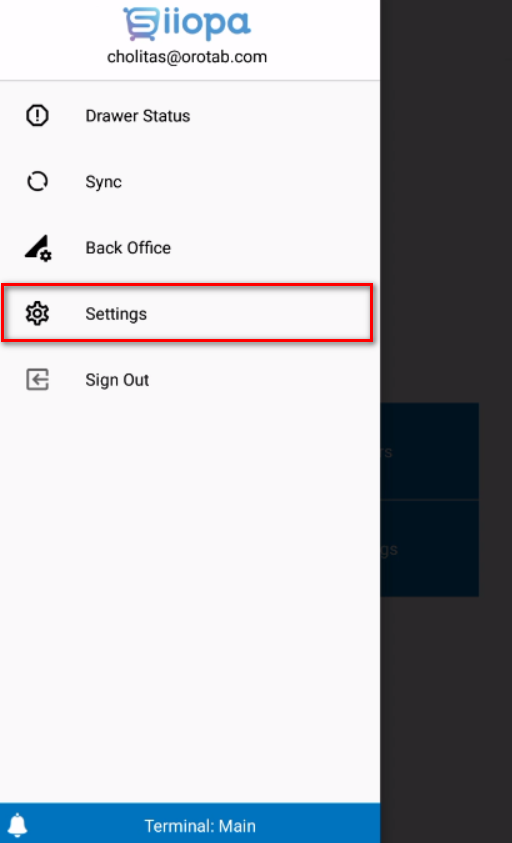
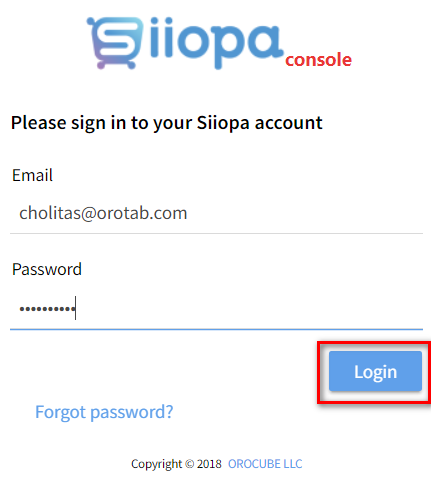
Now to set your menu items, you can go to the settings from your app or from siiopa.com and log in using your Email ID and Password
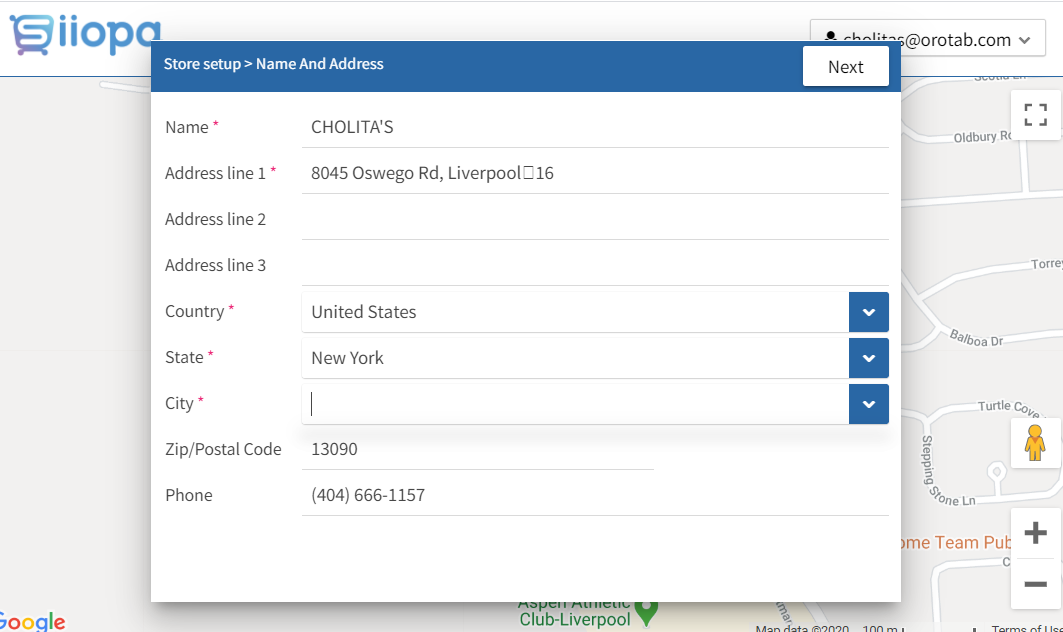
In this stage, the system will try to reconfirm the exact store location to locate the store on the google map. Insert your store location here or check if the store location you provided is correct,
Now add your menu items here. You can also import your menu items here from spreadsheet. Once you are done entering your menu items, click on the finish button on the top right corner(1).
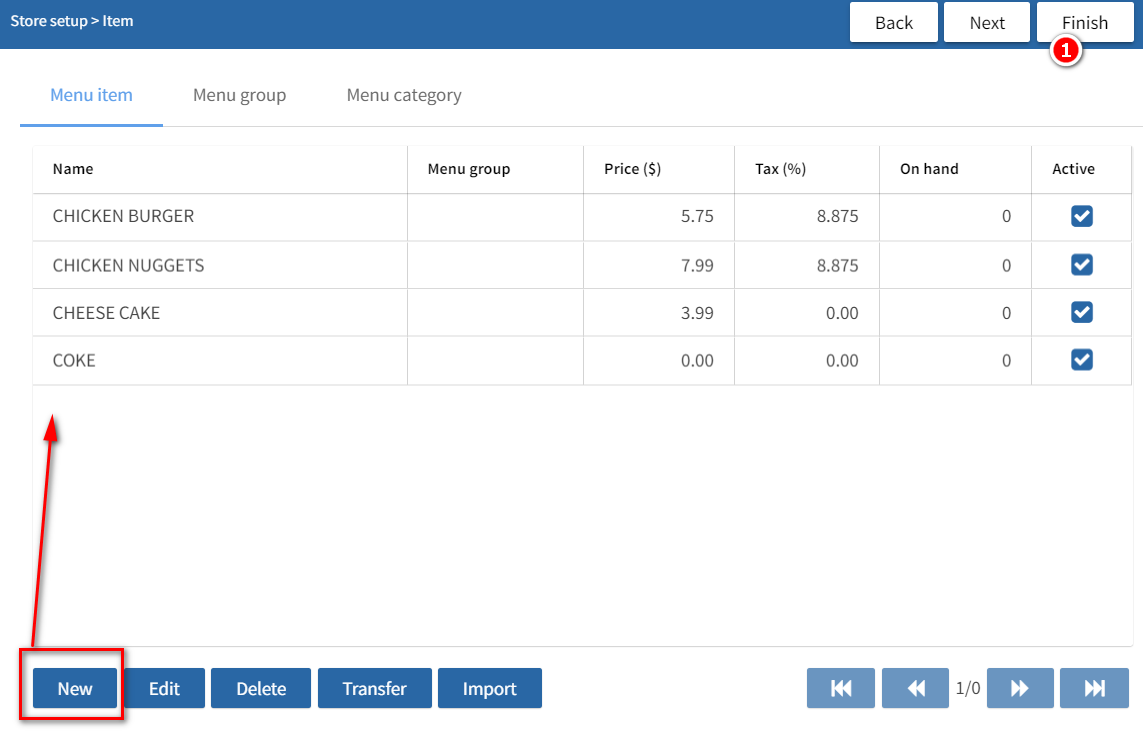
Everytime you make any changes in the cloud, you will receive a notification in your phone and your Siiopa app will automatically add the same changes in the app.
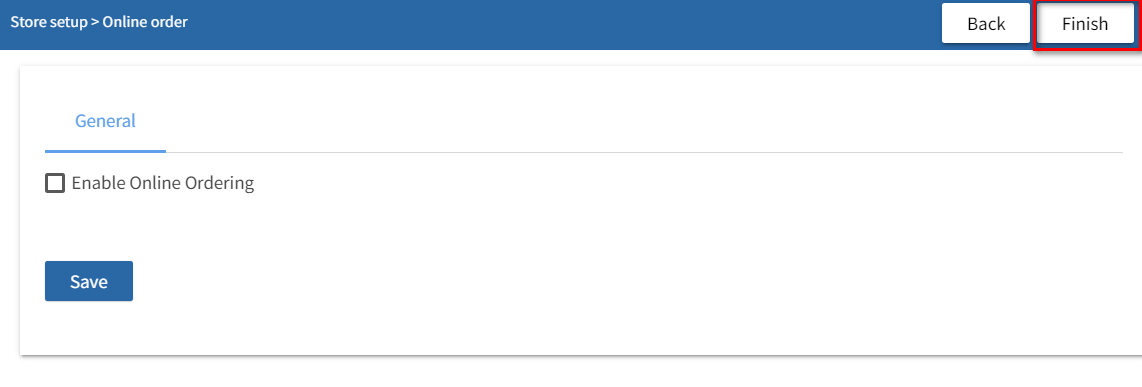
Online order is not yet implemented with Siiopa, so please ignore the next step and click on the finish in the top right corner.
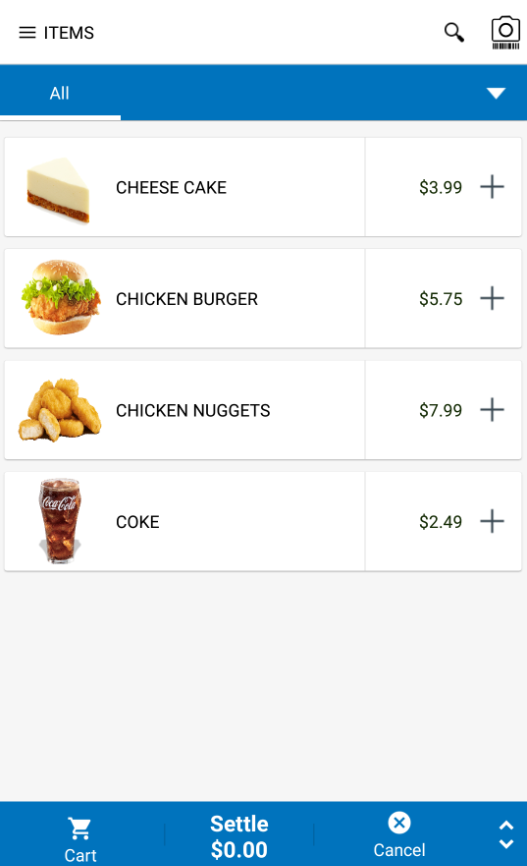
By default, the items are shown in Lists,
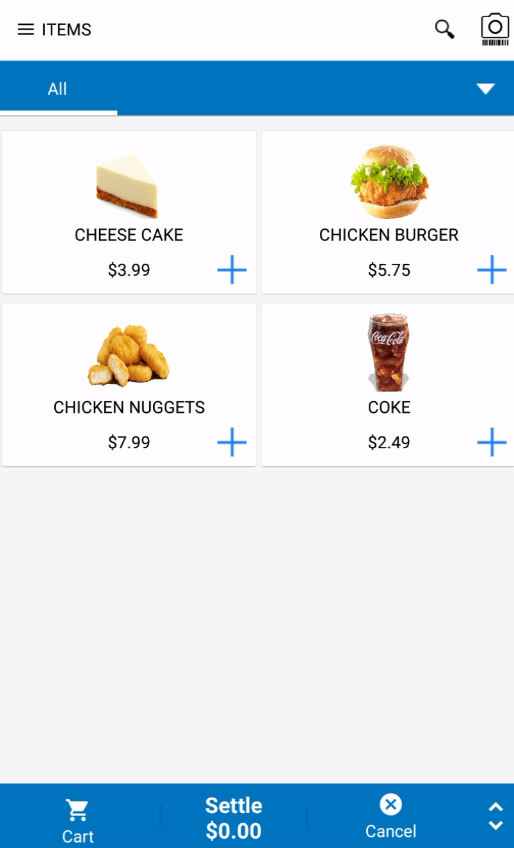
Otherwise, If you want to show your menu items in a Grid Mode visit, settings–> terminal settings–> turn on show item on the grid
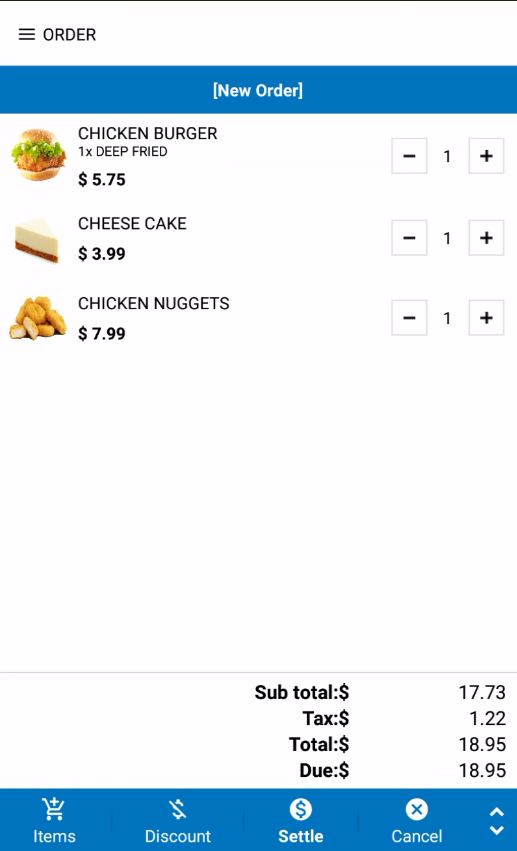
Now take an order, clicking on the menu items
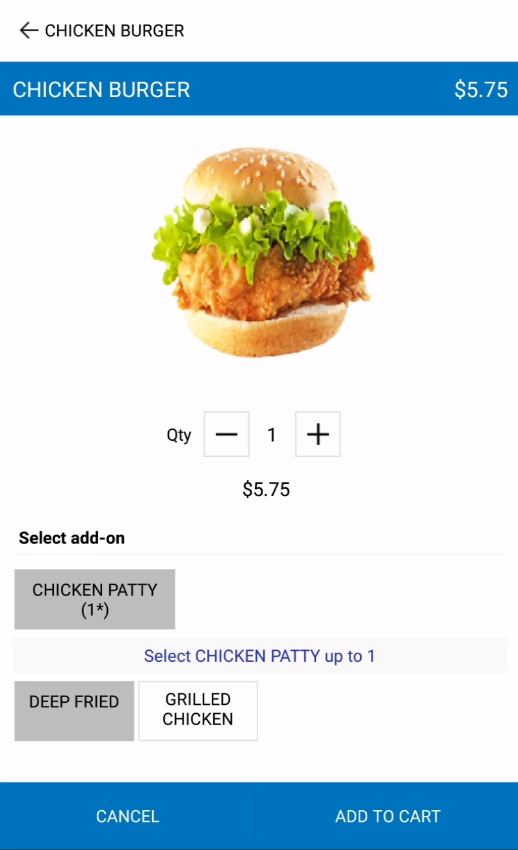
If you have modifiers in any items, will look like the following,
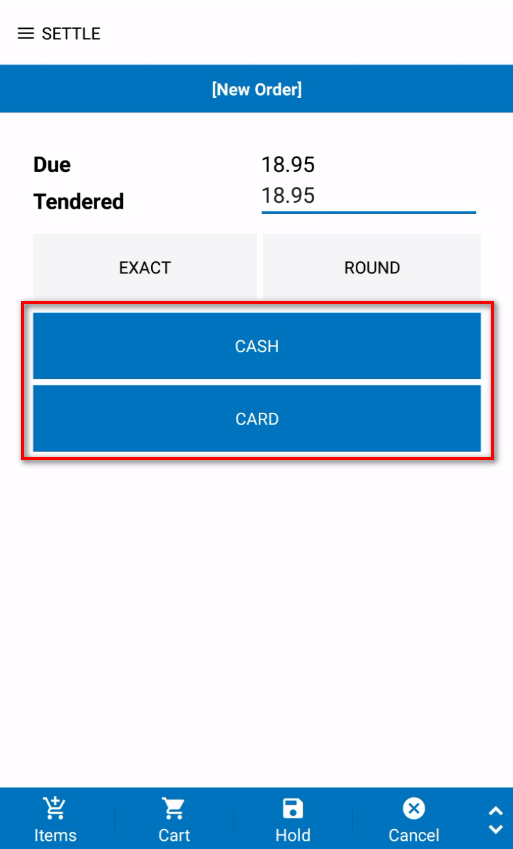
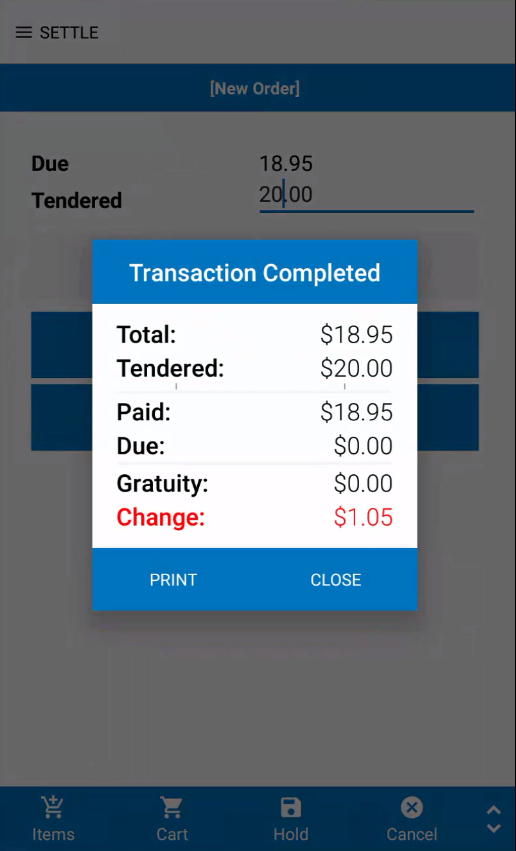
By clicking on the Settle button you can go to the settlement screen and take payments,
To print a receipt, you need to configure a printer from Siiopa–>settings–> print config
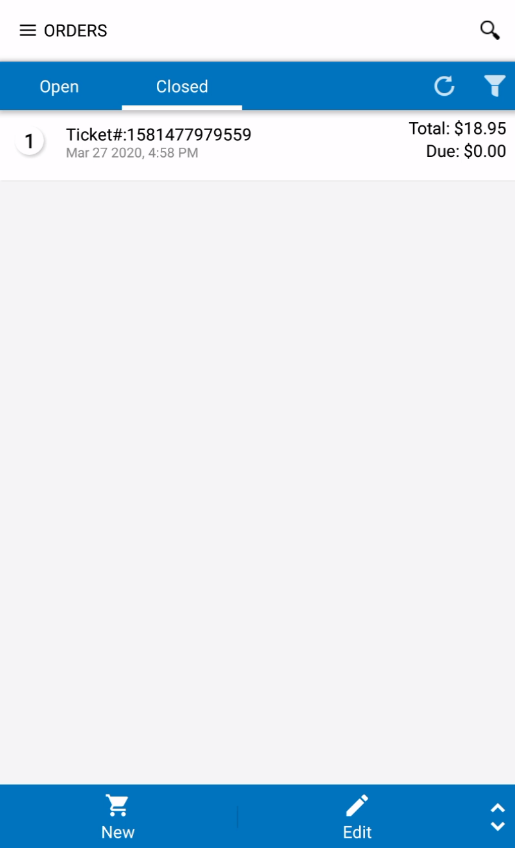
To find your closed/open orders visit siiopa–>orders–> open/closed